64
Scene Filters
The scene filters on the Scenes page allow you to specify which settings get loaded
from a mix scene. When a scene filter in the Scenes page is selected, the indicated
settings will be loaded, overwriting the existing settings. Settings are not loaded for
unselected scene filters, and those settings are left at their existing values. Blue-
green colored labels and borders on the Filter buttons indicate selected filters.
• Name
• FX
• EQ and Dyn
• Aux Mix
• Assigns
• Preamps
• GEQ
• DCA Groups
• Faders
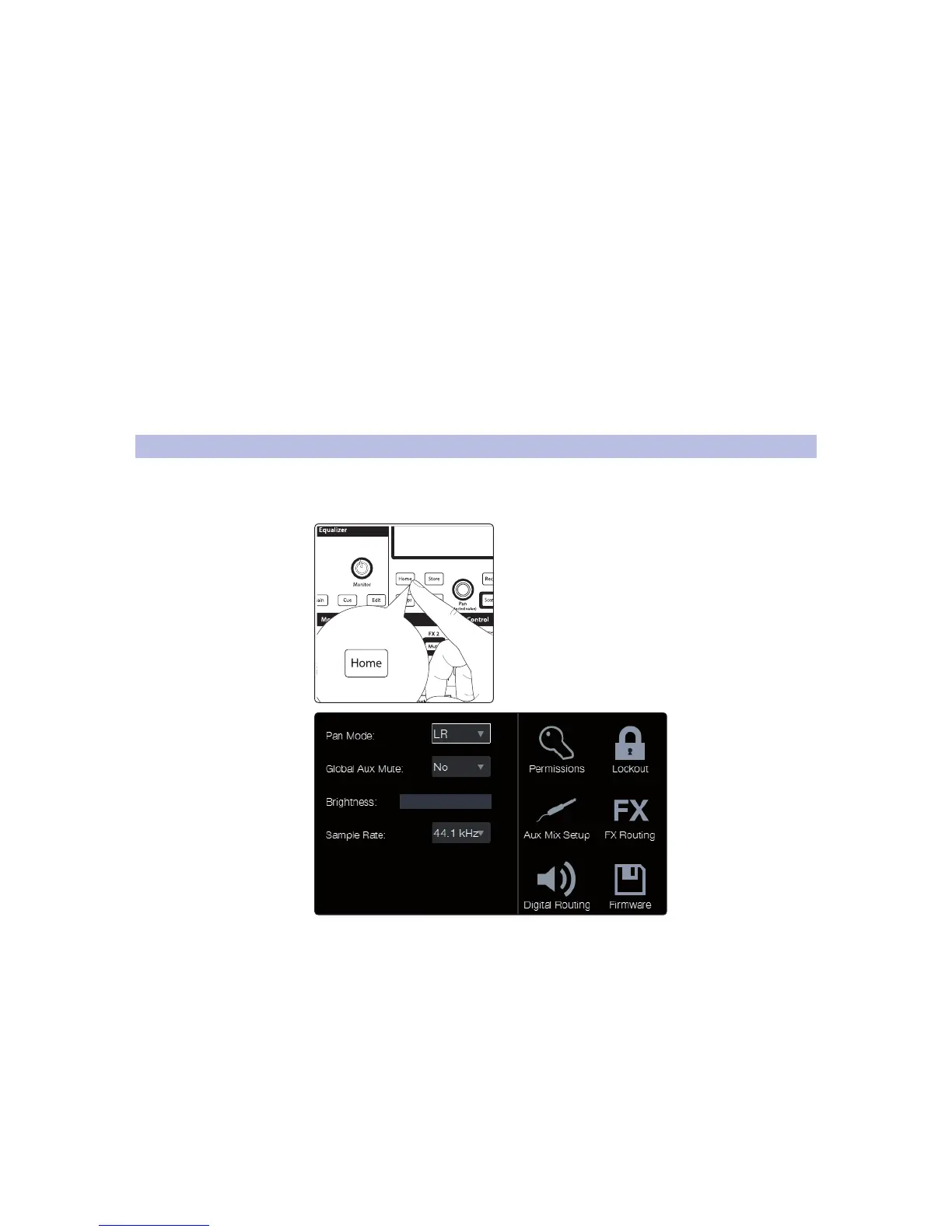
5.7 System Menu
The main system settings for your StudioLive CS18AI and connected
StudioLive RM mixer are found in the System menu. To get to
this view, press the Home button and select System.
This screen is split into two sections. On the left are settings,
and on the right are the additional setup menus.
Pan Mode sets the main bus output type. The main bus for StudioLive RM-
series mixers can be configured as stereo L/R or as LCR (Left-Center-Right).
Peak Hold sets the type of metering. StudioLive RM mixers offer both Peak and
Peak Hold metering. To view the Peak Hold, simply enable this preference.
Global Aux Mute controls channel mutes per mix. By default, channels are set to
mute globally in all output buses. Setting Global Aux Mute to “No” allows you to
mute your channels per mix. Aux and effects buses will follow the send position
setting (i.e., post-fader sends will mute in the bus but Pre1/Pre2 sends will not).










 To Next Page