55
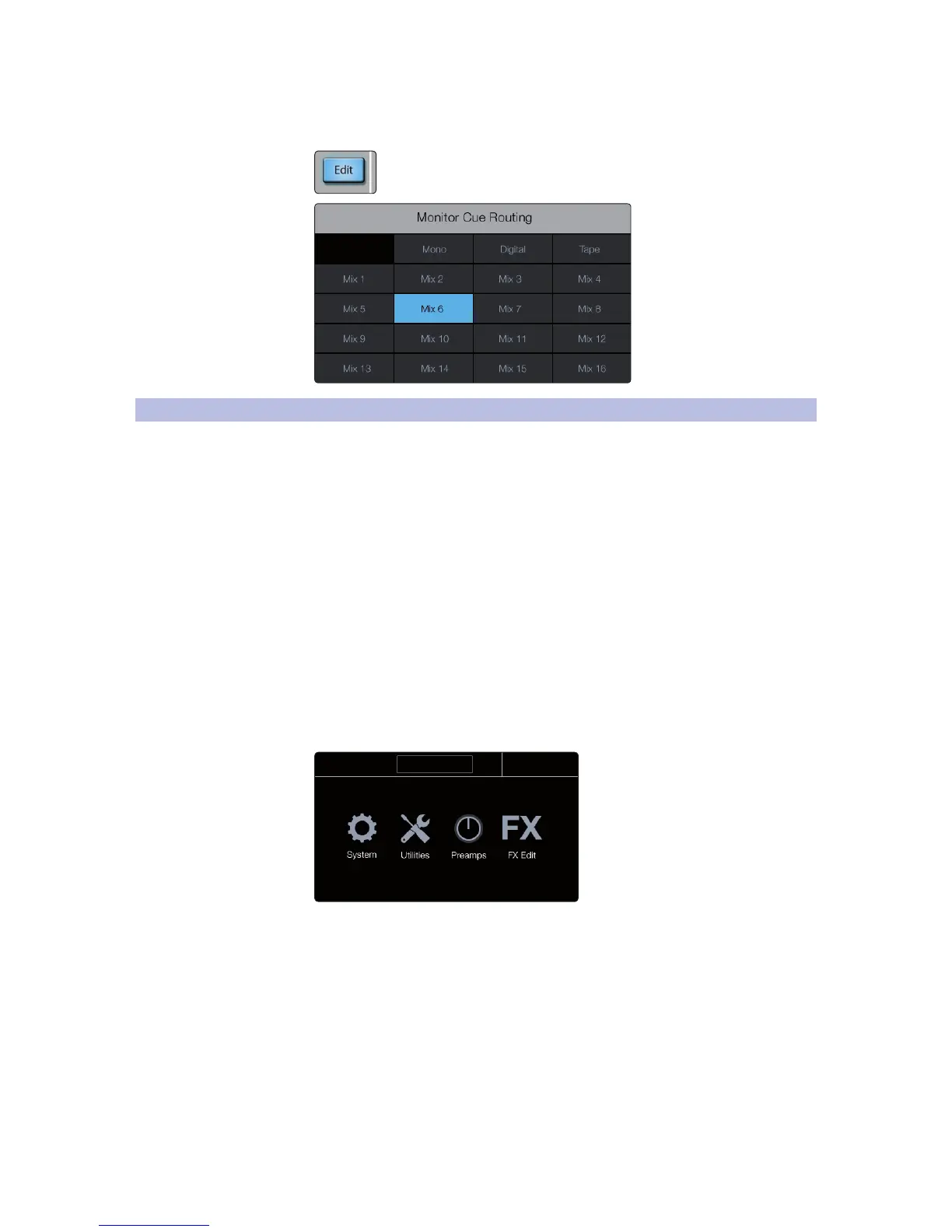
Edit will open the Monitor Cue Routing view on the touchscreen. From here you
can select the Main Mono/Center, digital return, stereo tape input, or any aux
mix as the source for the Monitor bus. These sources are always post-fader.
5.6 Master Control and Touchscreen
From the Master Control section, you can select and change the parameters of
the four internal effects processors, and you can store and recall every setting
on the StudioLive RM mixer. This is also where you’ll access the primary settings
and preferences for your RM mixer and StudioLive CS18AI controller.
Touchscreen
Your StudioLive CS18AI color touchscreen provides contextual
information to help you navigate and control your mix. Most
views are divided into three primary sections.
The top right corner will always show the value of the parameter
currently being adjusted. You’ll see the exact fader or preamp
level, compressor threshold, EQ frequency, and so on.
To the left of the parameter value display is the Selected Channel
or Mix banner. This will show the name of the channel or mix that’s
selected, the source (Analog, FireWire, Network) if it’s an input channel,
the routings (Pre 1, Pre 2, Post) if it’s an aux mix, and the Settings gear
icon for opening the Settings view for the selected channel.










 To Next Page