77
Assigning a Channel to a Subgroup
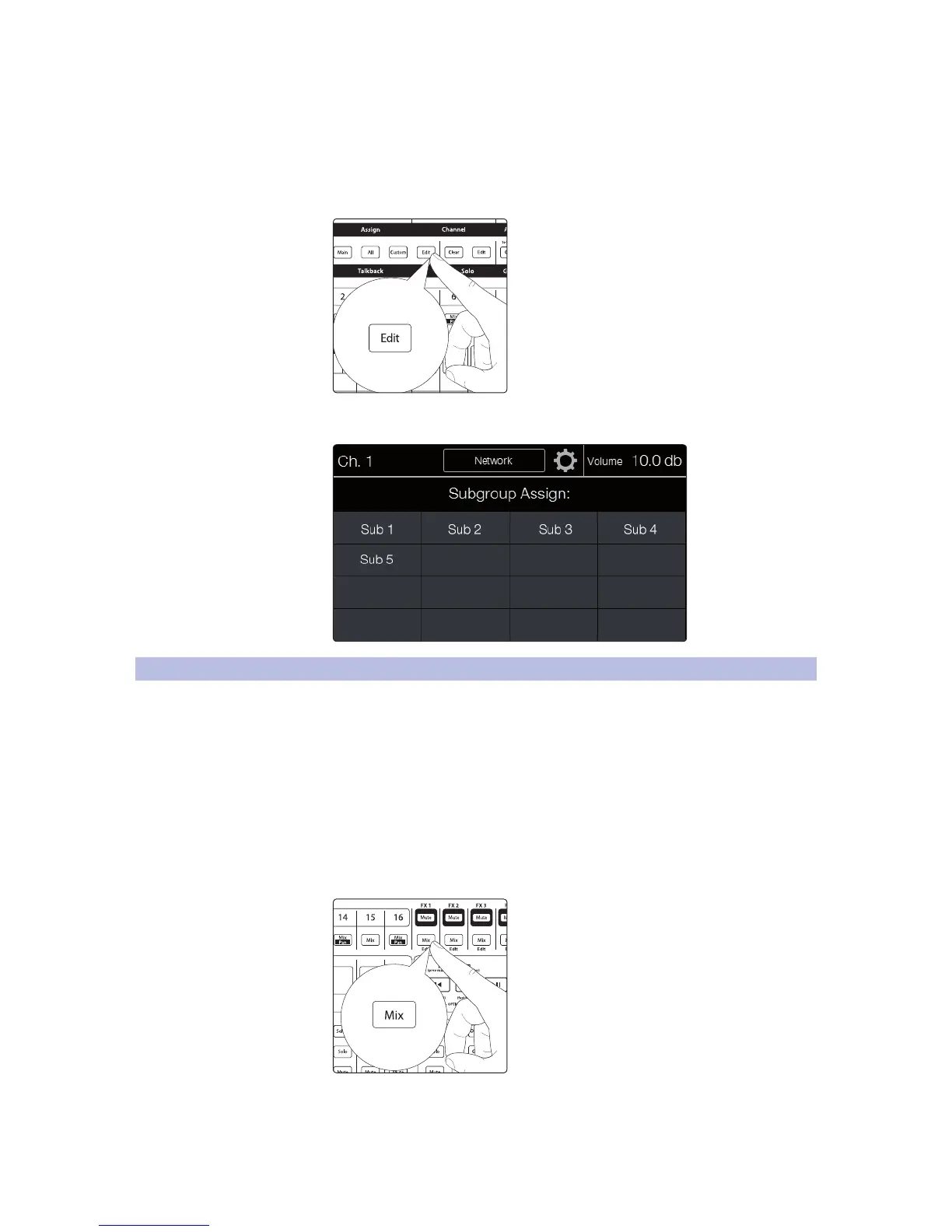
1. Select the channel you’d like to assign to a subgroup by
pressing the Select button on the associated channel strip. This
will display the Fat Channel for the selected channel.
2. Press the Edit button in the Assign section of the Fat Channel to
open the subgroup Assignment view in the touchscreen.
3. Any mixes you have set as subgroups will show as assignable subgroups
on the Assignment view. Touch the subgroups you’d like to assign.
5.10 Internal Effects Mixes
StudioLive RM mixers feature four internal effects processors. The
processors for FX A and FX B are dedicated to reverb. The processors for
FX C and FX D are dedicated to delay effects. These effects buses can be
routed to any of the subgroups, the aux buses, or the main outputs.
Note: FX B and FX D are disabled when HD Mode (88.2 and 96 kHz) is active.
Setting Up an Effects Mix
1. Press the Mix Select button for the effects mix you’d like to setup. The channel
strip faders will then control the send levels of the associated channel to the
selected effects mix. The Flex Master will become the master send level for the
selected effects mix. The FX Edit screen will also be displayed on the touchscreen.










 To Next Page