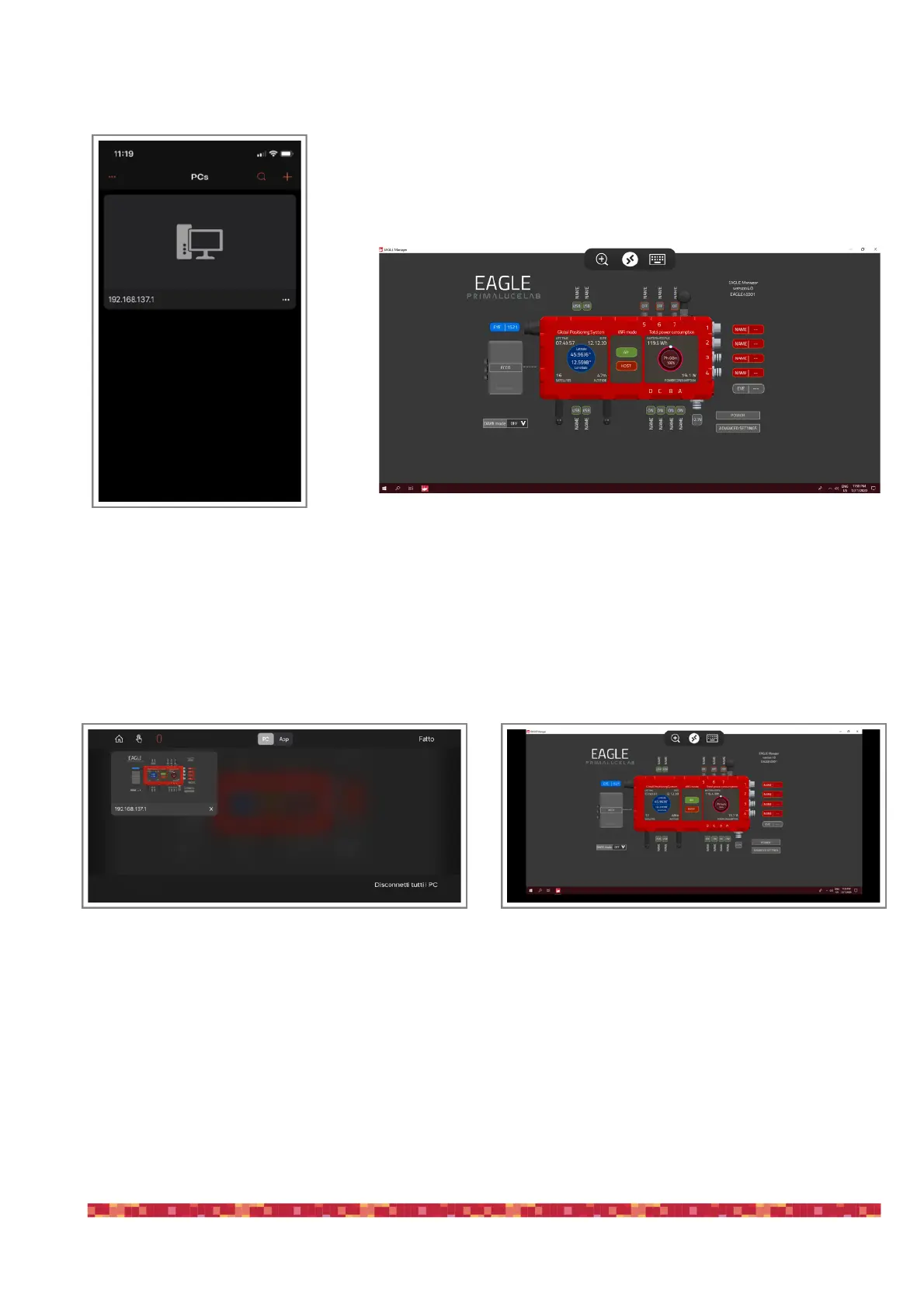
Returning to the main page you will find a new connection (picture 10). Tap on it and
wait a few seconds, you’ll see on your device's desktop EAGLE (image 11).
Now can use the screen of your iPhone or iPad like mouse and keyboard of EAGLE. There are two modes of use, that can
be selected by pressing the central-up button (between the magnifying glass and the keyboard) to see the options. By
default, the app works in "mouse" mode to display the classic Windows pointer that you can move with your finger and
click on the icons and buttons visible on the screen. Instead, if you want to use the touch mode (as you usually do with
tablets or smartphones), click the central button at the top (image 12) and select the hand button (the icon next to the
house).
To simulate a single mouse click (like pressing the left button of the mouse) just "tap" on the screen. To simulate the right
mouse button, place a finger on the screen (and do not move it), and then "tap" with another finger to make options ap-
pear.
NOTE:You can also use another Remote Desktop client, the “Parallels Client” (you can download from the App Store).
This client has to be set as the Microsoft one, the only difference is that this will ask also the Port number, please set
it to 3389.
Image 12: By clicking the central-top button (between
magnifier and keyboard), you will see the options.
Image 13: By clicking the hand button (the icon close
to the house), control will turn in touchscreen mode


 To Next Page