Advanced use: remotely turn on EAGLE with wired connection
EAGLE is designed to allow you, in a simple and fast way, to remotely control your telescope that is connected and powe-
red by EAGLE. In this chapter we will see how to remotely switch on the EAGLE (and all the powered devices) setting up a
direct wired connection via a computer network cable to the EAGLE.
This methods involve the use of a cabled connection, and it is typically used to remotely control an entire telescope instal-
led at a fixed location (for example, on observatory of amateur astronomy association or in your back yard). In this mode
you can turn on remotely EAGLE and then power the devices. If you want to remotely control the EAGLE in a different
way than the one here described, please contact us and we will help you customize your system.
The simplest way of remote control is the wired one, with a direct connection from a
single computer to EAGLE. For this use, you will need a cross-type Ethernet network
cable to be connected to the EAGLE ethernet port and in the one of your control PC .
Then:
a) In EAGLE, select Start button then click on Control Panel and
select “Network and sharing center”
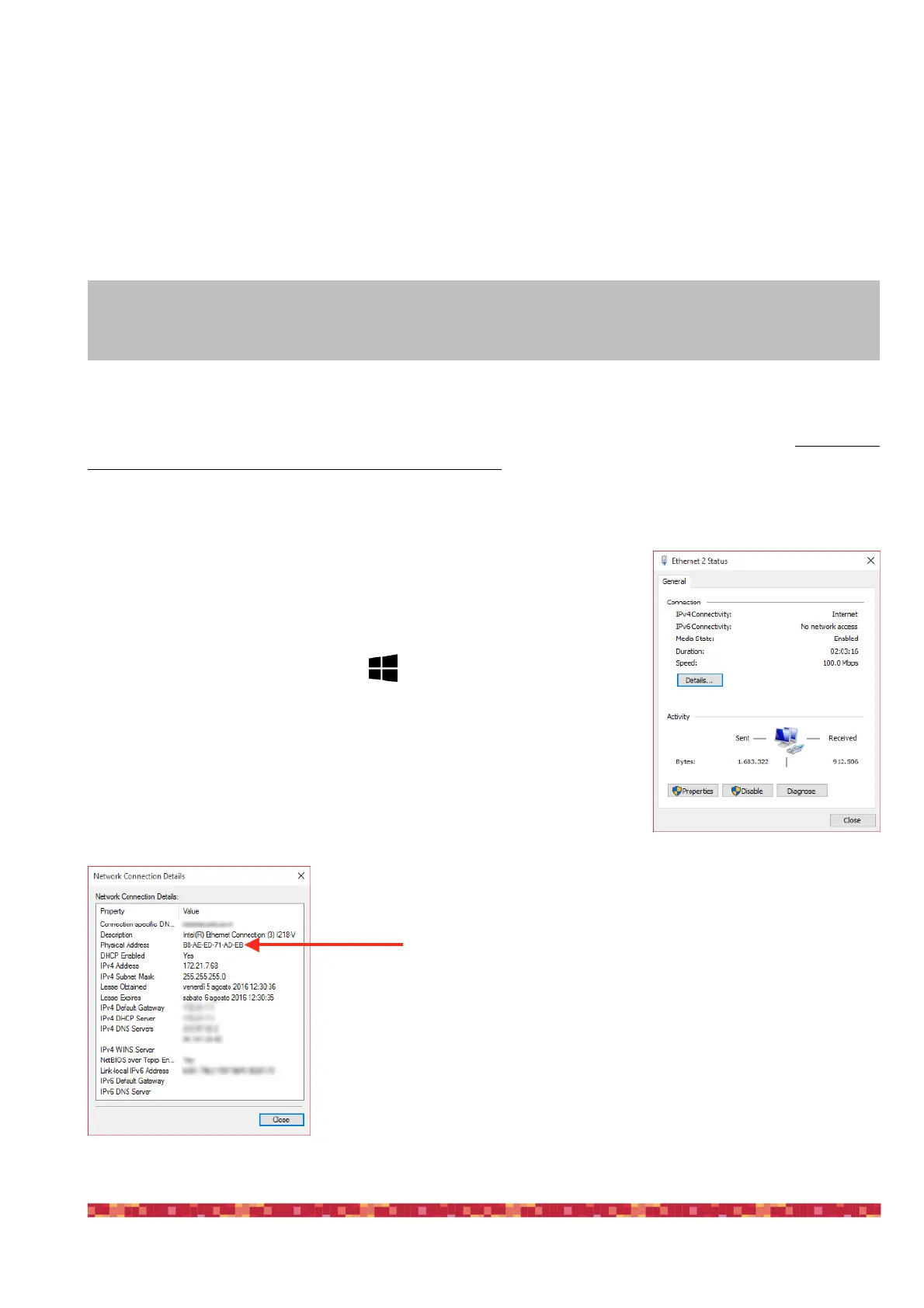
b) Select “Change settings”, double click on the Ethernet connection (image
38) and select “Details”.
c) A window with the details of the network connection will open
d) Write down the value for the “Physical Address” (image 48).


 To Next Page