First use: install your software
EAGLE uses a Windows 10 64 bit operating system. This way you are free to install the astronomy software you choose,
as long as it is designed to work with 64 bit Windows 10. In order to install your software, you can proceed in 2 ways:
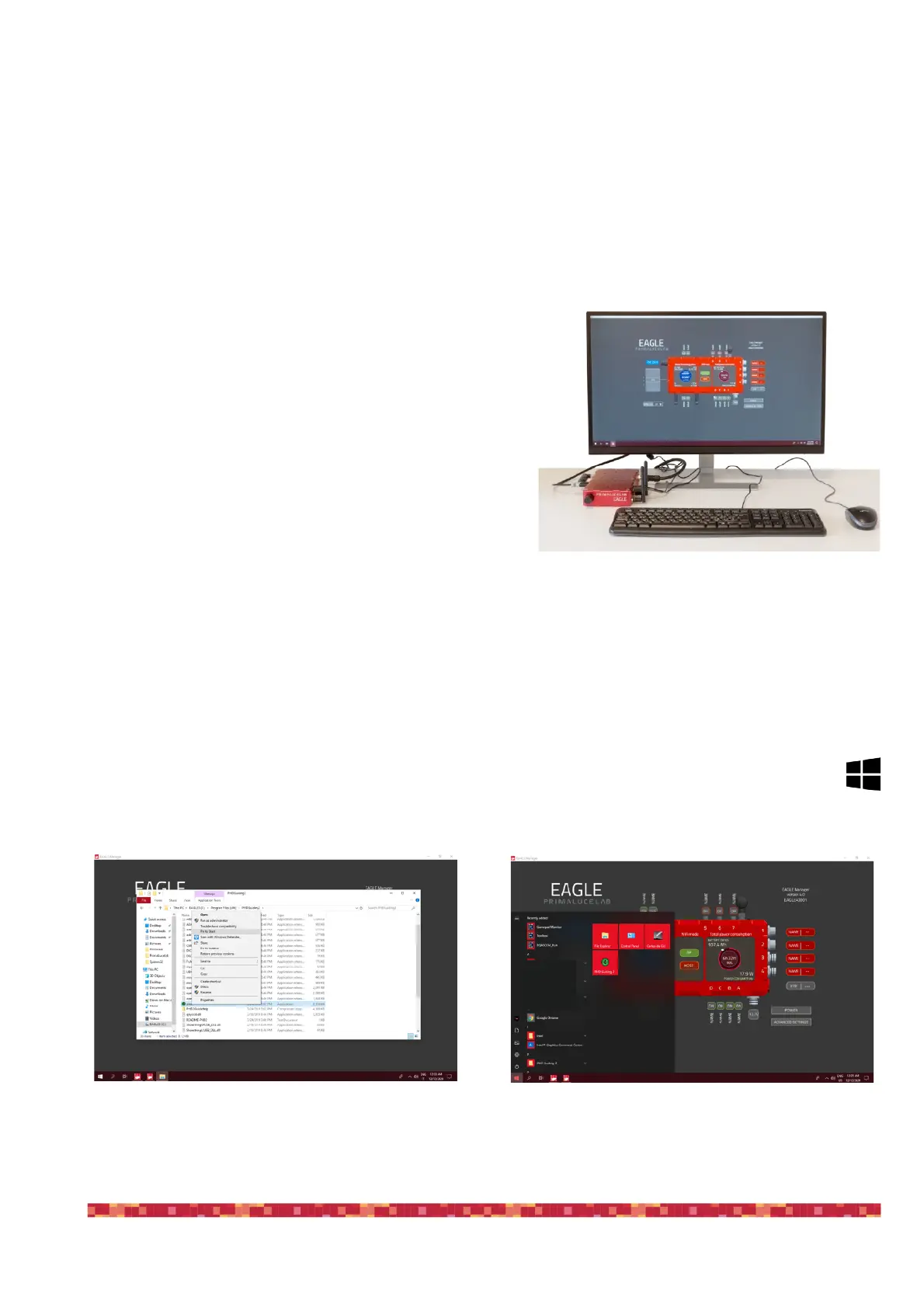
A) Connect the EAGLE to an HDMI monitor and add a USB keyboard
and mouse. This way you will be able to use the EAGLE as a
standard desktop computer (picture 14) and install your soft-
ware.
B) Connect your device (that you use to remotely control the EA-
GLE, for example a smartphone, a tablet or a computer) to the
EAGLE with WiFi and start your Remote Desktop client to see EA-
GLE’s desktop and install your software.
1) EAGLE does not have an integrated CD or DVD reader. If you have to install software that comes on CD or DVD, you
may connect the external CD or DVD reader to the USB port of EAGLE. Then insert the CD or DVD of your software and
follow the on-screen instructions to complete the installation.
2) If you have software to install from a USB thumb drive: connect the USB stick to the USB port of the EAGLE and follow
the onscreen instructions to complete the installation.
For a better management of your software and to get quick access to frequently used applications, you can add
your software to Windows "START" menu. In order to do this, select your software, make a right mouse click, then
select the option "Pin to Start". The icon of your software will appear in the start menu that appears when you
press the button on the screen bottom left (picture 15).


 To Next Page