First use: Setting remote control with iPhone or iPad
This guide has been written by using an iPhone with iOS 13.6 and Mi-
crosoft Remote Desktop client 10.1.2 (and it has been tested also with
iPad using iPadOS 13.6 and Microsoft Remote Desktop client 10.0.6).
From the App Store of your iPhone/iPad, please search and install the
"Microsoft Remote Desktop" app. If you do not know how to install the
app from the App Store, please read the manual of your iPhone/iPad.
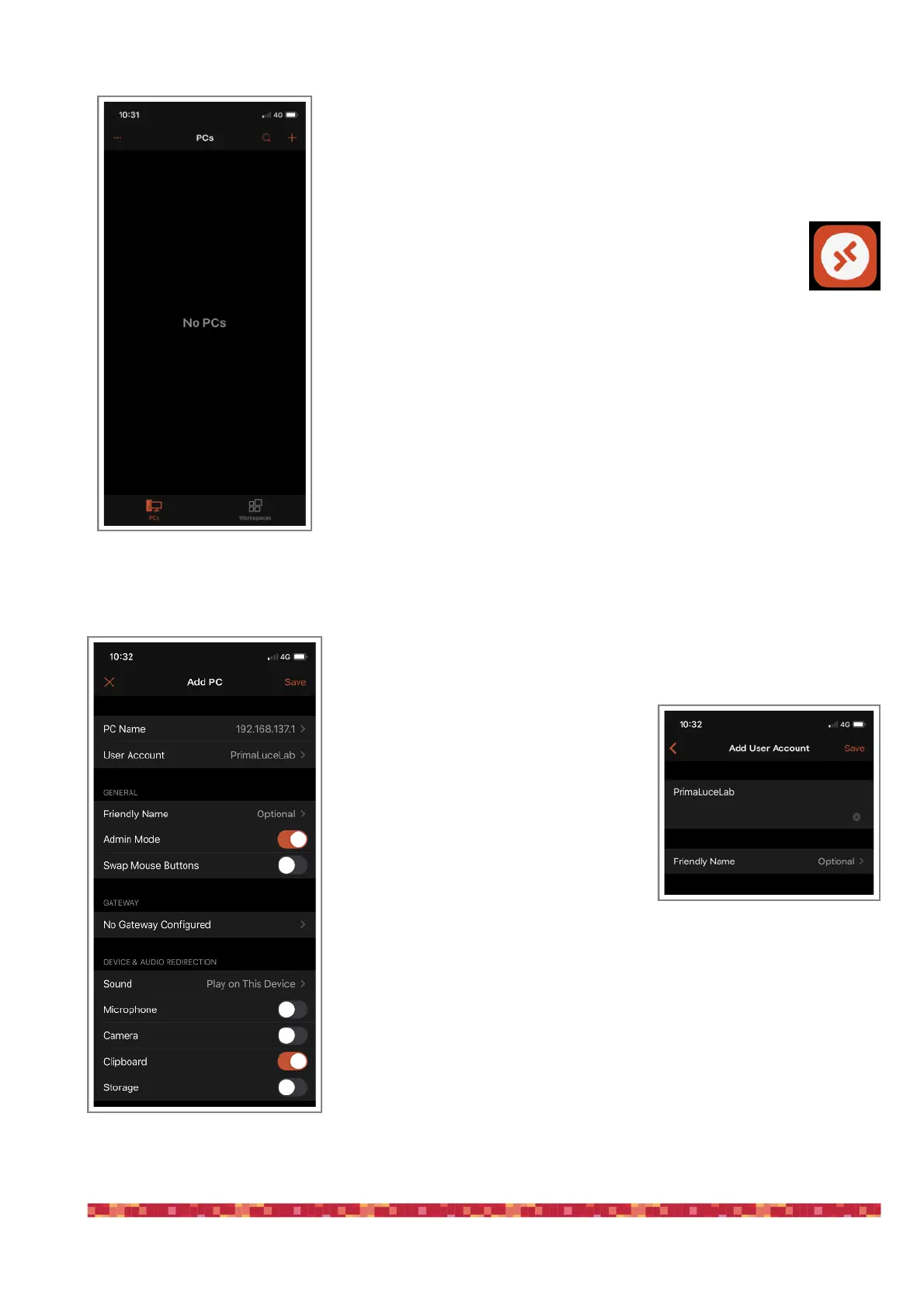
Start the "Microsoft Remote Desktop" app. You will see a screen like the one visible
in the image 7. Click the + button (top-right), then select “Add PC".
In the window that opens, in "PC name" enter 192.168.137.1
Then select the “User Account" field and
choose "Add user account". A window will
open (picture 8) where you can enter your
username and password to log on to Windo-
ws.
The values are:
- Username: PrimaLuceLab;
- Password: (that shown on the quick guide in
the EAGLE box)
Then press the button "Save" to save the ac-
cess data.
WARNING: when entering your data check
that your device does not automatically insert a space after the word "username"
and "password".
Then (image 9), select the option “Admin Mode” and press the "Save" button to
confirm and save the access data.


 To Next Page