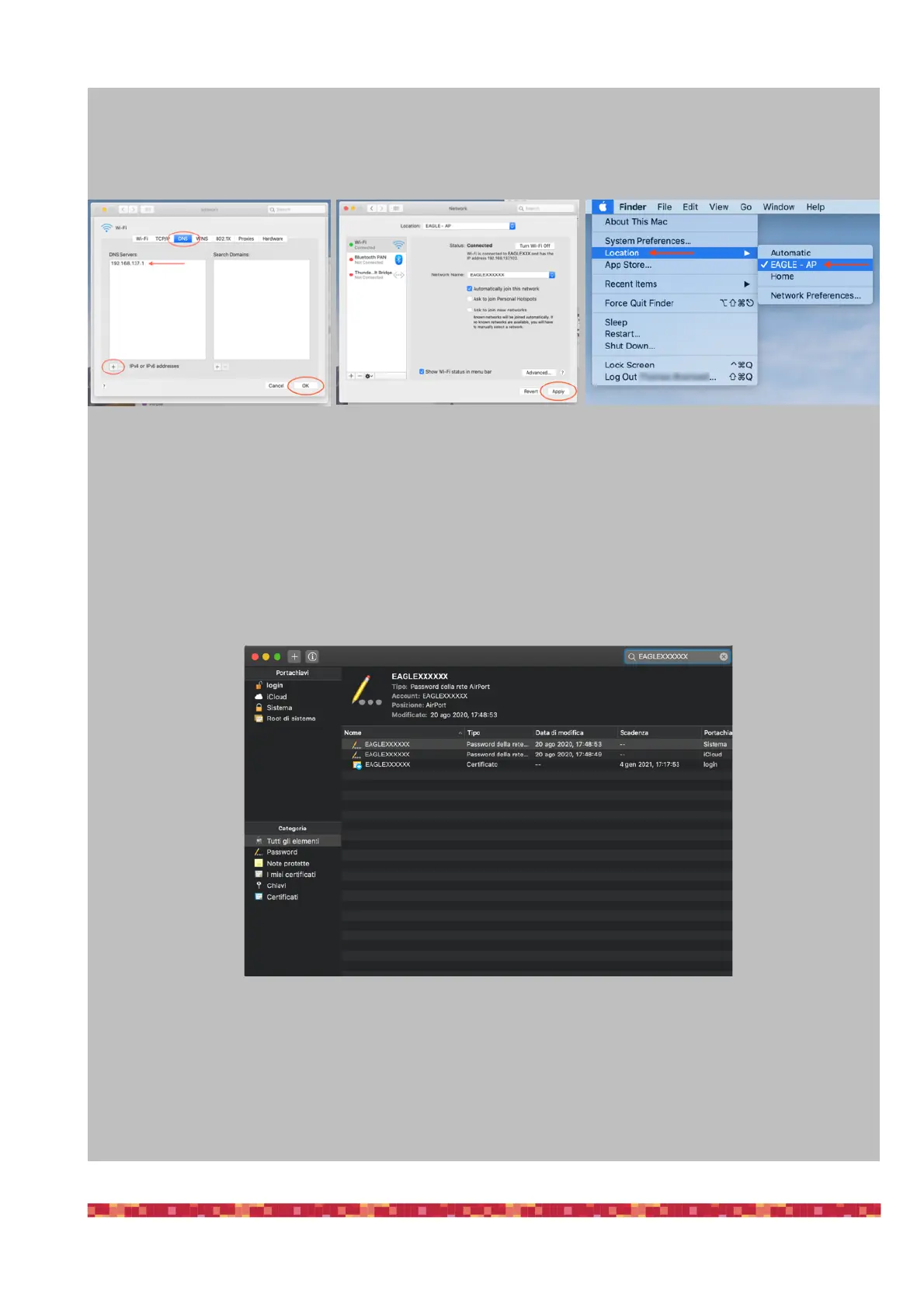
3) Next, click on the “DNS” tab. Under “DNS Servers” click the “+” symbol to add a server, and again, use the
IP address of your EAGLE, like the example above. When done, click OK. Click Apply. Switch to the new
location you created under the Apple menu > Location > (your location name).
4) Check that now your Mac is connected to the EAGLE’s WiFi and start the Remote Desktop connection.
If you still have the same error, this could be related to the access data saved in your Mac memory. In order to
delete previous saved access data, please enter the “Keychain” and type, in the upper-right field, the name of
your EAGLE’s WiFi network. Then select all the results, make a right mouse click and select Delete All.
This will remove all the access data saved related to your EAGLE’s WiFi network. Please connect again to the
EAGLE’s WiFi (you will be requested to enter again the “primalucelab” password) and start the Remote Desktop
connection to your EAGLE.


 To Next Page