Now click on the HOST button to connect EAGLE to the previously set network. A popup window will appear asking you if
you want to confirm. You can press OK button if you want to proceed.
Now you have to set remote access parameters in Remote Desktop software installed in the device you want to control
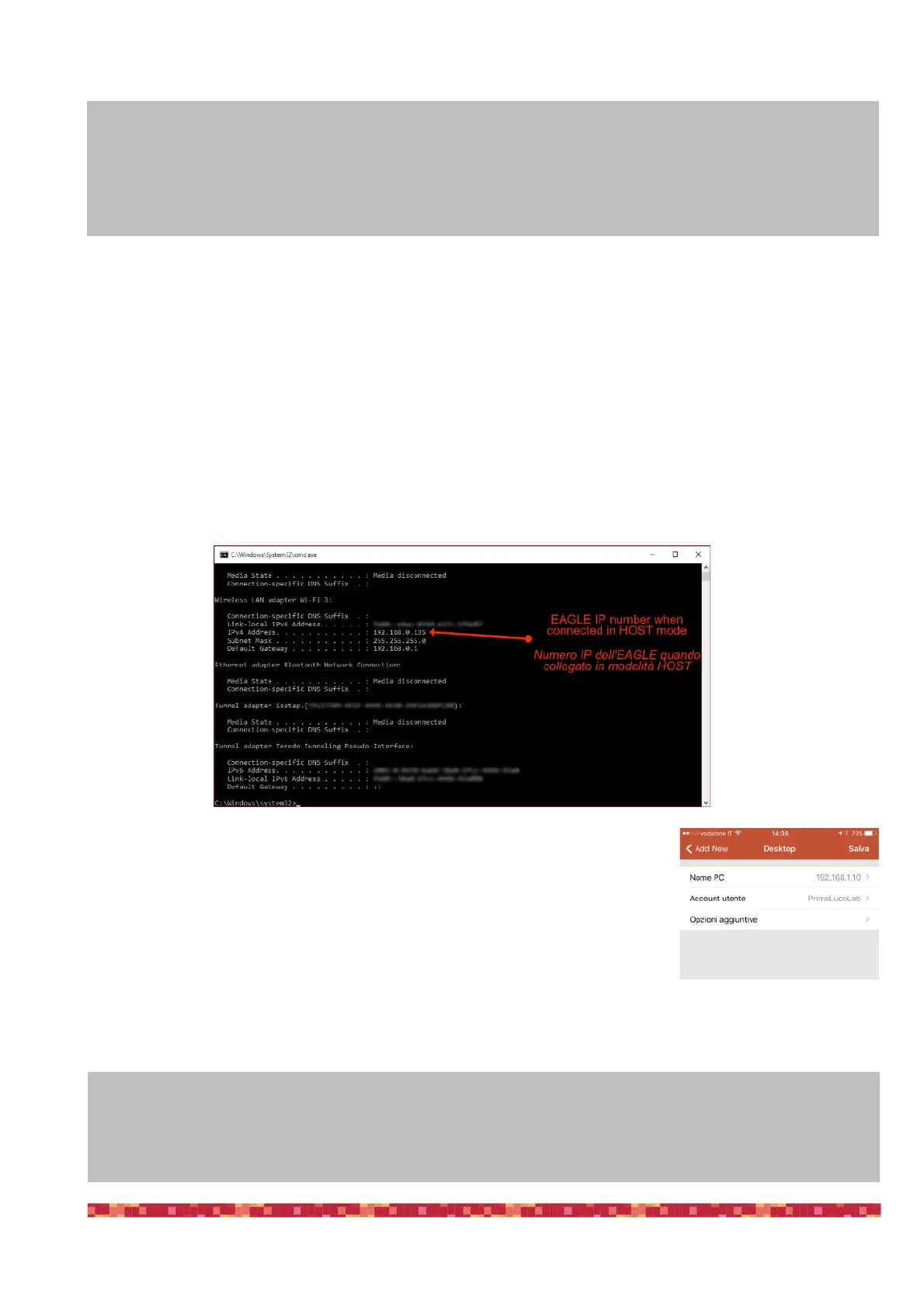
EAGLE from. First of all you need to verify what is the IP address your router assigned to the EAGLE when you activated
the HOST feature and this may vary based on your network configuration. In order to determine your IP address, in the
EAGLE please type “cmd” in the “Search Windows” bar (bottom left part of the Window) and press ENTER in the keyboard.
This will open a new window. Please type “ipconfig” and press ENTER again. You will see a line with the IP number of your
EAGLE connected to your network (please take a look at the picture below). This is the IP number you have to write in Re-
mote Desktop when you want to connect to EAGLE by using the HOST feature.
You have to insert this address in the options of “Remote Desktop” software (image 33)
in the device you use to control the EAGLE from, instead of 192.168.137.1 as previously
set. Click on Save to save software connection options. Going back to main page you
will find a new connection. Connect your computer (or other device) you use to control
the EAGLE from to the same WiFi network you connected EAGLE to and click on the new
connection just created in the “Remote Desktop” software to start remote connection.
ATTENTION!
Make sure that you entered the correct network parameters (especially your network password) because,
if they are wrong, EAGLE will not be able to access your network and at the same time it will not create
its network in Access Point mode: in this case you won’t be able to connect to EAGLE anymore and you
will need to click its RESET button to reset the network.
Tip: if during the use of the EAGLE you can no longer access to its WiFi network, both in AP or HOST
mode, press the RESET button on the left of the POWER button on the EAGLE case. This will reset WiFi
network in AP mode. Then, in the device you use to control EAGLE from, you have to select the WiFi
created by the EAGLE (EAGLEXXXXX) and restart Remote Desktop.


 To Next Page