SETTING UP THE SOURCES
To disable or enable sources
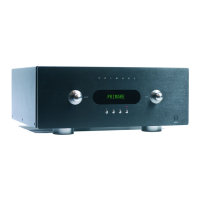
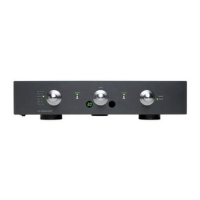
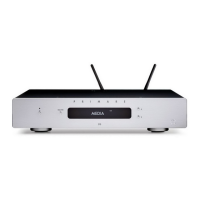
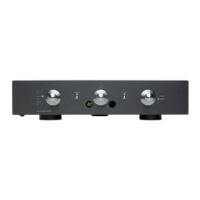
• Use the SELECTOR on the front panel or
the or buttons on the remote control to highlight
INPUT SETTINGS on the SETUP MENU and press
the
button on the front panel or the
SELECT
but-
ton on the remote control to select it.
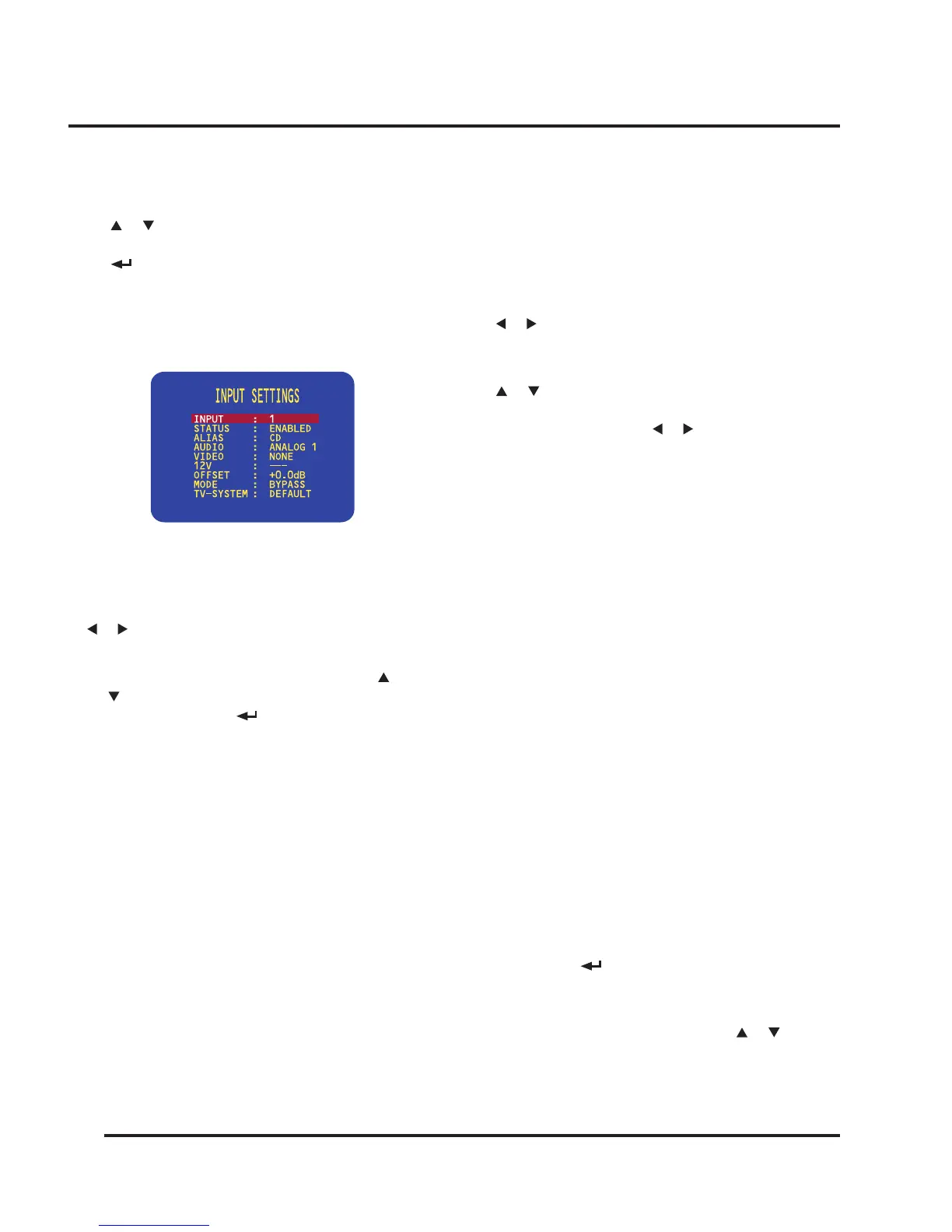
The INPUT SETTINGS menu will be displayed:
Editing Sources
To edit an existing source
• Highlight INPUT SETTINGS in the SETUP MENU
and press the SELECT button on the front panel or
remote control to select it.
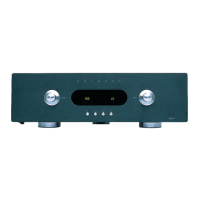
• Use the VOLUME control on the front panel or the
or buttons on the remote control to select the
input you want to edit.
• Use the SELECTOR on the front panel or the
or buttons on the remote control to highlight the
options for the inputs, and use the VOLUME control
on the front panel or the or buttons on the remote
control to modify them as required.
The options are explained in the following table:
Option Description
STATUS ENABLED or DISABLED to specify whether the
source can be selected from the front panel or
remote control.
ALIAS A name of up to eight characters for the
source; see To edit the source alias below.
AUDIO The audio input used for the source: ANALOG
1 to ANALOG 5, ANALOG EX1 to ANALOG EX3,
DIGITAL 1 to DIGITAL 4, EXTERNAL, or NONE .
VIDEO The video input used for the source: VIDEO 1
to VIDEO 4, S-VIDEO 1 and S-VIDEO 2, COM-
PONENT1 and COMPONENT2 or NONE .
12V Controls the second 12V DC-trigger on the
back panel: ON, OFF or - - - "keep current
status".
OFFSET Allows you to compensate for variations in
sensitivity of any analog or external source be-
tween -10.0 dB to +10.0 dB in 0,5 dB steps.
MODE The default surround mode for the source:
BYPASS, STEREO, 2-CH, DOLBY PRO LOGIC
II, DOLBY PRO LOGIC II CINEMA, DOLBY PRO
LOGIC II MUSIC, PARTY, DTS NEO:6 CINEMA,
or DTS NEO:6 MUSIC. The options available
depend on the audio mode.
TV-SYSTEM Species the TV system for the video input:
NTSC, PAL, or DEFAULT.
To edit the source alias
• Highlight ALIAS in the INPUT SETTINGS menu
and press the
button on the front panel or the
SELECT
button on the remote control to edit the alias.
• Select the character you want to edit using the
SELECTOR on the front panel or the or buttons
on the remote control.
• Use the VOLUME control on the front panel or the
or buttons on the remote control to select the
number of the input you want to enable or disable.
• Use the SELECTOR on the front panel or the
or buttons on the remote control to highlight
STATUS, and press the
button on the frontpanel
or the
SELECT
button on the remote control to select
ENABLED or DISABLED as required.


 To Next Page