Eureka3 User Manual
Eureka3 Page 22
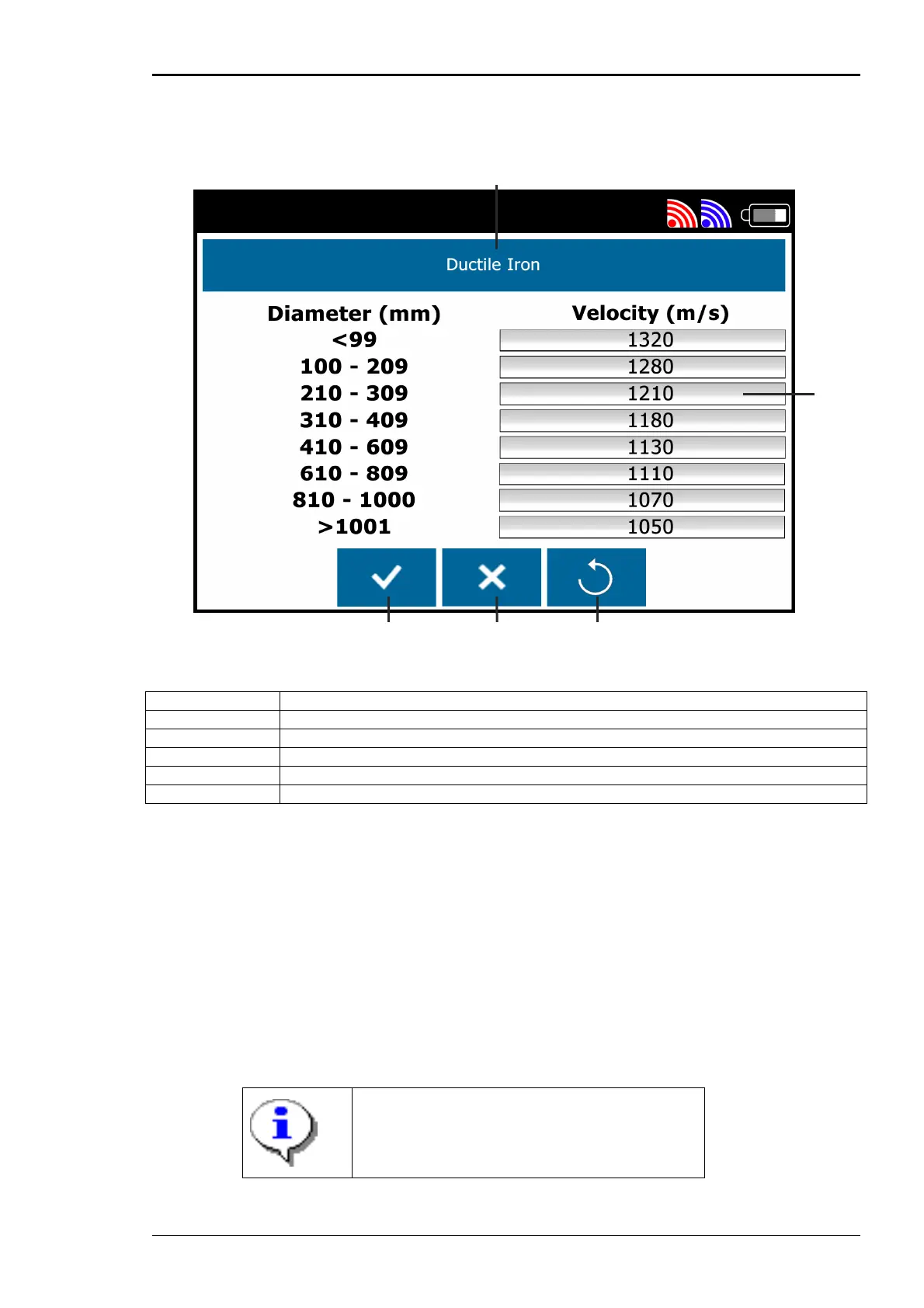
5.3 Velocities Table Screen
A Pipe Material
B Velocity Value
C Restore Factory Default Button
D Cross Button
E Tick Button
5.3.1 Pipe Material
This is the current pipe material (whose velocity data for various pipe diameters is shown). To change
this, tap the pipe material and a list of available pipe materials will be shown. Select the required pipe
material and the current velocities for that material will be shown.
5.3.2 Velocity Value
This shows the velocity value for the current pipe material and diameter range as shown in the left part
of the screen. Tap on the velocity value and the numeric keyboard will be displayed. Tap the required
numbers to enter a new velocity. Tap the return button to confirm the changes and return to the table.
The backspace/delete key can be used whilst entering data to delete numbers.
If an invalid value is entered, a warning message is displayed and the theoretical minimum or
maximum will be placed at this location in the table.
Note: The only validation on entered velocity
values is that they are within the theoretical
minimum and maximum. There is no validation
that the velocity entered fits between other
values in the table.
A
B
C D E


 To Next Page