Eureka3 User Manual
Eureka3 Page 24
5.4 Correlation Screen
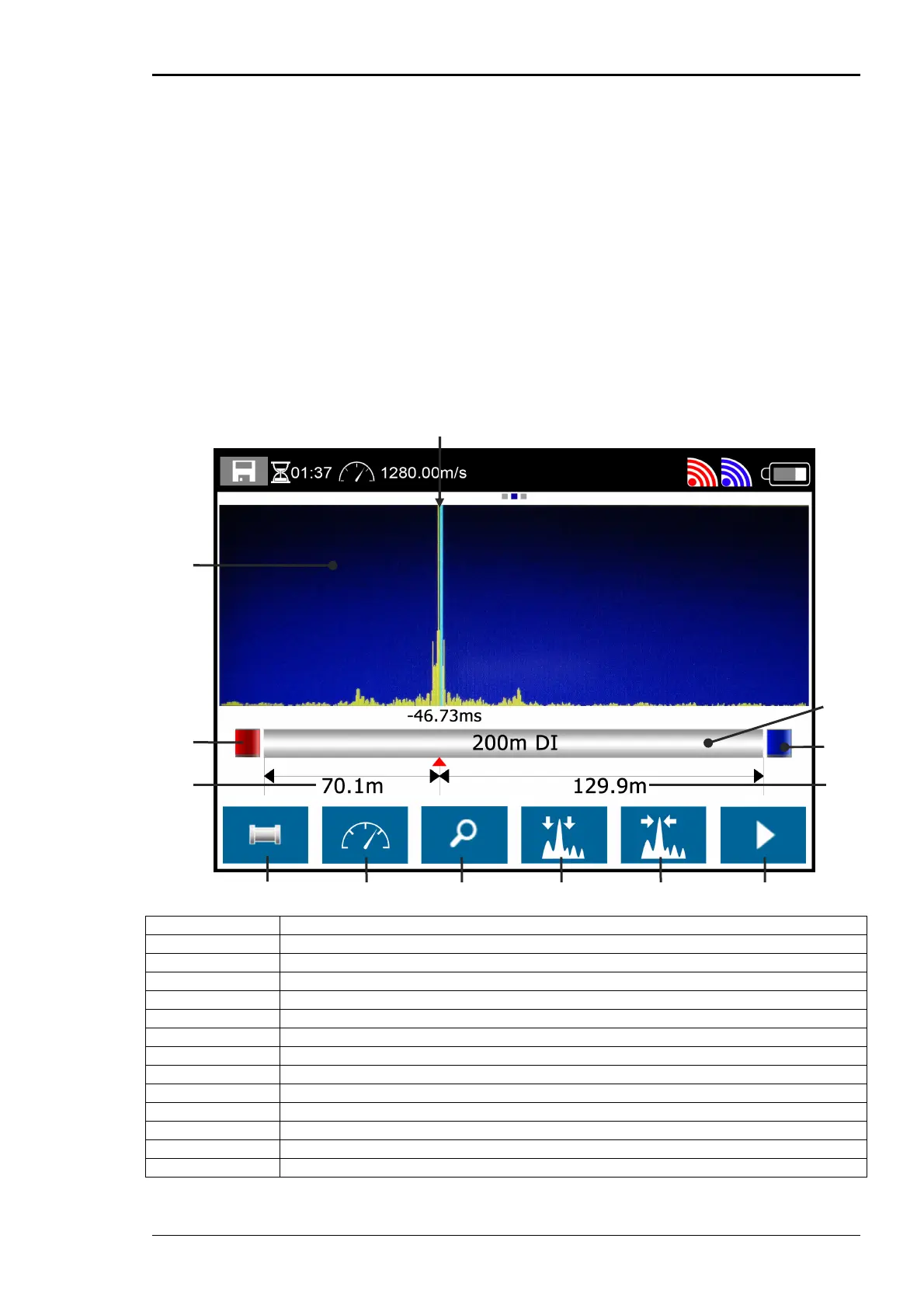
The correlation screen is where the main correlation functionality is controlled and viewed. Two other
screens are available; these are accessed by swiping the screen, to the left is the Controls Screen and
to the right the Frequency Spectrum.
To exit the correlation screen, press the home button on the keypad.
5.4.1 Swiping
To display the Controls Screen touch the screen and move your finger to the right, this will drag the
Controls Screen into view. To return to the Correlation Screen, touch the screen and move your finger
to the left. The Frequency Spectrum is brought into view in a similar manner, but by moving your finger
in the opposite direction. At the top of each of these screens is a small 3-dot display indicating which
of the screens is currently active.
A Correlation Display
B Cursor
C Pipe Model (only one pipe section has been entered in this example)
D Blue Transmitter Icon
E Distance between cursor position and blue transmitter
F Start/Stop Correlate Button
G Goto Peak Button
H Noise Suppression Button
I Zoom Button
J Velocity Correction Button
K Pipe Entry Button
L Distance between cursor position and red transmitter
M Red Transmitter Icon
K
J G F I H
A
B
M
L
D
C
E


 To Next Page