24 Creating Discs on a PC
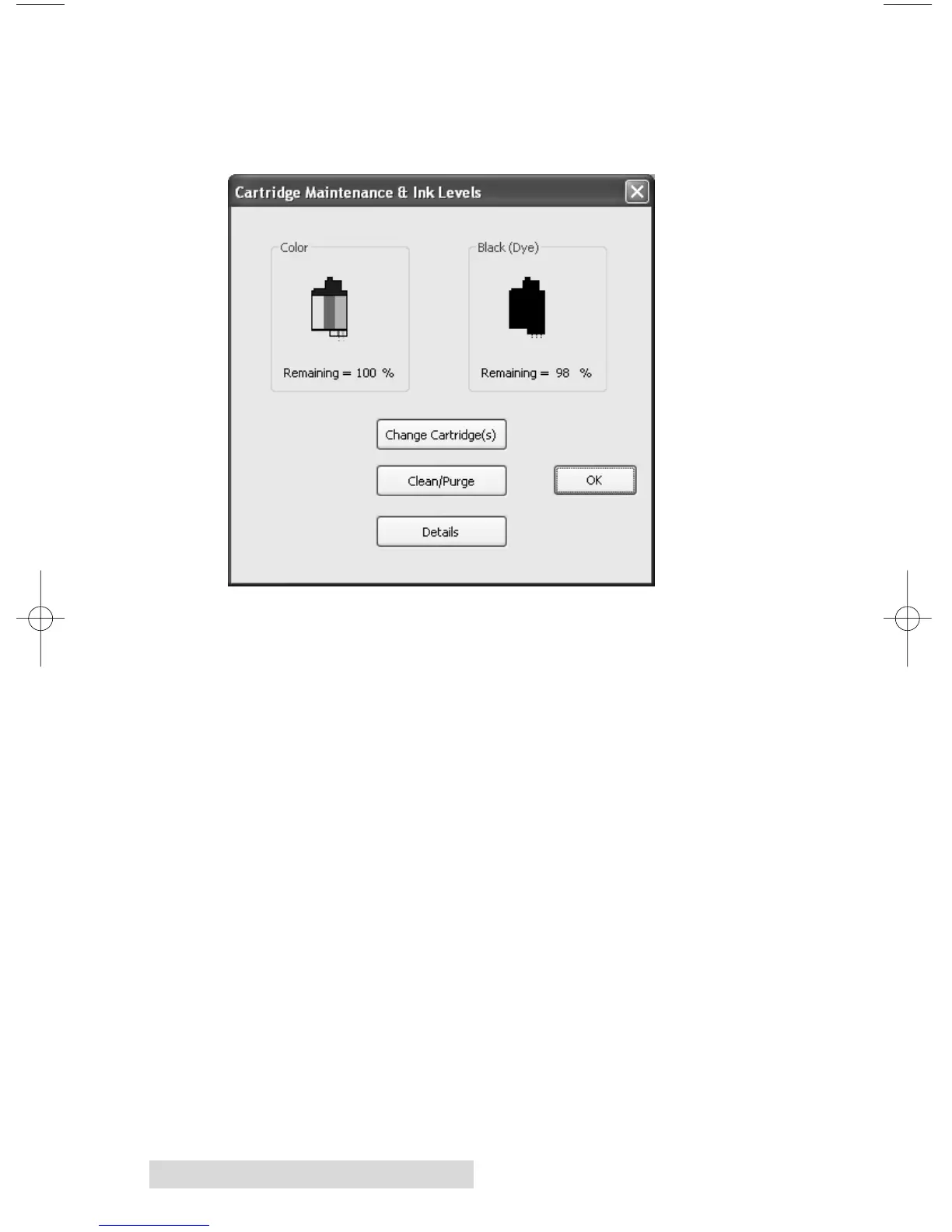
Clean/Change Cartridges & Check Ink Levels
Select this button to display the current ink levels as well as
options for cleaning and changing cartridges.
Change Cartridge(s)
Select the Change Cartridge(s) button to install a new ink
cartridge or to switch back and forth between previously used
cartridges. After the cartridge has been replaced according to
the instructions in Section 2C, Step 4: Installing Ink Cartridges,
select either the New Cartridge Installed button or the Old
Cartridge Installed button accordingly.
Clean/Purge
Select Clean/Purge button to send a simple test pattern to the
printer. Be sure to have a disc in the Publisher's input bin and
the front cover closed. The test pattern, shown below, purges
ink through nozzles of your ink cartridge to clear any
blockages.







 To Next Page