6 Getting Started
b. Plug in USB Cable
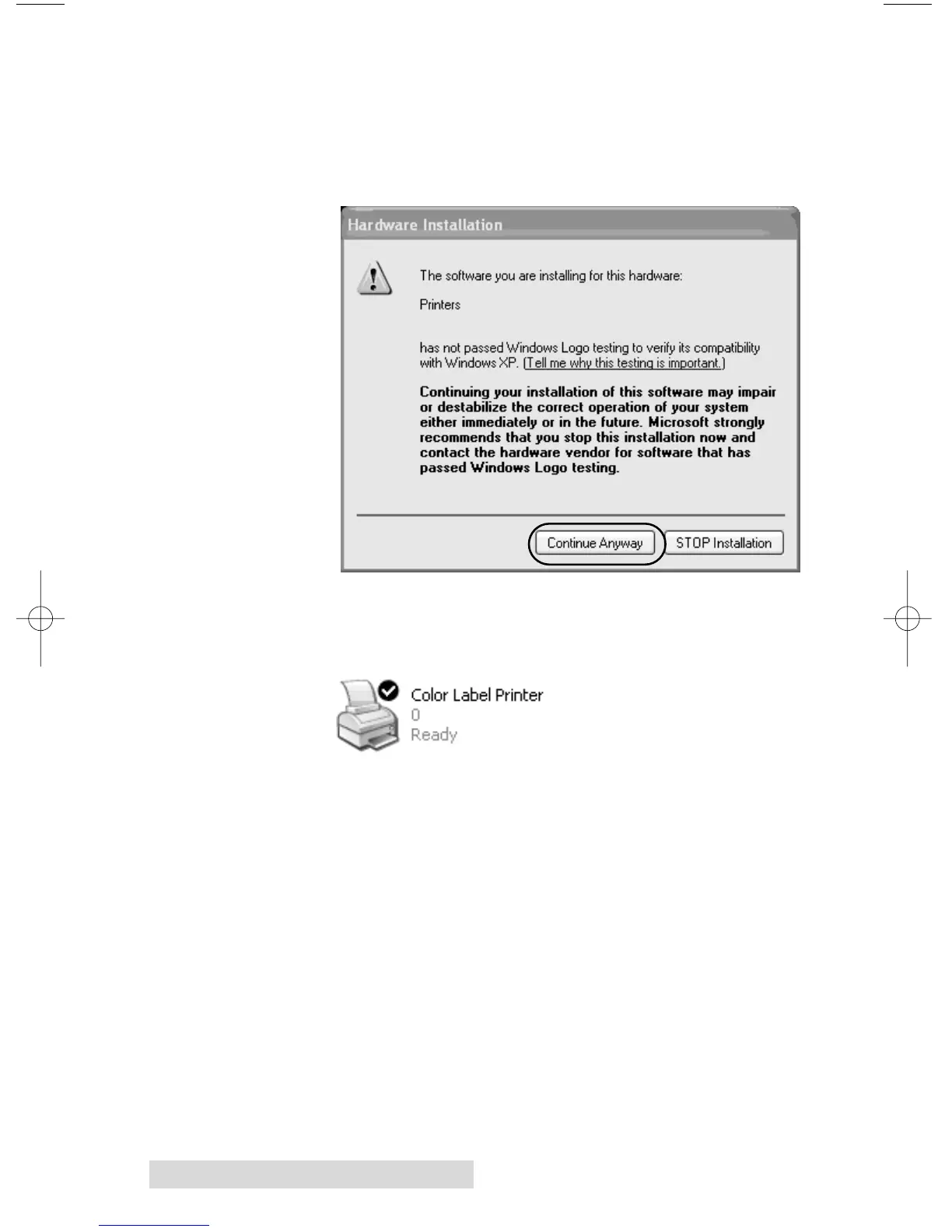
i. After a few moments Windows will detect the
printer and attempt to install the printer driver.
You will be prompted with a dialog box like the
one shown here:
Click “Continue Anyway”.
ii. Once installed the "Color Label Printer" icon
will appear in the printers folder.
3. Once the printer driver is properly installed, the installer
application will prompt you to install label stock and
the ink cartridges. You will also be asked to complete a
cartridge calibration procedure. Follow the on screen
instructions to complete this install. More information on
installing the label stock and ink cartridges is available
in Section 2 of this manual.
4. Next the installer will install NiceLabel. NiceLabel is an
easy-to-use software application for making your labels
and creating barcodes.
5. Click Finish to complete the install.
Note: For optimal printing speed you MUST reboot the PC after installing
the software!


 To Next Page
 Loading...