Programming
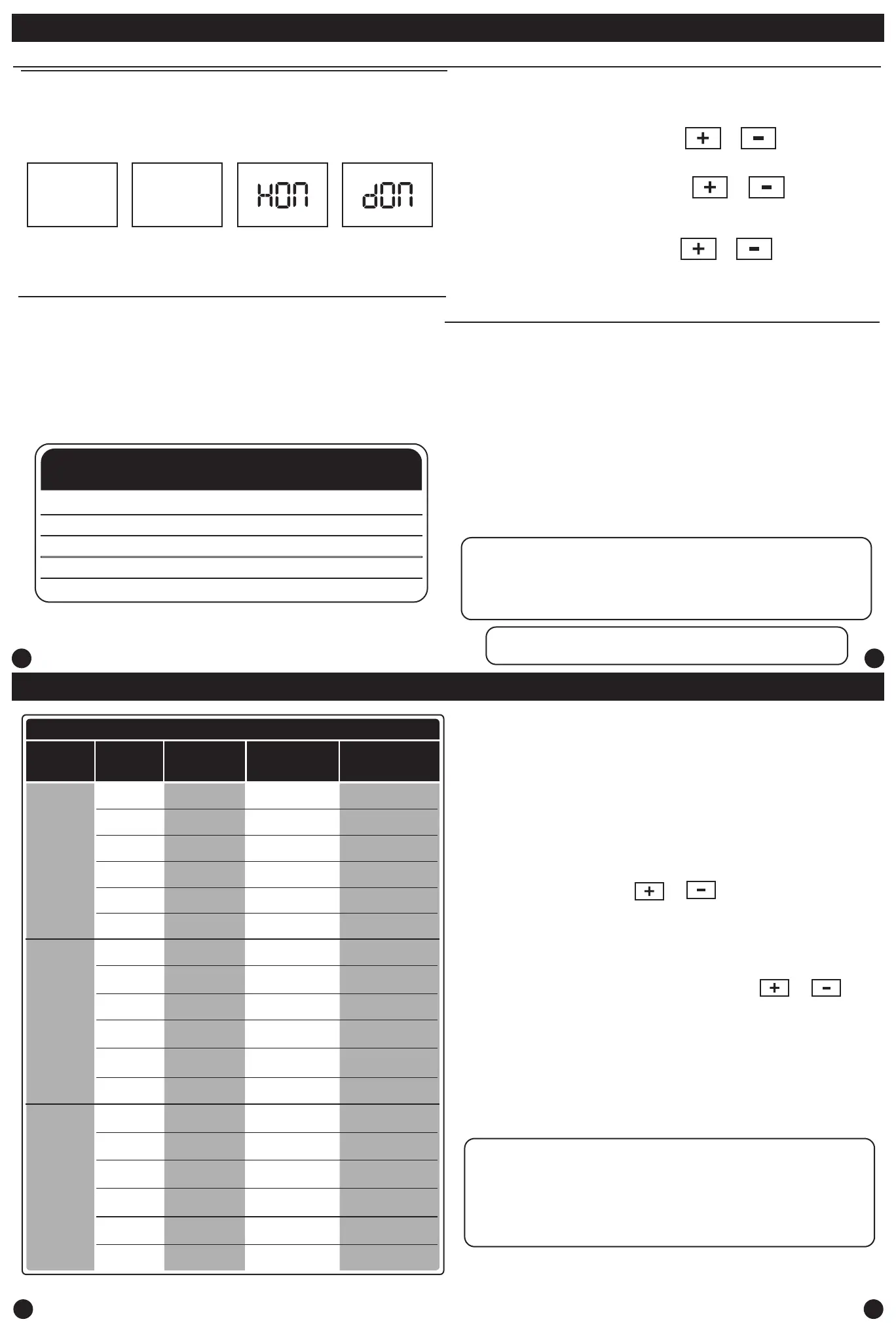
Custom Program
Day of
the Week
Events Time
Setpoint
Temperature
(HEAT)
Setpoint
Temperature
(COOL)
Weekday
Saturday
Sunday
Wake/OCC1
Leave/UNOCC1
Return/OCC2
Sleep/UNOCC2
Wake/OCC1
Leave/UNOCC1
Return/OCC2
Sleep/UNOCC2
Wake/OCC1
LeaveUNOCC1
Return/OCC2
Sleep/UNOCC2
Occupied
Unoccupied
Occupied
Unoccupied
Occupied
Unoccupied
3837
39 40
Programming
Set Time
Follow the steps below to set the day of the week and current time:
1. Press the MENU button.
2. Press SET TIME.
3. Day of the week is ashing. Use the or key to
select the current day of the week.
4. Press NEXT.
5. The current hour is ashing. Use the or key to
select the current hour. When using 12-hour time, make sure
the correct a.m. or p.m. choice is selected.
6. Press NEXT.
7. Minutes are now ashing. Use the or key to
select current minutes.
8. Press DONE when completed.
All our programmable thermostats are shipped with an energy saving default
program. You can customize this default program by following the
instructions in the set program schedule section starting on page 24.
Programming
Your thermostat can be programmed to have each day of the week
programmed uniquely (7 days) or non-programmable. For the 7-day
programming modes, there are three time period options.
1. “4” Residential (WAKE, LEAVE, RETURN, SLEEP)
2. “2C” Commercial (OCCUPIED, UNOCCUPIED)
3. “4C” Commercial (OCCUPIED 1, UNOCCUPIED 1, OCCUPIED 2, UNOCCUPIED 2)
This thermostat has a programmable fan feature, which allows you to run the
fan continually during any time period.
Reminders
Once a reminder has been turned on and set, the elapsed time can be checked
by navigating to its tech setup step. The elapsed time will then appear in the
text eld. It can also be reset at that time by holding down the set time/run
sched button for 3 seconds. Resetting an expired reminder can be done without
entering tech setup, by holding down the set time/run sched button for 3
seconds from the home screen.
Staging Delay Note: This step will not appear if using an outdoor
balance point temperature.
Programming
1. Select HEAT or COOL with the SYSTEM key.
Note: You have to program heat and cool each separately.
2. Press the MENU button (If menu does not appear rst, press
RUN SCHED).
3. Press SET SCHED. Note: Monday is displayed and the
WAKE/OCC1 icon is shown. You are now programming the
WAKE/OCC1 time period for that day.
4. Time is ashing. Use the or key to make your time
selection for that day’s WAKE/OCC1 time period.
Note: If you want the fan to run continuously during this time
period, select ON with the FAN key. If you want to use IAQ
mode during this time period, select IAQ with the FAN key.
5. Press NEXT.
6. The setpoint temperature is ashing. Use the or key
to make your setpoint selection for that day’s WAKE/OCC1
period.
7. Press NEXT.
8. Repeat steps 4 through 7 for that day’s LEAVE/UNOCC1
time period, for that day’s RETURN/OCC2 time period,
and for that day’s SLEEP/UNOCC2 time period.
To customize your 7 day 4 time period Program schedule, follow
these steps:
Monday:
Repeat steps 4 through 8 for the remaining days of the week.
A Note About Auto Changeover:
In Auto you have the ability to switch between Auto Heat or Auto Cool
by pressing the system key. This can be done once the current mode has
reached its setpoint. For example: if in Auto Heat, the heat setpoint must
be satised before the thermostat will allow you to switch to Auto Cool.
You can switch out of Auto by holding down the system key. To get back
into Auto, you must toggle the system key to Auto.
Setting the Humidity
Setting Target Humidity Setpoint
Ambient humidity will ash in the time eld when Humidify or De-Humidify is
set to ON.
HON will also ash when the Humidity terminal is energized. dON will also
ash when the De-Humidify terminal is energized.
DAY AND TIME AMBIENT HUMIDITY HON
(Humidity Energized)
dON
(De-Humidity Energized)
10:03
36
Humidity
%
Recommended Heating Settings:
Increasing Humidity
The table below shows recommended indoor humidity levels in relation to
outdoor temperatures during heating (adding humidity).
Consult your professional HVAC technician for recommended settings for
your climate.
Recommended Cooling Settings:
Outside
Temperature (0˚F)
Recommended
Relative Humidity
+20˚ and above 35% to 40%
+10˚ 30%
0˚ 25%
-10˚ 20%
-20˚ 15%


 To Next Page
 Loading...