20
7. Press to exit the Function and make measurements.
06 COMMUNICATION WITH A PC (PRS-801B ONLY)
Measurements that you have saved into memory can be uploaded from and downloaded to a PC. A
PC, Microsoft® Windows®, Microsoft® Excel®, USB cable (supplied), and Prostat® Connect 2.0 utility
software are required.
Note: Not compatible with the PRS-812B.
Installation of the Drivers
The drivers used for communication between the PRS-801B and Connect 2.0 is compatible with
Microsoft Windows XP, Vista, 7, 8, 8.1 and 10.
Virtual COM port (VCP) drivers cause the USB device to appear as an additional COM port available to
the PC.
In most cases, Windows will have the drivers for the chip already pre-installed. When you connect
your PRS-801B to your PC via USB for the first time, the drivers should automatically install and
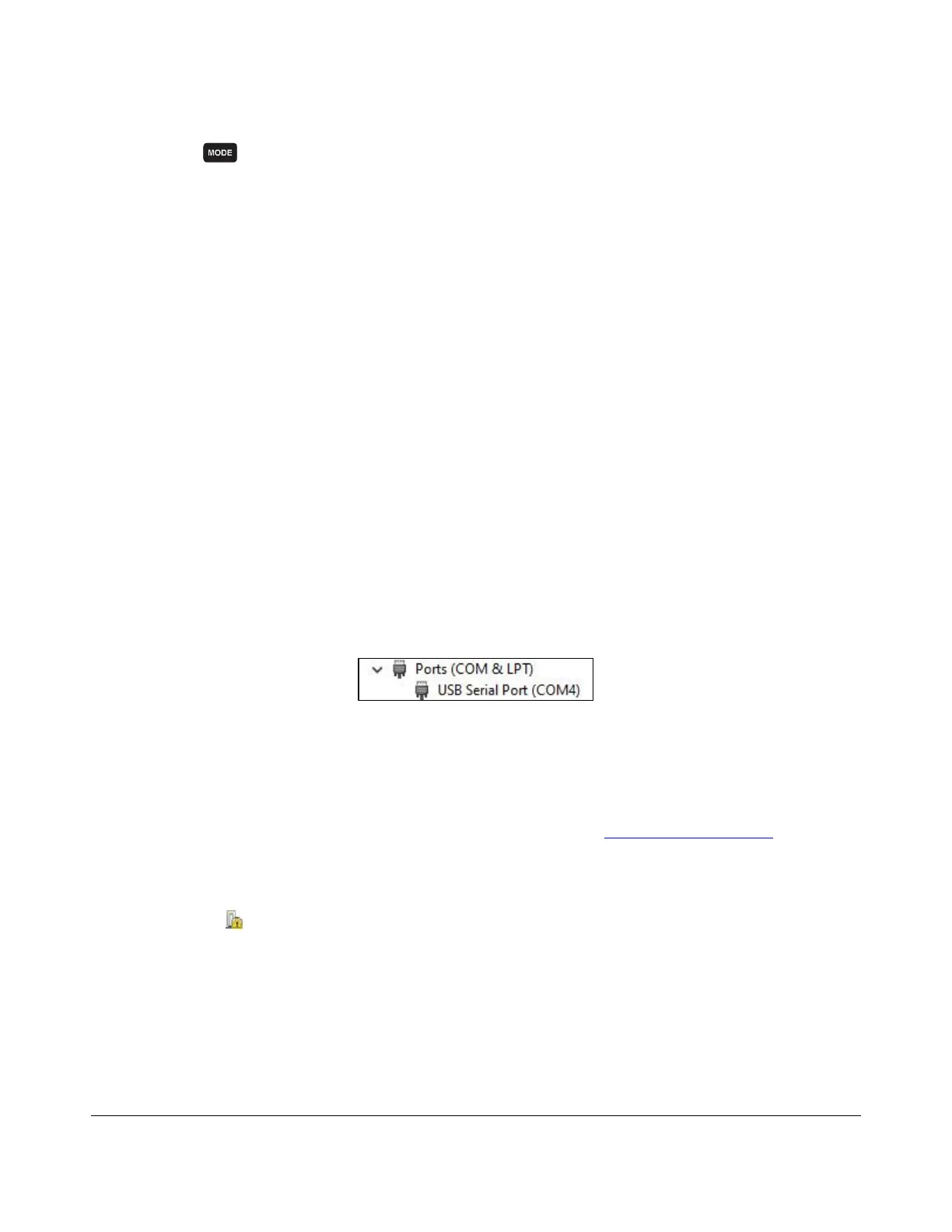
appear under Ports (COM & LPT) in Device Manager.
If no suitable driver is automatically found via Windows Update, a manual installation is required. To
manually install the driver Windows 7, 8, 8.1 and 10, follow these instructions:
1. Connect the PRS-801B to a USB port on your PC.
2. The drivers may be downloaded from the Prostat website at www.prostatcorp.com
3. Press the Windows Start button to bring up the start menu and select Control Panel.
4. From the Control Panel window select Device Manager.
5. In the Device Manager window there will be a device under Other Devices with a yellow
warning symbol to indicate a problem i.e. no driver installed.
6. Right click on the other device to bring up a menu.
7. From the displayed menu, select Update Driver Software...
8. The next windows displays the option for an automatic search or a manual search. Select the
option to browse manually.
9. Click Browse… and located the drivers that you saved on your PC, then click Next.
10. A Windows Security dialog box may be displayed. Click Install to proceed with the installation.
11. When the installation is completed, a window will indicate the driver installed successfully.


 To Next Page