24
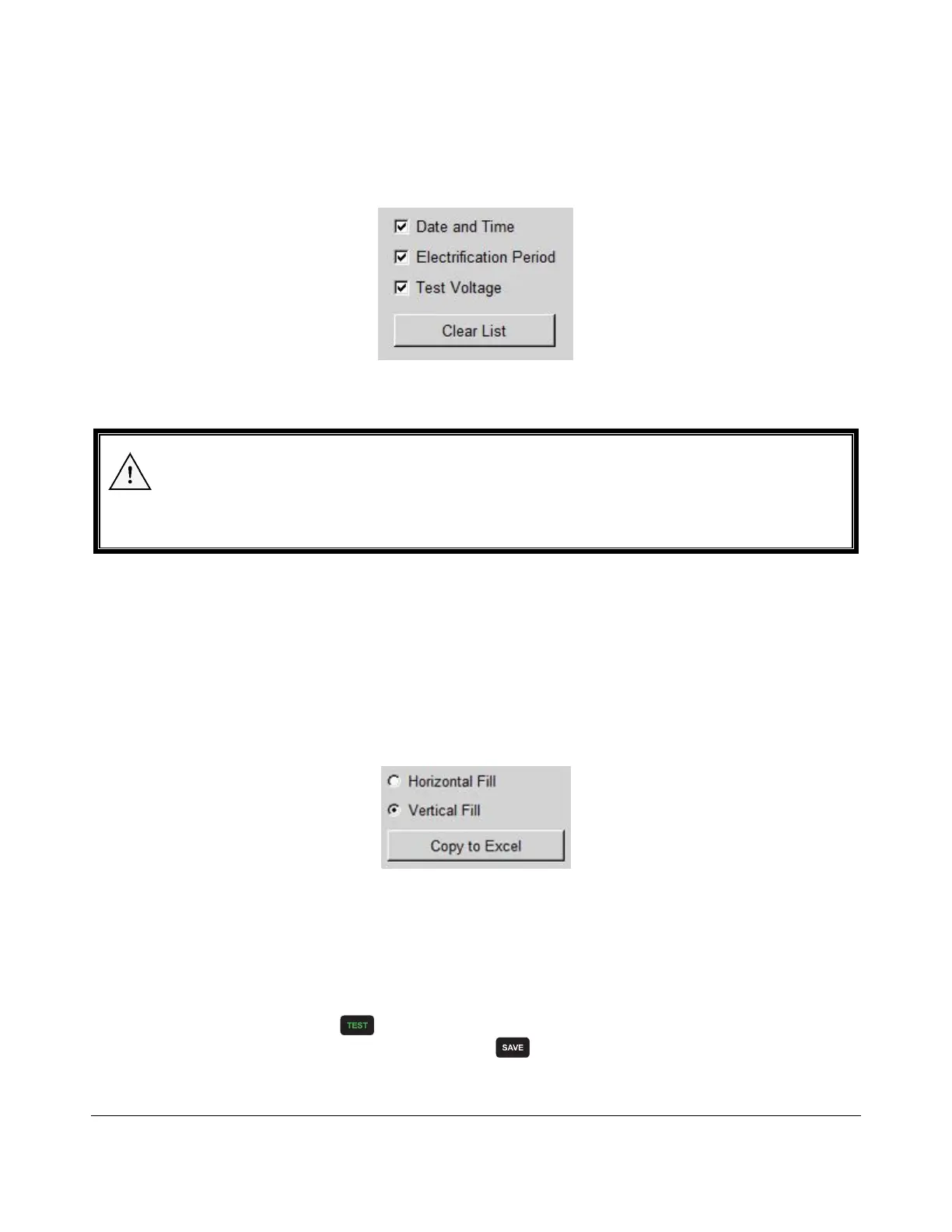
You can choose to display all or some of this information by using the checkboxes to the right of the
data sets. Resistance Measurement is the only required data in Connect 2.0.
To clear all the data sets you acquired from the PRS-801B, click the button Clear List.
NOTE
Acquiring all data from the PRS-801B does not delete the measurements stored on the PRS-801B.
To delete some or all data from the PRS-801B, refer to the Clear Function.
Copy data to Microsoft® Excel®
Once you have downloaded the data form the PRS-801B to Connect 2.0, you may copy it to Excel:
1. Launch Excel® on the same PC where Connect 2.0 is running.
2. Place your cursor into the first cell you wish to copy the data.
3. In Connect 2.0, select whether you wish the data to copy horizontally, or vertically.
4. Click Copy to Excel.
Automatically download data to Connect 2.0
You can also choose to automatically download a measurement you’re taking with the PRS-801B:
1. In Connect 2.0, put a checkmark next to Auto Connect.
2. Make sure the PRS-801B is connected to the PC and powered ON.
3. On the PRS-801B, press to make a measurement.
4. Once you have a stable measurement, press .
5. The stable measurement will be save into memory and will also be downloaded to Connect
2.0.


 To Next Page