93-508-08 Issue 2 Page 14 of 22 Copyright Protec Fire Detection PLC
PRINT :-
ALL EVENTS ONWARD FROM DD/MM/YY
6.1.3 PRINTING THE EVENT LOG
Find the ‘EVENT LOG’ option from the ‘Printer Menus’ option using ‘NEXT/PREVIOUS’ buttons.
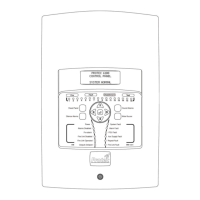
Press ‘ACCEPT’. The LCD displays: -
1) Select the type of event to print using ‘NEXT/PREVIOUS’.
The choices are ALL EVENTS, ALL FIRES or ALL FAULTS. Press ‘ACCEPT’.
2) Set the start date of the print.
Use ‘NEXT/PREVIOUS’ to change the day. Press ‘ACCEPT’.
Use ‘NEXT/PREVIOUS’ to change the month. Press ‘ACCEPT’.
Use ‘NEXT/PREVIOUS’ to change the year.
3) When the date is set correctly, press ‘ACCEPT’ to initiate printing.
No printing occurs if an impossible date is entered.
To cancel printing, see section 6.1.8 CANCELING THE PRINTOUT.
Use the ‘MENU’ button to return to the ‘Printer Menus’.
6.1.4 PRINTING CURRENT EVENTS
Find the ‘ACTIVE EVENTS’ option from the printer functions menu using ‘NEXT/PREVIOUS’ buttons.
Press ‘ACCEPT’. The LCD displays: -
A print of the events in the log which are active (faults which are still present and fires which have not been
reset) will begin on the next press of ‘ACCEPT’.
Also, the menu exits to the ‘Printer Menus’ on the pressing the ‘ACCEPT’ button.
To cancel printing, see section 6.1.8 CANCELING THE PRINTOUT.
http://www.firealarmengineers.com


 To Next Page