EasyManua.ls Logo

Psion 3a Series - Page 64

Psion 3a Series
288 pages
Print Icon
To Next Page IconTo Next Page
To Previous Page IconTo Previous Page
Loading...
Changing
the
name
of
a
database
file
The
System
screen's
'File'
menu
has
a
'Rename
file'
option.
You
might
use
this
to
rename
the
Data
file
to
something
like
Personal
.especially
if
you've
created
other
database
files
such
as
Business
.
If
the
file
is
open
(its
name
is
in
bold
letters),
you
must
press
Delete
to
exit
it
before
you
can
rename
it
Changing
to
a
different
database
As
well
as
using
the
System
screen,
you
can
use
the
'Open
file'
option
on
the
'File'
menu
of
the
Database
to
exit
the
current
database
and
open
a
different
one.
In
the
Database,
the
status
window
shows
the
name
of
the
database
you're
using,
beneath the
Data
icon.
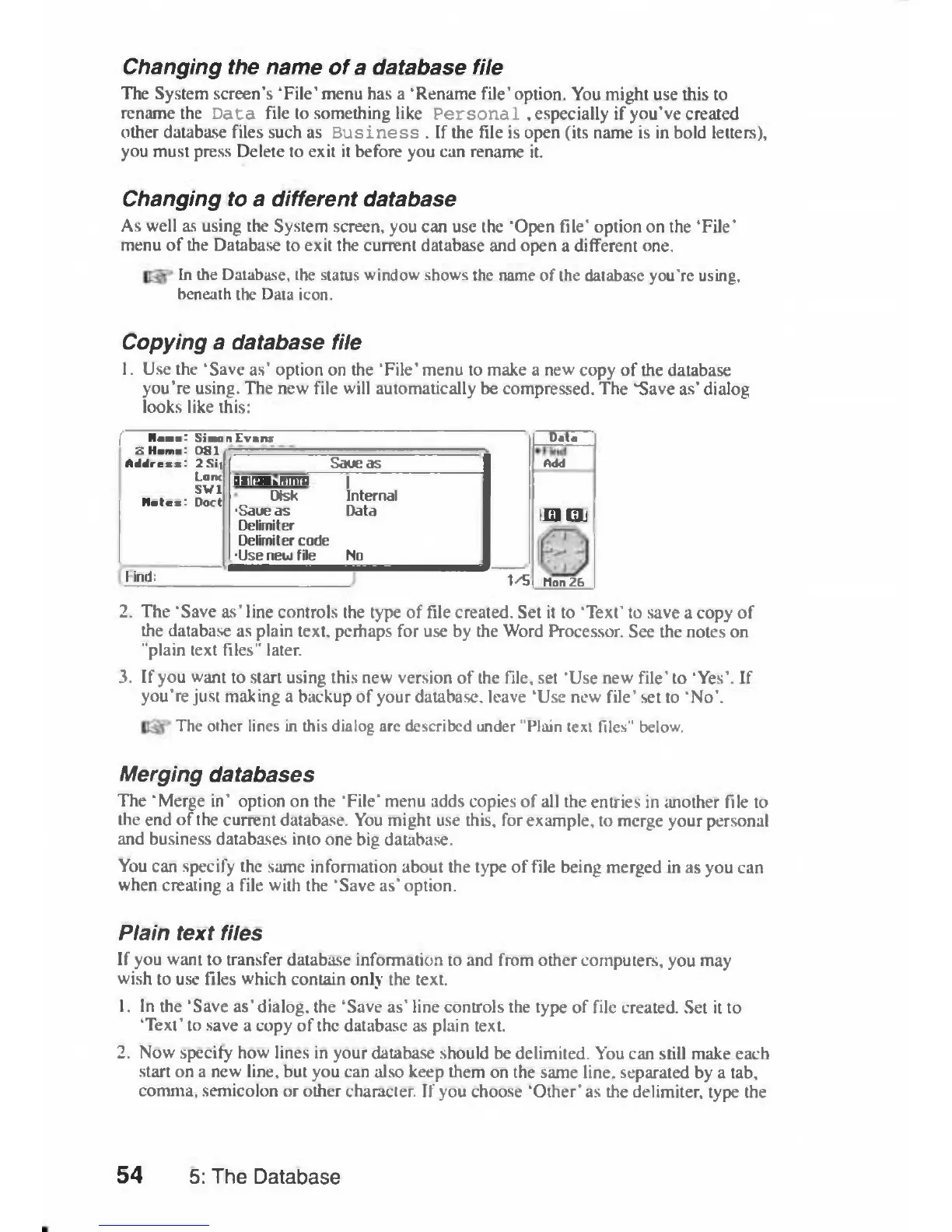
Copying
a
database
file
1.
Use
the
'Save
as'
option on
the
'File'
menu
to
make
a
new
copy
of
the
database
you're
using.
The
new
file
will
automatically
be
compressed.
The
"Save
as'
dialog
looks
like
this:
f
Name:
Simo
5
Home:
081
Address:
2
Si,
Lone
SWl
Botes:
Doct
a
Evans
Data
f
Name:
Simo
5
Home:
081
Address:
2
Si,
Lone
SWl
Botes:
Doct
Saueas
Odd
f
Name:
Simo
5
Home:
081
Address:
2
Si,
Lone
SWl
Botes:
Doct
aatrtMotrrra
|
Disk
Internal
'Saue
as
Data
Delimiter
Delimiter
code
•Use
new
file
No
IE]
EL
Mon
2b
1
inii:
1/5
IE]
EL
Mon
2b
2.
The
'Save
as'
line
controls
the
type
of
fde
created.
Set
it
to
'Text'
to
save
a
copy
of
the
database
as
plain
text,
perhaps
for
use
by
the
Word
Processor.
See
the
notes
on
"plain
text
files"
later.
3.
If
you
want
to
start
using
this
new
version
of
the
file,
set
'Use
new
file'
to
'Yes'.
If
you're
just
making
a
backup
of
your
database,
leave
'Use
new
file'
set
to
'No'.
The
other
lines
in
this
dialog
are
described
under
"Plain
text
files"
below.
Merging
databases
The
'Merge
in'
option
on
the
'File'
menu
adds
copies
of
all
the
entries
in
another
file
to
the
end
of
the
current
database.
You
might
use
this,
for
example,
to
merge your
personal
and
business
databases
into
one
big
database.
You
can
specify
the
same
information
about
the
type
of
file
being
merged
in
as
you
can
when
creating
a
file
with
the
'Save
as'
option.
Plain
text
files
If
you
want
to
transfer
database
information
to
and
from
other
computers,
you
may
wish
to
use
files
which
contain
only
the
text.
1.
In
the
'Save
as'
dialog,
the
'Save
as'
line
controls
the
type
of
file
created.
Set
it
to
'Text' to
save
a
copy
of
the
database
as
plain
text.
2.
Now
specify
how
lines
in
your
database
should
be
delimited.
You
can
still
make
each
start
on
a
new
line,
but
you
can
also
keep
them
on
the
same
line,
separated
by
a
tab,
comma,
semicolon
or
other
character.
If
you
choose
'Other'
as
the
delimiter,
type
the
54
5:
The
Database

Table of Contents

Related product manuals