21
Listening to Internet Radio and more EVOKE Flow Owner’s Manual v1.0
Note Depending on your wireless network configuration, entering only the password may not be
sufficient to connect. If this is the case, EVOKE Flow will try to connect to your network and
then display the ‘Unable to connect’ menu. If this happens, highlight and select ‘Change key
or password’ and try entering the full WEP, WPA or WPA2 encryption key and tap O Save.
2 Wait for EVOKE Flow to connect to your wireless network, which may take a minute or two.
Finally, enter your registration code for the Lounge*
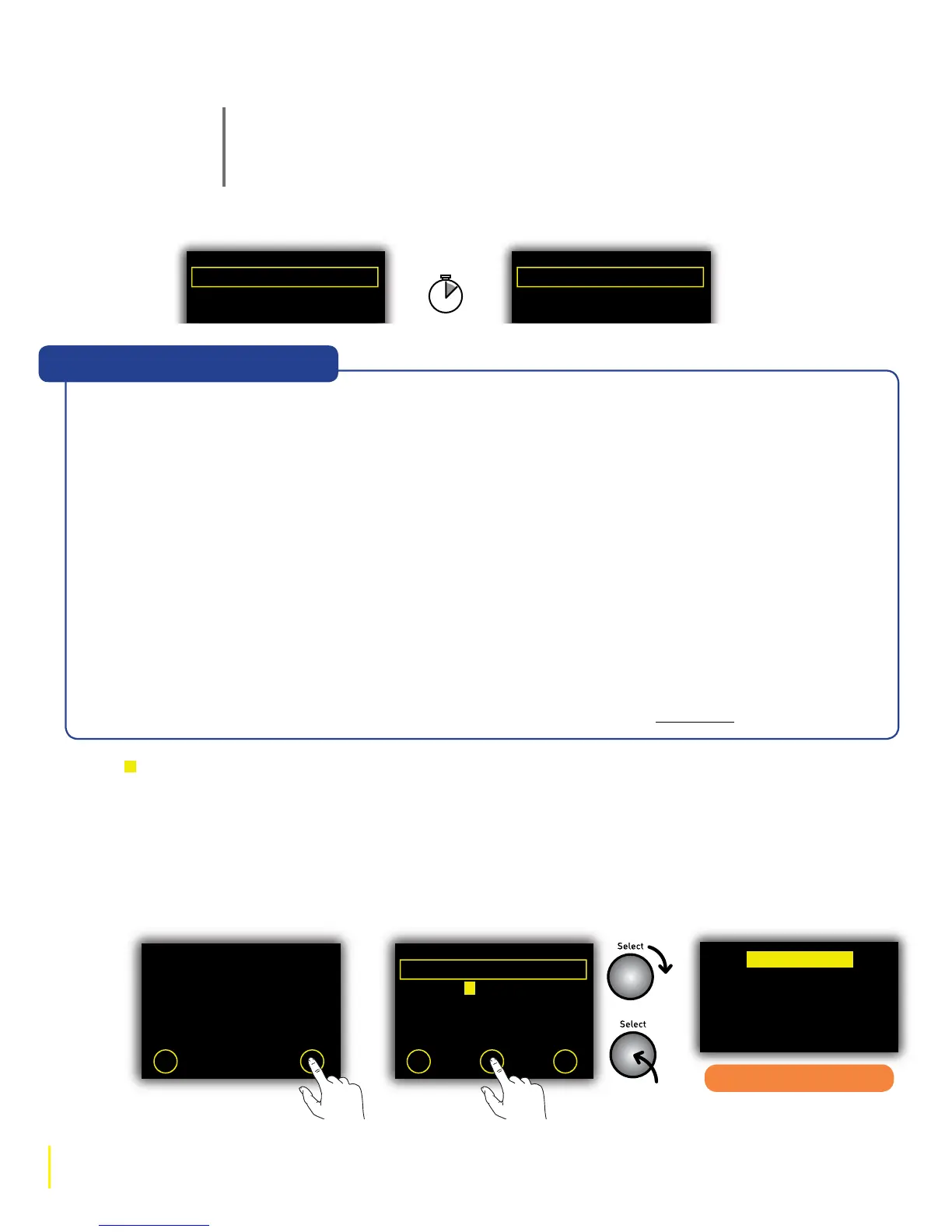
1 When you see the Registration screen tap O Enter and enter your registration code, which was
sent to your e-mail address when you connected your radio to the Lounge
(www.thelounge.com). Rotate the Select dial to highlight characters and push to select; tap
O Delete to erase characters (press and hold to erase all); and tap O Save to finish.
2 Wait for a moment until you see the Lounge home screen. Well done! The world of internet
radio is now at your fingertips: read on to find out how to tune in.
Conf iguring IP...
A
Network Setup
Verifying key...
A
Setting up network
*
We recommend that you register with the Lounge and connect your radio to save over 10 Favourites and organise your
Favourites into folders. However, if you’d rather connect to the Lounge without registering, tap ‘Skip’. You can always register later
and then select ‘Register with the Lounge’ from the Lounge options menu to enter your registration code.
If you see the message ‘Unable to connect’ highlight and select one of the following options:
Retry connection Attempts to reconnect to the selected network using the same
encryption key or password.
Select another network Re-scans and displays the list of visible wireless networks again. You
can select a new one if, for example, you’ve moved EVOKE Flow from
one location to another, eg, from home to the office.
Change key or password Allows you to enter a new WEP or WPA/WPA2 key or password if you
think you’ve made a mistake. Once you’ve done this, select ‘Retry
connection’ to try to connect with the new key/password.
Change encryption mode Change the encryption mode between ‘WEP’, ‘WPA (PSK)’, ‘WPA2
(PSK)’ or ‘None’. EVOKE Flow automatically detects the encryption
mode for your network, but you can change this option and then
select ‘Retry connection’ if you think the mode is specified incorrectly.
Change IP configuration Choose between ‘DHCP’ or ‘Static’ (see IP address)
“Help! I see Unable to connect”
Please register at
www.thelounge.com
for a registration code.
Tap Enter to enter code.
Skip Enter
My favourites
Stations
Listen again
Podcasts
PURE sounds
ABCDE FGHIJKLM
NOPQRSTUVWXYZ
sp0123456789
Enter registration code
Del Save More...
–YOUR CODE –
Lounge home screen
Entering a
registration
code



 To Next Page