SECTION 3
OPERATING PRINTER
48
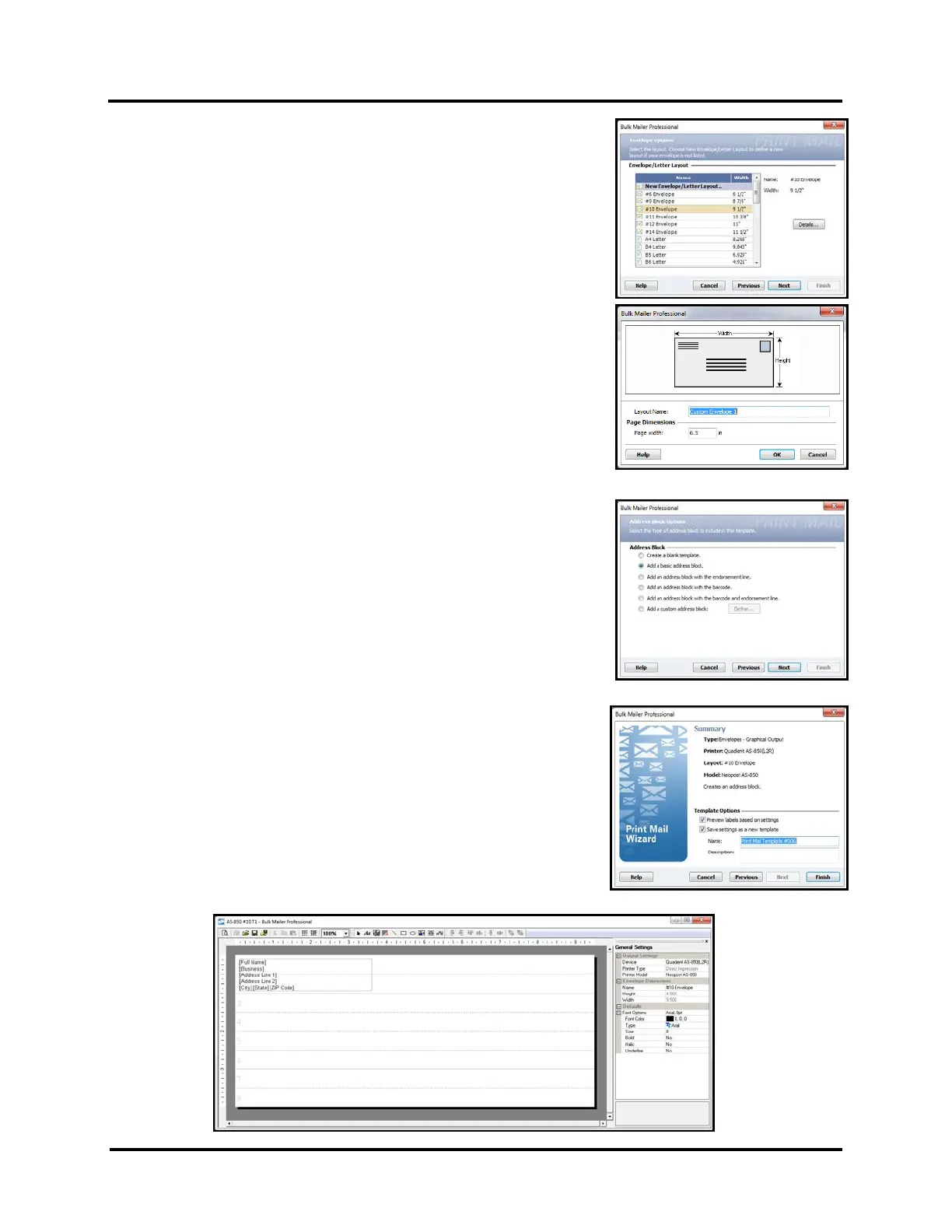
c. From the “Envelope Options” window select the desired media size
(Name/Width) from “Envelope/Letter Layout” list.
NOTE: Width = length of media in direction of travel.
TIP: If your desired media size is not present, select and open the
“New Envelope/Letter Layout”, located at top of list.
You will be presented with a window that allows you to create a
“custom” media size and save it as a new name.
Layout Name: Type desired name for new media choice.
Page width: Enter length (inches) of media, in direction of travel.
Press OK to Save and close this window.
Click NEXT to continue.
d. From the “Address Block Options” window select the desired
“Address Block” elements that you would like the “wizard” to
automatically add to the Template (Layout).
e. From the “Summary” window…
Select “Preview labels based on settings”.
Select “Save settings as a new template”.
Type the desired “Name” for the Template being created.
Add a “Description” for the Template. (optional)
Click on “Finish” to Save and close the “Print Mail Wizard”.
Your “Template” (Layout) will open, in the “designer” view.



 To Next Page