SECTION 3
OPERATING PRINTER
49
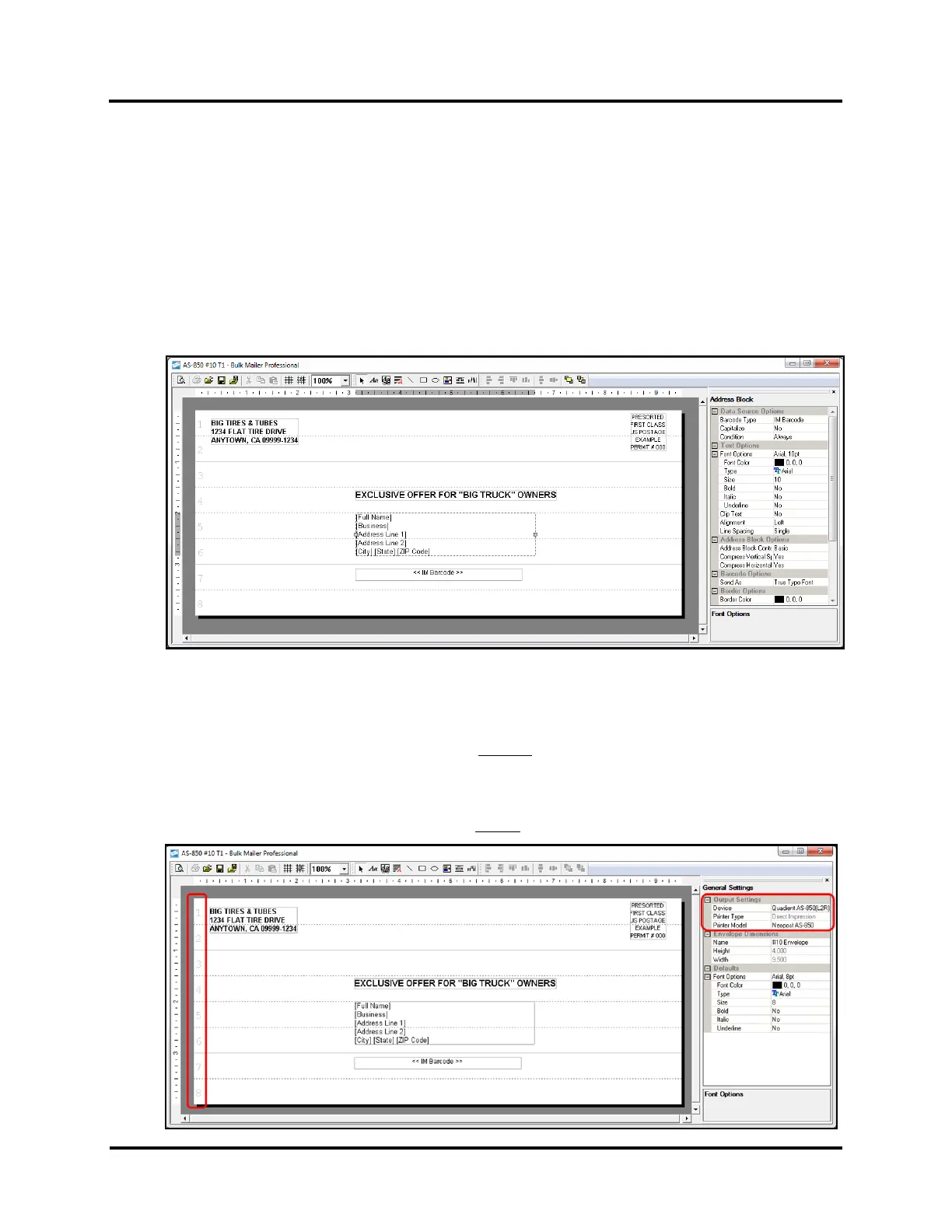
4. From the designer view of your “Template”, you can add, change and position elements in the Layout.
The following Layout example was designed for an AS-850.
It shows a media width of 9.5”, with “Static Text” elements (return address and indicia) positioned on Heads 1
& 2, a “Static Text” element (Exclusive Offer for “Big Truck” Owners) positioned on Head 4, an “Address
Block” element positioned on Heads 5 & 6 and an “IMB Barcode” element positioned on Head 7.
a. Click and drag elements, such as the Address Block or Barcode, to the desired print location in the Layout.
b. Click on an element, such as the Address Block, to access and change Font Options for this element. Font
Options and other features for the selected element can be accessed at the right-side of the designer
screen.
c. The numbers, along the left-side of the Layout, accurately represent the “Head” (cartridge) numbers
when using either of the following choices.
- Device: AS-850(L2R) (AS-850 as physical printer model)
- Printer Model: AS-850 (the “Direct Impression” choice in Bulk Mailer)
- Print inverted = Yes in the AS-850(L2R) Driver (“inverted
” print orientation).
- Device: AS-850(R2L) (AS-850R as physical printer model)
- Printer Model: AS-850 (the “Direct Impression” choice in Bulk Mailer)
- Print inverted = No in the AS-850(R2L) Driver (“normal
” print orientation).



 To Next Page