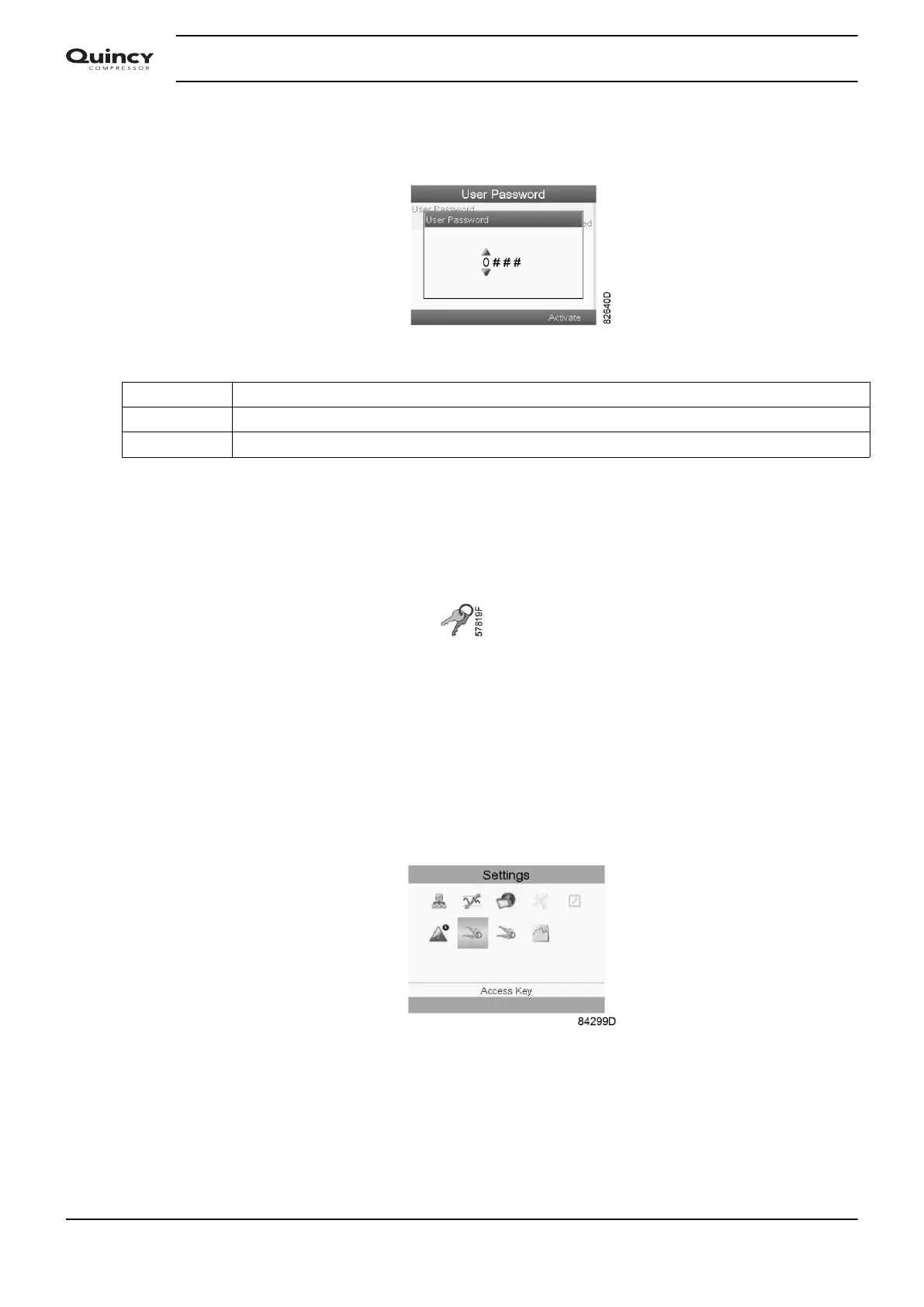
• Next, fill in the User Password and press the Enter key, a confirmation window opens.
• Fill in the password again and press the enter key to confirm.
Text on figure
(1) User Password
(2) Not activated
(3) Activate
3.18 Access key menu
Menu icon, Access Key
Function
Only a number of basic Icons will be displayed in the Menu screen. Using the Access Key with
the proper access code allows the user to see more Icons, or have access to more parameters.
Procedure
Starting from the submenu screen (see Modifying general settings),
• Using the Scroll keys, move the cursor to the Access Key icon (see below)
• Three Access levels are possible.
• 0 : A basic set of parameters is visualized, no password is required.
• 1 : A basic set of parameters can be modified.
• 2 : Extra parameters will be visualized and can be modified.
• Changing the Access level can be done through the Modify button. A new pop-up window
will be activated asking to enter an Access Key.
Instruction book
62 2920 7190 02







 To Next Page