Getting ‘on air’ with your Radioddity GD-73 v1.0
5. Create a code plug from scratch
To begin creating a code plug for your GD-73, first read data from the radio to your PC
to create a first CPS template, and at the same time save the factory data for future
use.
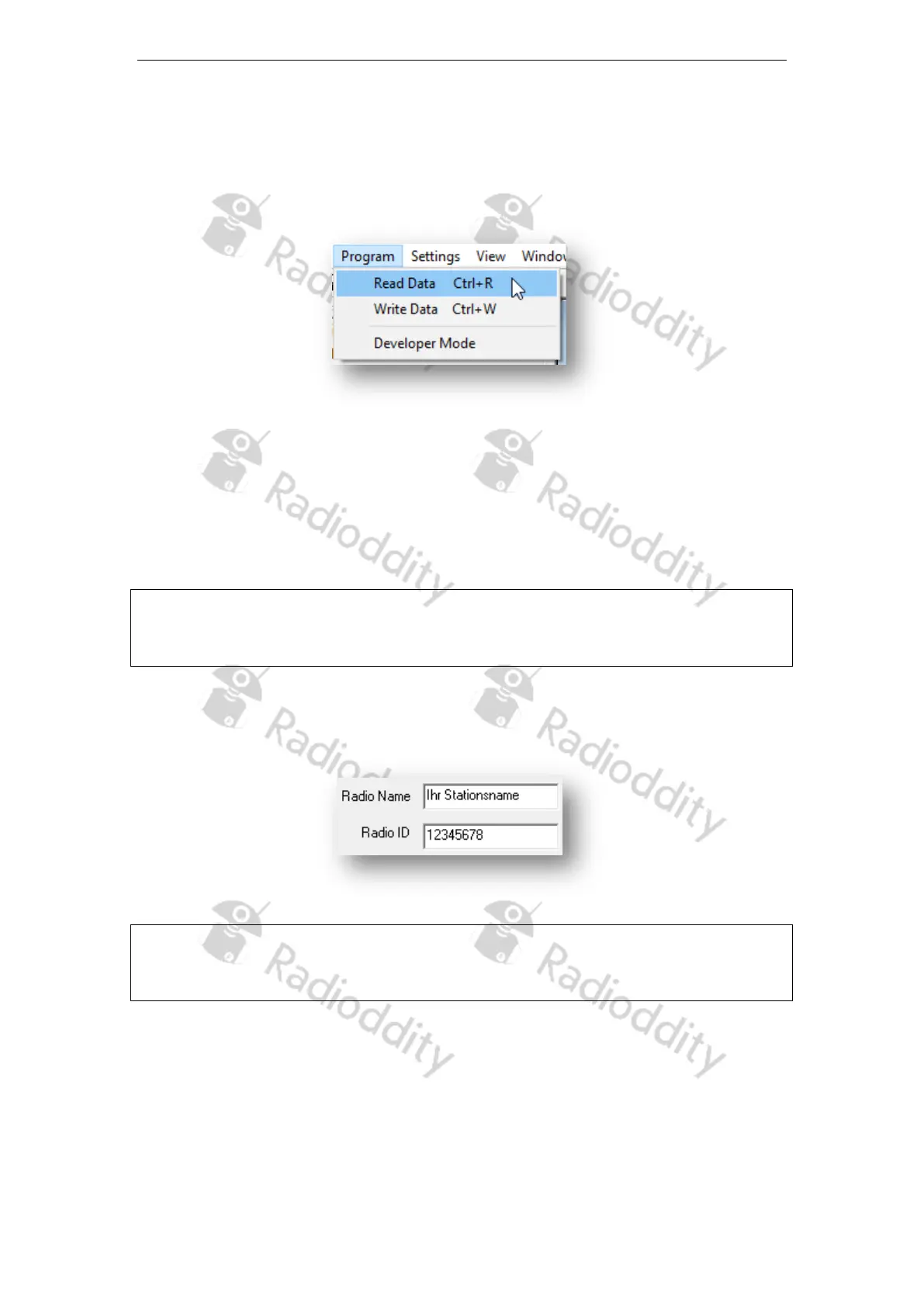
When reading or writing data to or from the GD-73, the software offers several options:
Read Data
To read all frequency settings and other settings of your GD-73 radio, use this option.
Write Data
Whenever you have made your changes and additions to the settings of your GD-73
radio, use this option to transfer your settings to the radio.
Note
It is highly advised to create a code plug from scratch rather than taking a code plug
from someone else.
4a. Enter Call sign and DMR ID into code plug
To store your personal DMR ID into your codeplug, click on ‘Edit’‘General Settings’
Note
Never operate the radio with an ID that has not been assigned to you. In amateur
radio networks this can lead to the loss of your license.
4b. Create Digital contacts
Up to 1024 digital contacts can be stored. These digital contacts are used for storing
talkgroups (TG) as well as individual stations DMR ID numbers. Select ‘Edit’ ‘Digital
Contacts’ to edit the digital contacts.
Page 14 of 23



 To Next Page