EasyManua.ls Logo

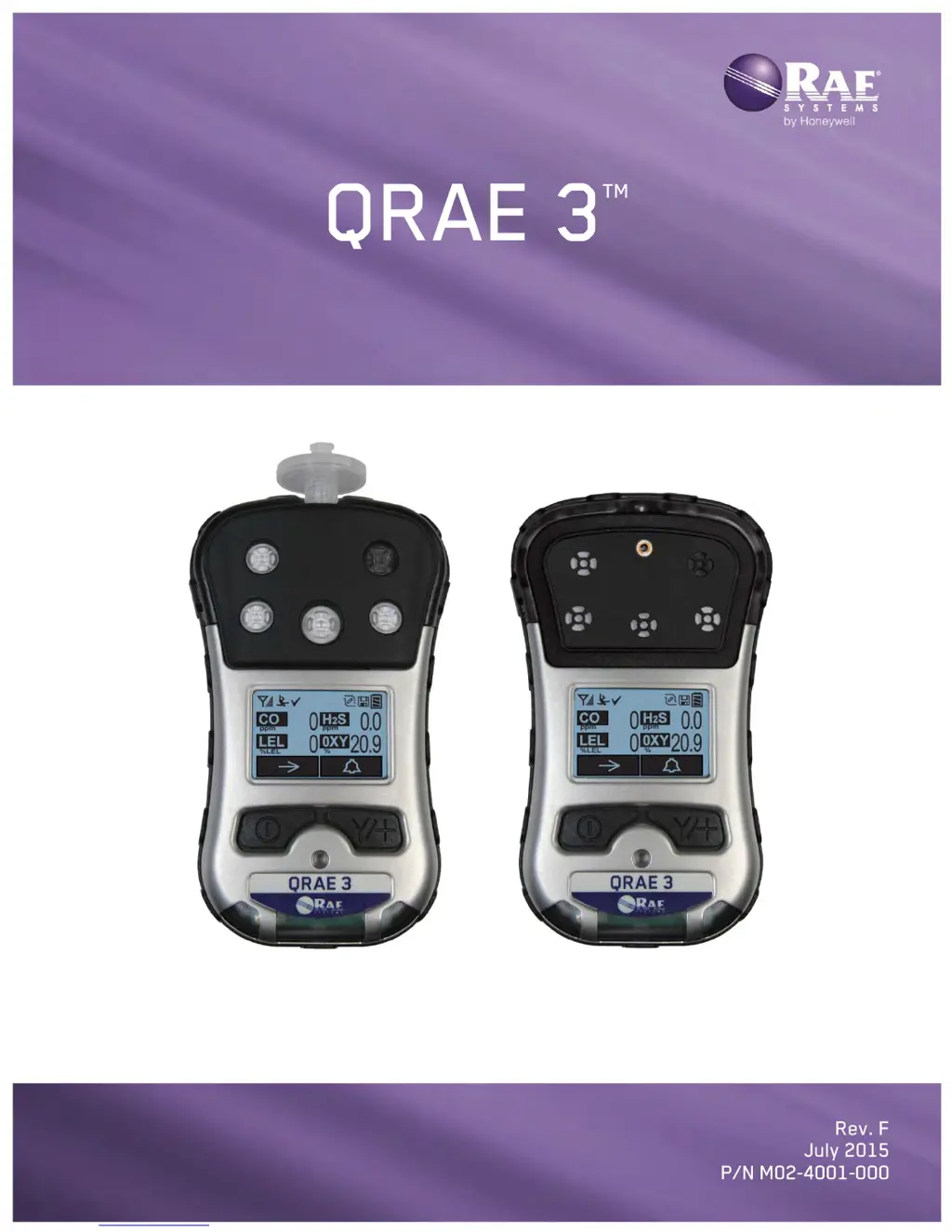
Rae QRAE 3 - User Manual

Rae QRAE 3
71 pages
Print Icon
To Next Page IconTo Next Page
Loading...
Wireless Personal Four-Gas Monitors

Other manuals for Rae QRAE 3

Questions and Answers

  • D
    dawncookAug 2, 2025
    What to do if Rae QRAE 3 Monitor shows pump failed message?
    • A
      Andrew JacksonAug 2, 2025
      If your Rae Monitor displays a 'Pump failed' message or triggers a pump alarm, several issues could be the cause. First, check the inlet probe for any obstructions and remove them, then press the [Y/+] key to reset the alarm. Also, ensure that the gas valve is turned on if directly connected to a gas outlet, and then press the [Y/+] key to reset the pump alarm. If using an external filter, check if it's dirty or sucking in water and replace it if contaminated. Lastly, be cautious of water condensation inside the unit. If none of these steps resolve the issue, the pump or pump circuit may be faulty, requiring a pump replacement.
  • B
    Benjamin CruzAug 11, 2025
    Why are buzzer, LED lights, and vibration motor inoperative on Rae Monitor?
    • J
      jeremycruzAug 12, 2025
      If the buzzer, LED lights, and vibration motor on your Rae Monitor are not working, it could be due to a couple of reasons. First, go to “Alarm Settings” in Programming Mode and make sure that the buzzer and/or other alarms are not turned off. If the alarms are enabled, the buzzer might be defective and require calling an authorized service center.
  • P
    Phillip LeAug 21, 2025
    How to fix Rae QRAE 3 Monitor if it cannot turn on power after charging the battery?
    • A
      Aaron HobbsAug 21, 2025
      If you cannot turn on the Rae Monitor after charging the battery, it could be due to a defective charging circuit, in which case you should replace the battery or charger. Alternatively, the battery itself might be defective, so try charging the battery again.

Summary

Safety and Precautions

General Warnings and Cautions

Essential safety information and cautions for operating the instrument.

User Interface and Display

Display Overview

Explains the instrument's LCD display layout and elements.

Status Indicator Icons

Describes icons displayed on the screen for status information.

Interface Controls

Keys and Interface

Details the functions of the instrument's keys and interface elements.

Instrument Navigation

Instrument Menus and Wireless Control

Overview of menus and wireless communication settings.

Battery Management

Charging the Battery

Instructions for charging the instrument's Li-ion battery.

Battery Safety Warning

Critical warning about battery handling in hazardous areas.

Battery Operations

Replacing the Battery

Step-by-step guide to replacing the battery pack.

Battery Status Indicators

Explains the battery charge level indicators on the display.

Powering the Instrument

Turning the QRAE 3 On

Procedure for powering on the instrument and initial startup sequence.

Turning the QRAE 3 Off

Procedure for safely powering off the instrument.

Instrument Status Monitoring

Testing Alarm Indicators

How to test the instrument's alarm indicators.

Pump Status and Calibration Status

Checking pump status and understanding calibration status display.

Operation Modes and Status

Bump Status and User Modes

Displaying bump status and explaining user modes.

Configuration and Programming

Entering Programming Mode (Basic)

Steps to access Programming Mode using a password.

Programming Menu Flow

Advanced Programming Mode

Programming Submenus

Editing Parameters and Selecting Sensors

How to edit settings and choose sensors via menus.

Calibration Procedures

Multi-Sensor and Single Sensor Calibration

Procedures for multi-sensor and single-sensor bump tests and calibrations.

Individual Calibration Steps

Single Sensor Calibration and LEL Gas Setup

Performing single sensor zero/span calibration and setting LEL gas.

Measurement and Span Settings

Setting Span Value and Measurement Units

Setting span values and changing measurement units.

Sensor On;Off Configuration

Turning individual sensors on or off.

Measurement and Alarm Configuration

LEL Measurement Gas and Alarm Limits

Selecting LEL gas and configuring alarm limits.

Alarm Configuration Options

Adjusting alarm modes and output methods.

Alarm Behavior and Features

Datalogging Operations

Datalogging Configuration

Monitor and Identification Settings

Mode, Startup, and Wireless Configuration

Wireless Network Setup

Wireless Transmission Settings

Policy Enforcement

Policy Enforcement Configuration

Policy Enforcement Management

Calibration and Testing

Bump Testing Procedure

Diffusion Model Calibration

Span Calibration Methods

PC Communication and Data Management

Maintenance Procedures

Sensor Configuration

Sensor Configuration Changes

Alarms and Notifications

Alarm Mode Management

Alarm Summary

Alarm Messages and Testing

Troubleshooting and Diagnostics

Diagnostic Mode Operations

Technical Specifications

Instrument Specifications Continued

Sensor Performance

Safety Instructions and Precautions

Critical Warnings and Cautions

Hazardous Location Operation

Instrument Operation and Alarms

Alarm System Summary

Configuration and Calibration

Model-Specific Calibration

Calibration and Battery Replacement

Troubleshooting Guide

Rae QRAE 3 Specifications

General IconGeneral
AlarmsVisual, audible, and vibrating alarms
Device TypeMulti-gas monitor
DisplayGraphic LCD
Battery TypeRechargeable Lithium-ion
Gas SensorsOxygen (O2), Combustible (LEL), Hydrogen Sulfide (H2S), Carbon Monoxide (CO)
Sensor OptionsLEL, O2, CO, H2S, and others
Operating Temperature-4° to 122°F (-20° to 50°C)
Humidity0% to 95% RH (non-condensing)
Data LoggingYes
WirelessOptional Bluetooth
Protection RatingIP65
CommunicationUSB, Bluetooth

Related product manuals