Using the CncGcoder
®
Navigating the File Screen
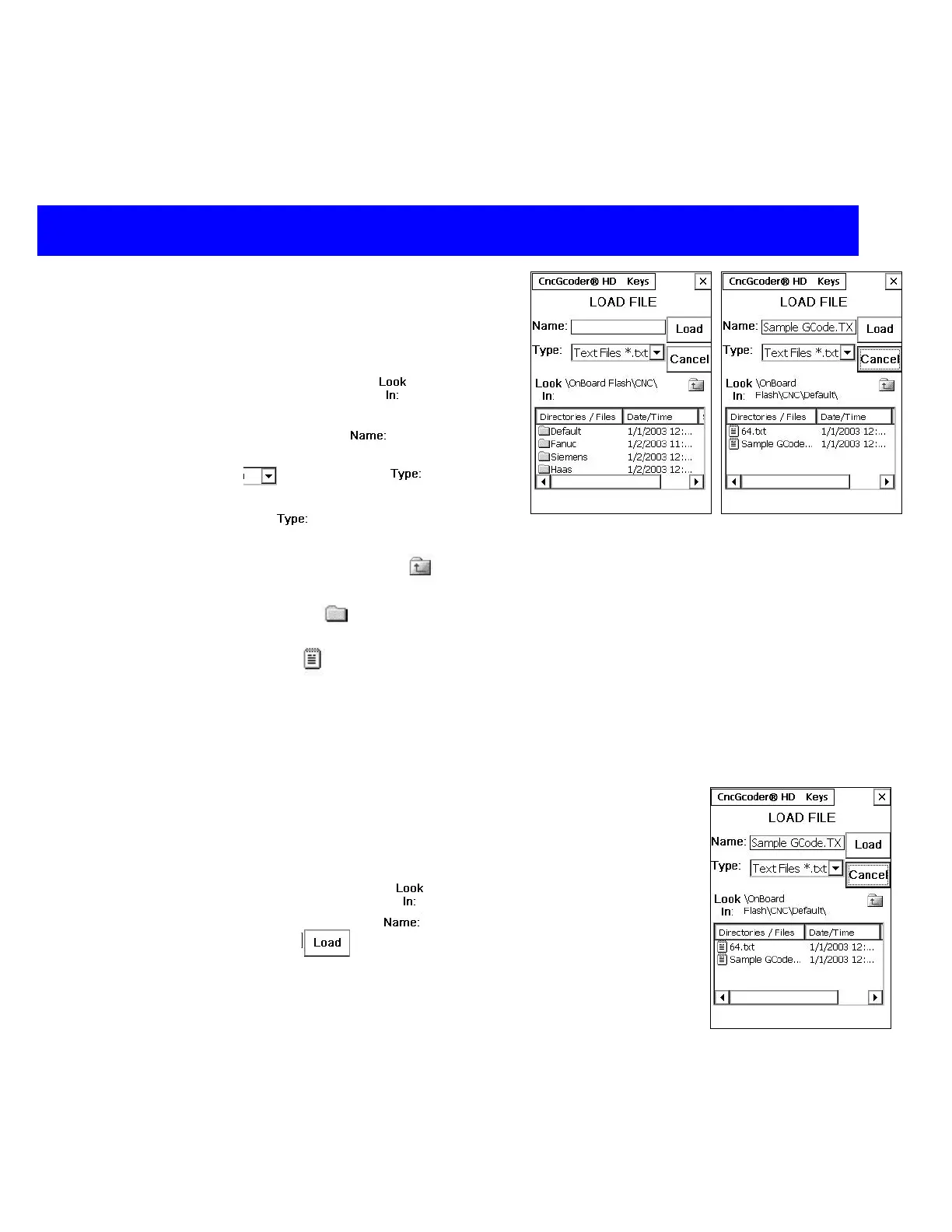
Tips for navigating the File Screen include:
¾ The path to the current open directory is
displayed after Look In:
¾ The name of the current file is displayed in
the box after Name:
¾ Select a file extension from the dropdown
menu
next to Type: to view only
certain file types. Select All Files *.* from
the Type:
list to view all the files in the
current directory.
¾ Tap the Up One Level icon
to move up
one directory level.
¾ Tap on a Folder
to view the contents of
that directory
¾ Tap on a File
to select the G-Code
program
¾ Slide the scrollbar across the bottom of the
screen to view the date and time the file
was created as well as the size of the file.
¾ The root directory displays as “ \ “
Loading a G-Code File
1. Select File>Load File from the menu bar on the main screen.
2. Navigate to the G-Code program. Make sure the correct path is
displayed next to Look In:
and the correct file name is
displayed next to Name:
3. Tap the Load
button to load the program and return to the
main screen. The G-Code program will display on the
CncGcoder
®
main screen.
CncGcoder® HD Manual
16


 To Next Page