Using the CncGcoder
®
File Transfer between CNC
Files are transferred from the main screen of the CncGcoder
®
. When
transferring a program, make sure the receiving end is ready before any
data is sent.
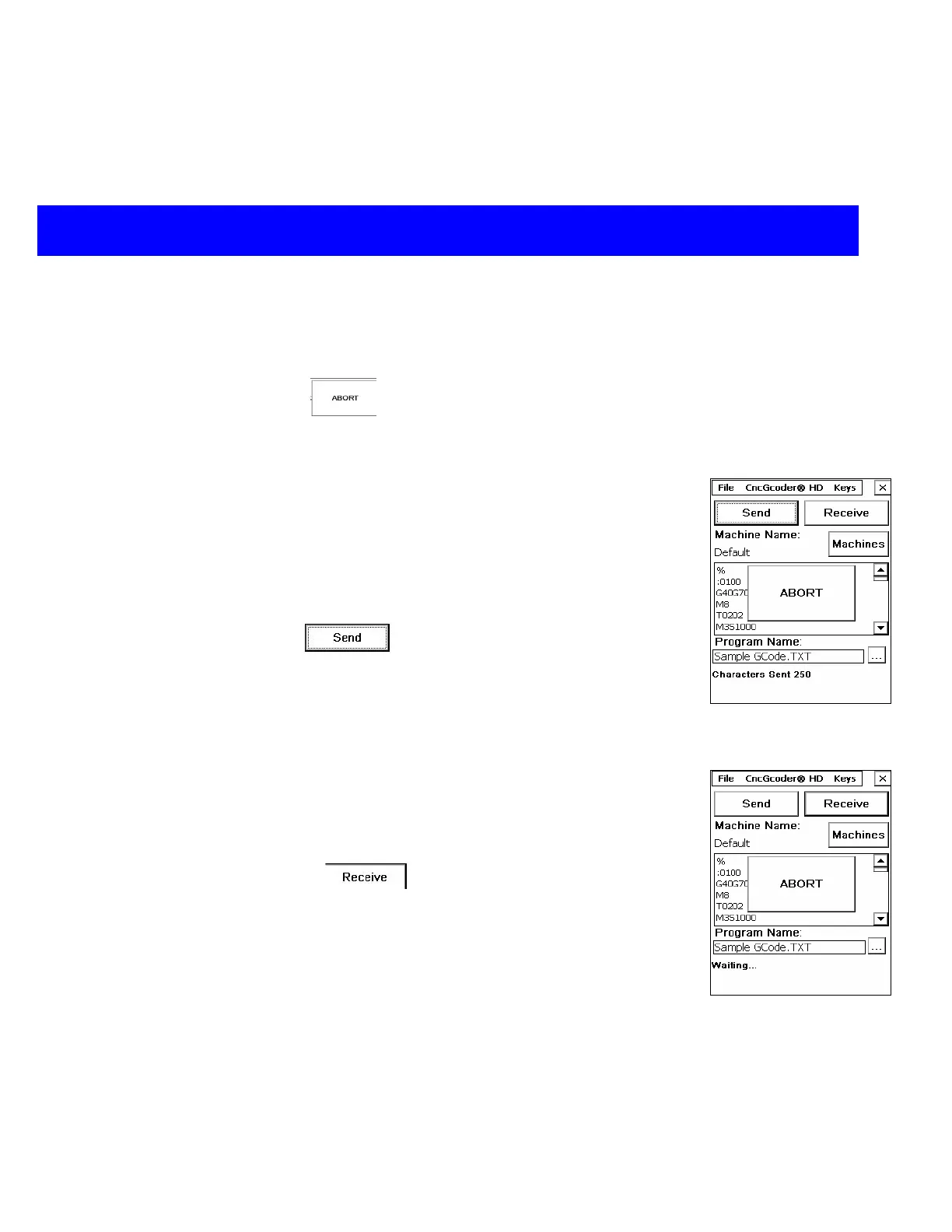
NOTE: Tap the Abort
button at any time during the data transfer
to abort the send or receive.
Sending a Program to the CNC
1. Select the correct machine.(See Selecting a Machine)
2. Load the G-Code program to send (See Loading a File)
3. Connect the CncGcoder
®
serial cable to the RS-232 port on the
CNC.(See Plugging in Cable)
4. Setup the machine tool to receive a program
5. Tap the Send
button on the CncGcoder
®
. The
Characters Sent will count up at the bottom of the screen.
6. When the send completes successfully, a message box will
display the total characters sent.
Receiving a Program from the CNC
1. Select the correct machine.(See Selecting a Machine)
2. Connect the CncGcoder
®
serial cable to the RS-232 port on the
CNC.(See Plugging in Cable)
3. Tap the Receive button on the CncGcoder
®
. While
waiting to receive characters, the bottom of the screen will display
Waiting…
4. Send the program from the CNC. The Characters Received will
count up at the bottom of the screen.
5. When the receive completes successfully, a message box will
display the total characters received.
6. Save the G-Code program. (See Saving a File)
CncGcoder® HD Manual
18


 To Next Page