CncGcoder® HD Manual
26
Tech Note 1
Option C: Transfer using Microsoft
®
ActiveSync
®
Cable
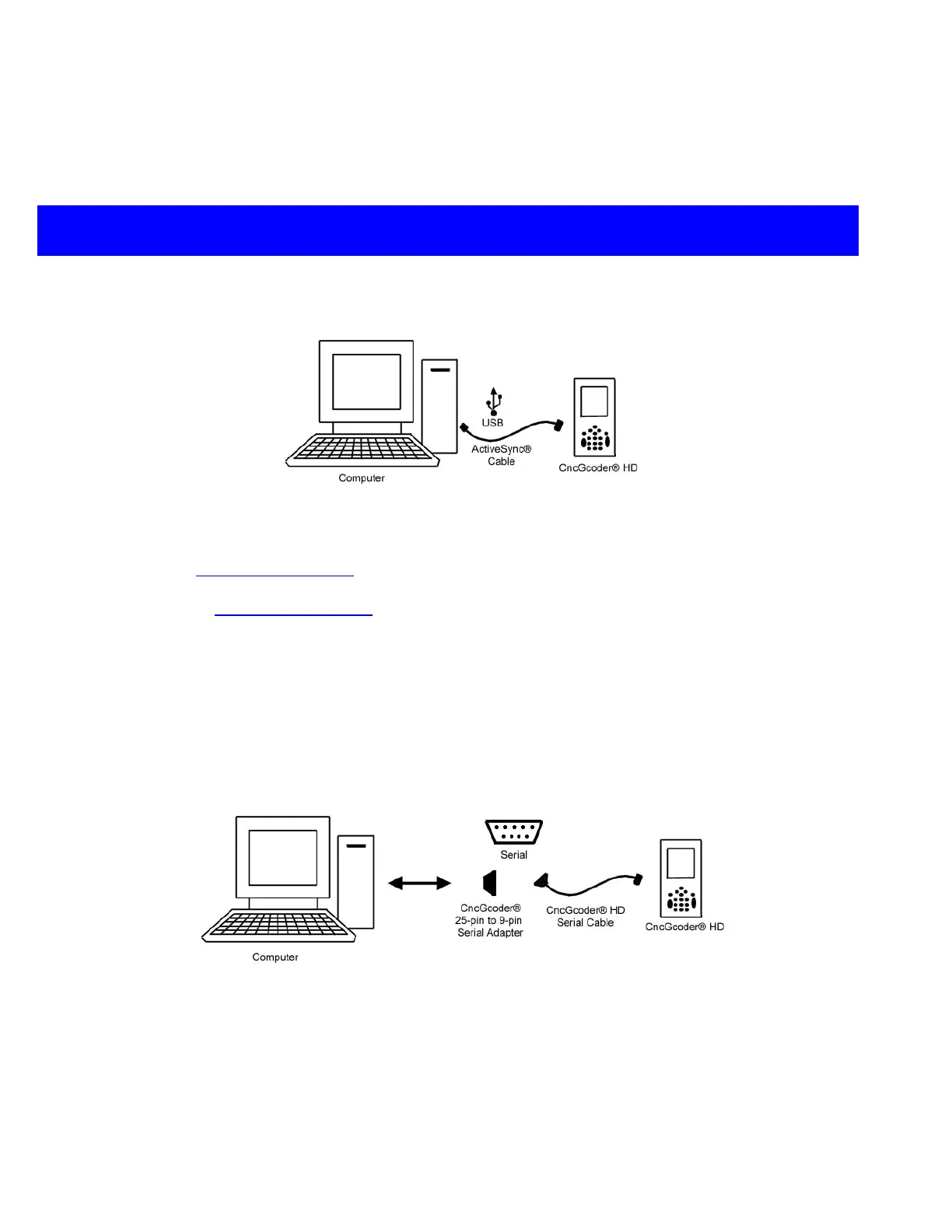
ActiveSync
Cable
optional accessory
available at RBR.
USB Port Required
Required Desktop OS: Windows 2000,
Windows ME, Windows XP,
¾ Install Microsoft
®
ActiveSync
®
software on PC. (Link to download available at
www.cncgcoder.com
)
¾ Install CncGcoder
®
ActiveSync
®
driver software on PC. (Link to download available
at www.cncgcoder.com
)
¾ Connect ActiveSync
®
Cable to the bottom of handheld and the USB port on the PC.
¾ ActiveSync will mount the CncGcoder
®
HD as a drive called Mobile Device on the
PC.
¾ Drag and drop G-Code programs into and out of the directories on the mobile device.
(See Microsoft
®
ActiveSync
®
manual for more information)
Option D: Transfer using DNC Software
CncGcoder
25-pin to 9-pin Serial Adapter
optional accessory available at RBR.
Serial Port Required
¾ Connect the CncGcoder
®
HD Serial Cable to the bottom of handheld and the
CncGcoder
®
25-pin to 9-pin adapter.
¾ Connect the CncGcoder
®
25-pin to 9-pin adapter to the computer.
¾ DNC to the CncGcoder
®
HD as if it was a machine tool CNC


 To Next Page