23
5
Wireless Communication and Meter Pairing
Overview
The process of creating a connection
between the meter and the mobile device
is called pairing. You will need an
application on your mobile device that can
accept the meter data. You can use this
application to wirelessly and automatically
synchronize your diabetes information
between the meter and the mobile device.
Pairing
The meter can only pair with 1 device at a
time. Pairing with a second device
overwrites the first pairing.
The meter and the device to be paired
should be within 3 feet of each other.
On Your Mobile Device
Open the app and select Pair Meter. If
prompted, turn on Bluetooth wireless
technology.
On Your Meter
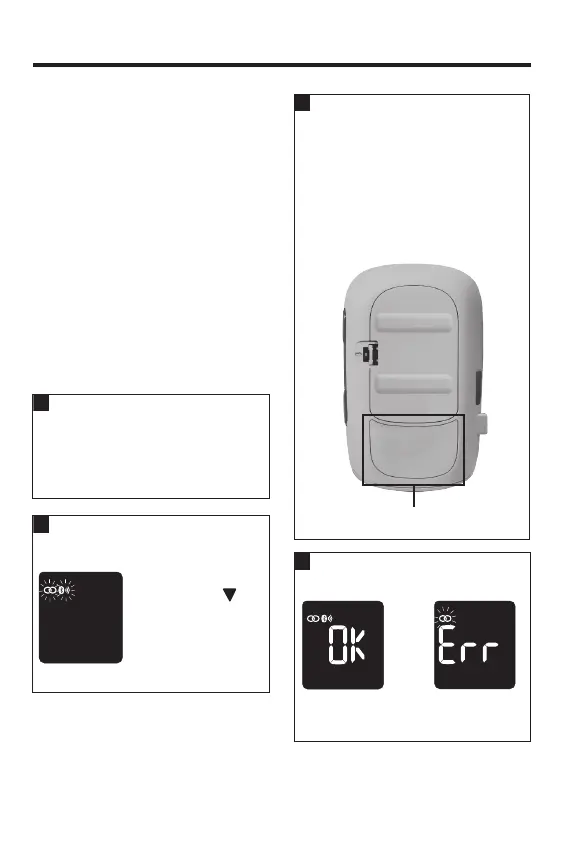
With the meter o,
press and hold
until the Bluetooth
symbol appears. The
pairing symbol and
wireless symbol both
appear and flash.
On Your Mobile Device
Within the app, select your meter from
the list of found meters. When
prompted, enter the 6-digit PIN located
on the back of your meter.
The meter times out after 30 seconds
once you are prompted to enter the PIN.
6-digit PIN
On Your Meter
or
OK appears if pairing is successful. Err
appears if pairing is unsuccessful.
83561_09410155001A EN ReliON.indd 2383561_09410155001A EN ReliON.indd 23 3/23/2022 11:24:13 AM3/23/2022 11:24:13 AM


 To Next Page