3-12
General information
Navigating the graphical user interface
Select a function by touching the desired tab or button on the touchscreen.
Use this as the primary method to control the ventilator.
You can use the navigation ring as an alternative to the following touchscreen
functions:
After making selections and adjusting values, accept selections by pressing the
circular Accept button (the checkmark) in the middle of the navigation ring to
accept and apply the change.
To open a window, touch the window tab.
To cancel a function and close the window, either select Cancel or touch another
window tab.
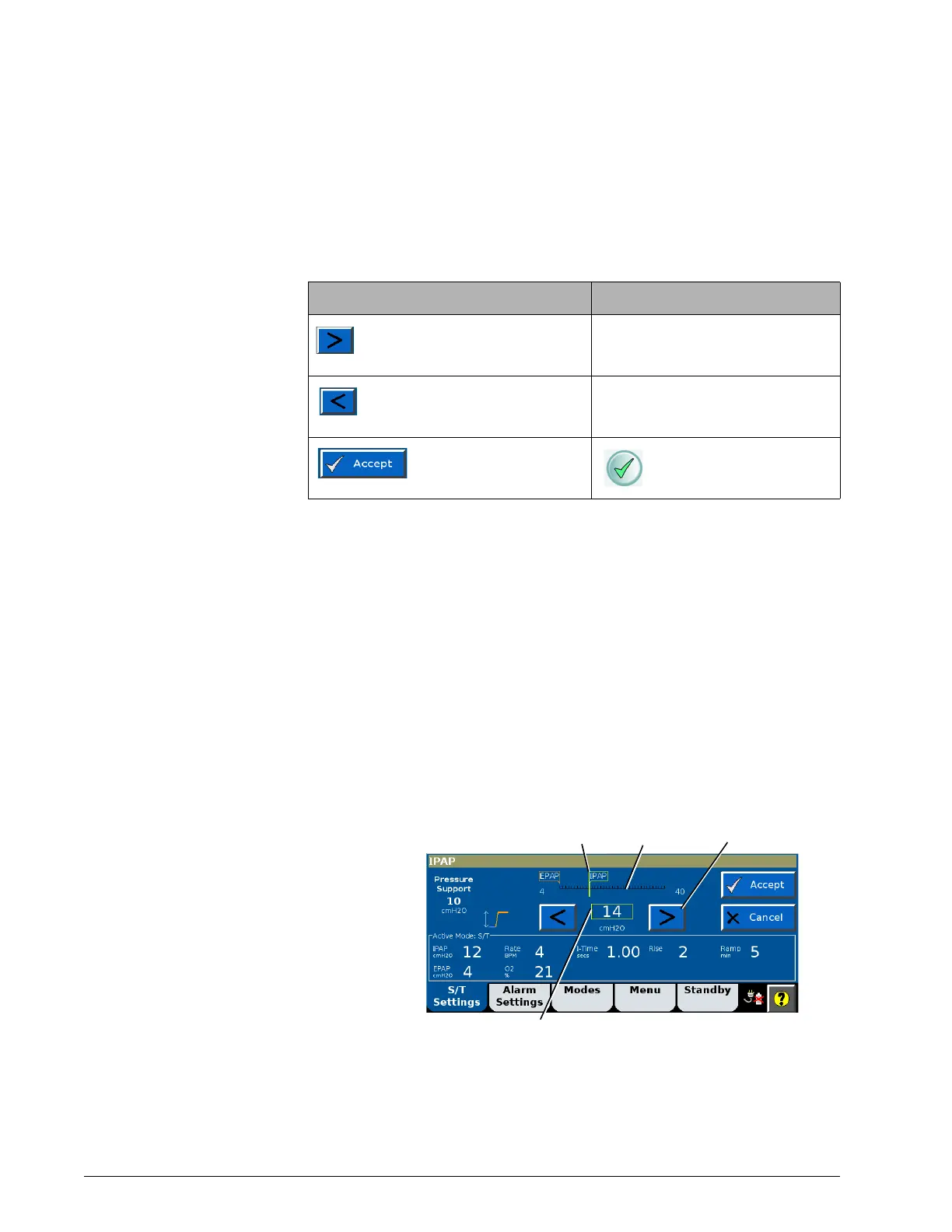
To adjust a parameter, select the value with the navigation ring or touch the
arrow button. Each touch changes the value in single increments or, for
parameters with wide ranges, press and hold the arrow key to make faster
changes. The slider flag moves along the setting range scale. Select Accept to
apply.
The navigation ring also lets you adjust the position of the cursor in the
waveforms window while the screen is frozen. See "Freezing and unfreezing
waveforms" on page 8-3 for more information.
Touchscreen equivalent Navigation ring equivalent
Touch increase button (adjustment
arrow). Press and hold for faster ad-
justments.
*
* Available in Revision 2.30 software and above.
Touch and rotate finger clockwise to in-
crease value or move cursor forward
Touch decrease button (adjustment
arrow). Press and hold for faster ad-
justments.
*
Touch and rotate finger counterclock-
wise to decrease value or move cursor
backward
Touch Accept button (ap-
plies selection)
Press Accept (checkmark)
button (applies selection)
Adjustment
arrow button
Slider flag
Setting range scale
Proposed value



 To Next Page