Important information Quick reference50 51
measures:
Reorient or relocate the receiving antenna.
Increase the separation between the equipment and
receiver.
Connect the equipment to an outlet on a circuit
different from that to which the receiver is connected.
Consult the dealer or an experienced radio/TV
technician for help.
Made for iPhone, iPad
"Made for iPhone" and "Made for iPad" mean that the
device has been designed to connect specifically to
iPhone or iPad, respectively, and has been certified by the
developer to meet Apple performance standards. Apple
is not responsible for the operation of this device or its
compliance with safety and regulatory standards. Please
note that the use of this accessory with iPhone or iPad
may affect wireless performance.
Country-specific information
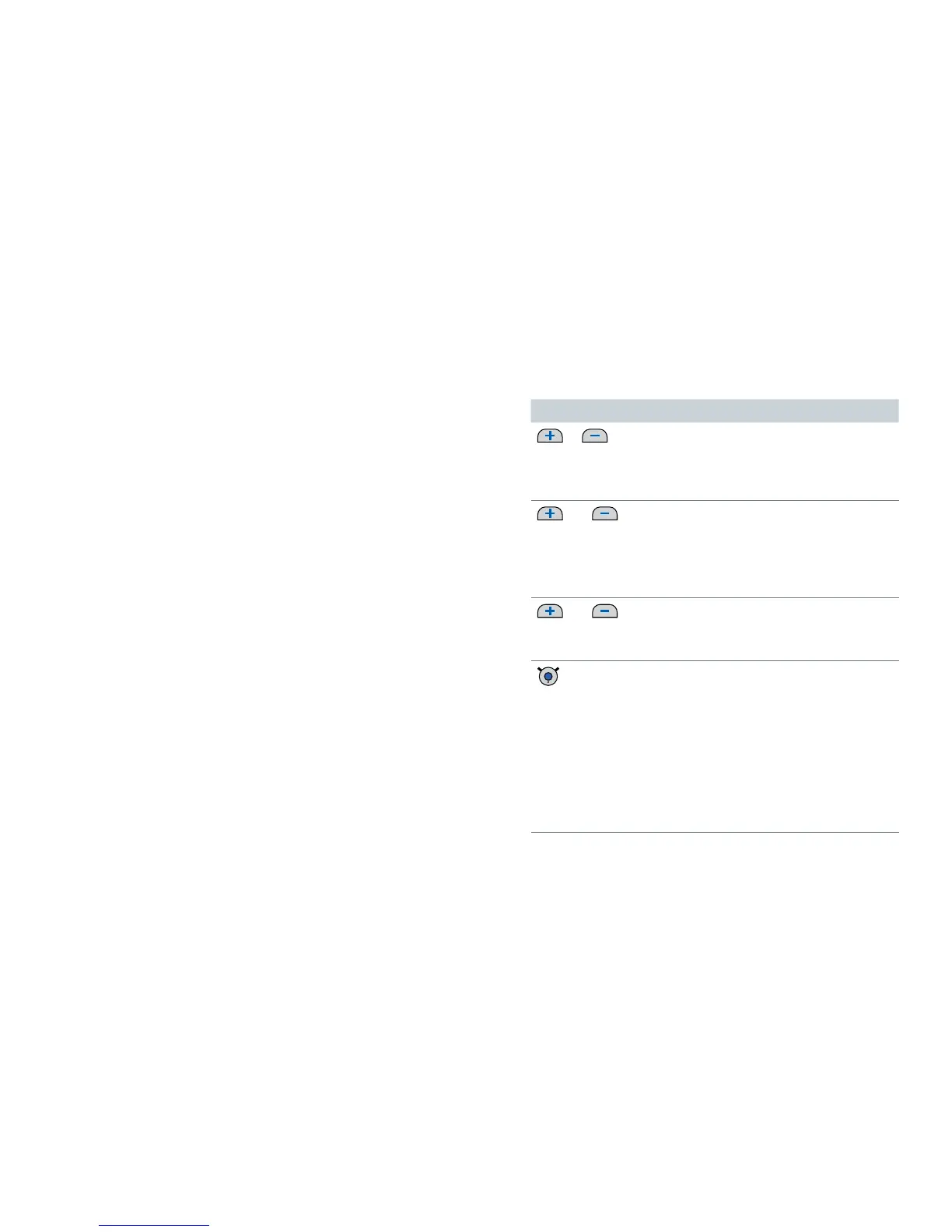
Button overview
Button Description
or
Adjust volume
Press shortly to adjust step by step.
Press and hold until desired volume is
reached.
and
short press
Only during audio streaming or phone calls
Switch between the following input signals:
Audio input/caller's voice and ambient
sound
Audio input/caller's voice only
and
long press
(2 seconds)
Turn your hearing instruments on/off
(standby).
short press
During audio streaming:
Stop streaming
No audio streaming:
Switch to next hearing program
When hearing instruments are turned off:
Turn hearing instruments on
Incoming call: Accept call
During phone call: End call
During Bluetooth pairing: Cancel pairing
Quick reference


 To Next Page