Form Feed
109
4
Canceling Form Feed
A
AA
A
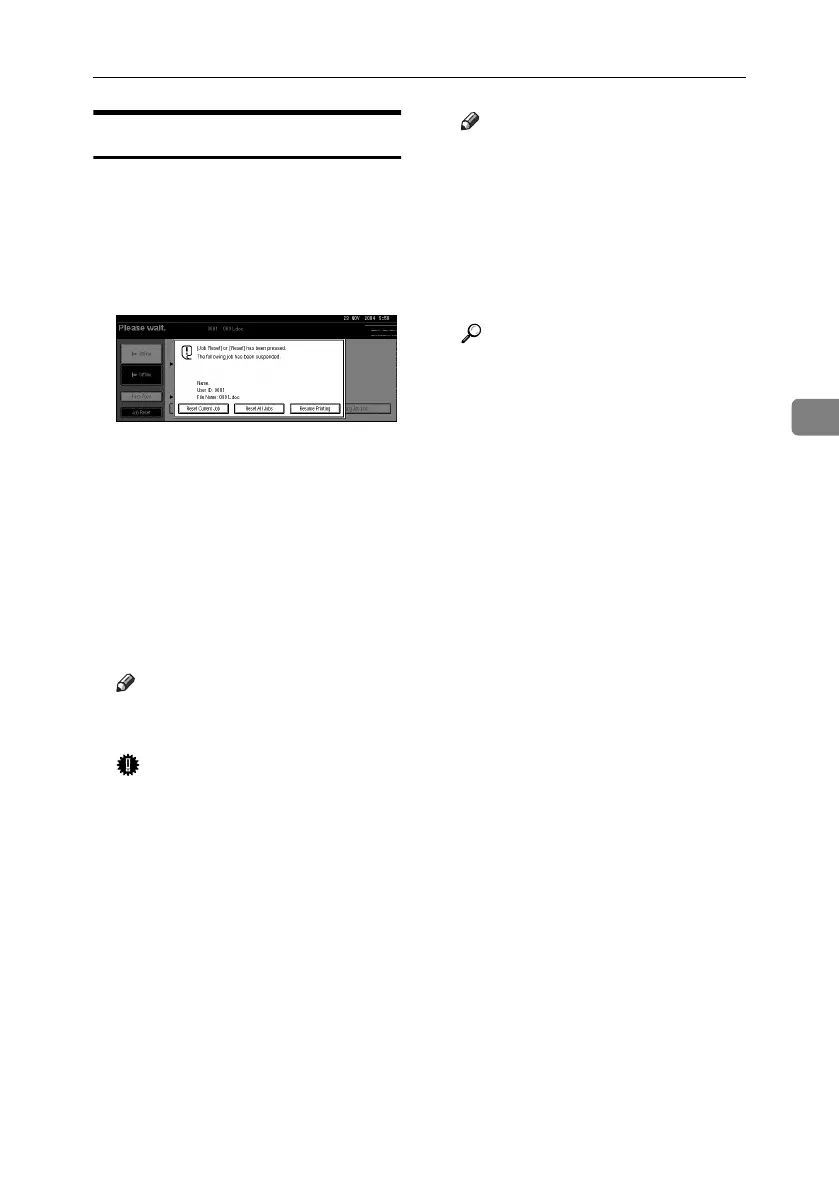
Press [Reset ].
Delete the stored print job, and
then cancel form feed.
B
BB
B
Press [Reset Current Job] or [Reset
All Jobs].
• [Reset Current Job]: cancels the
print job currently being proc-
essed.
• [Reset All Jobs]: cancels all jobs
in the print queue.
• [
Resume Printing
]: resumes print-
ing jobs.
A confirmation message appears.
C
CC
C
Press [Yes] to cancel the print job.
Note
❒ Press [
No
] to return to the previ-
ous display.
Important
❒ If the machine is shared by mul-
tiple computers, be careful not
to accidentally cancel someone
else's print job.
❒ Under Windows, If the machine
is connected to the computer us-
ing a parallel cable, sent print
jobs may be canceled if [
Reset All
Jobs] is pressed while “Wait-
ing...” is on the display panel.
After the interval set in [I/O Time-
out] in Printer Features has
passed, the next print job can be
sent. A print job sent from a dif-
ferent client computer will not
be canceled in this case.
Note
❒ You cannot stop printing data
that has already been proc-
essed. For this reason, printing
may continue for a few pages
after you press [Job Reset].
❒ A print job containing a large
volume of data may take con-
siderable time to stop.
Reference
p.110 “Canceling a Print Job”
MartiniC25-GB-Pref-F7_FM.book Page 109 Tuesday, November 9, 2004 3:46 PM


 To Next Page