Troubleshooting
141
8
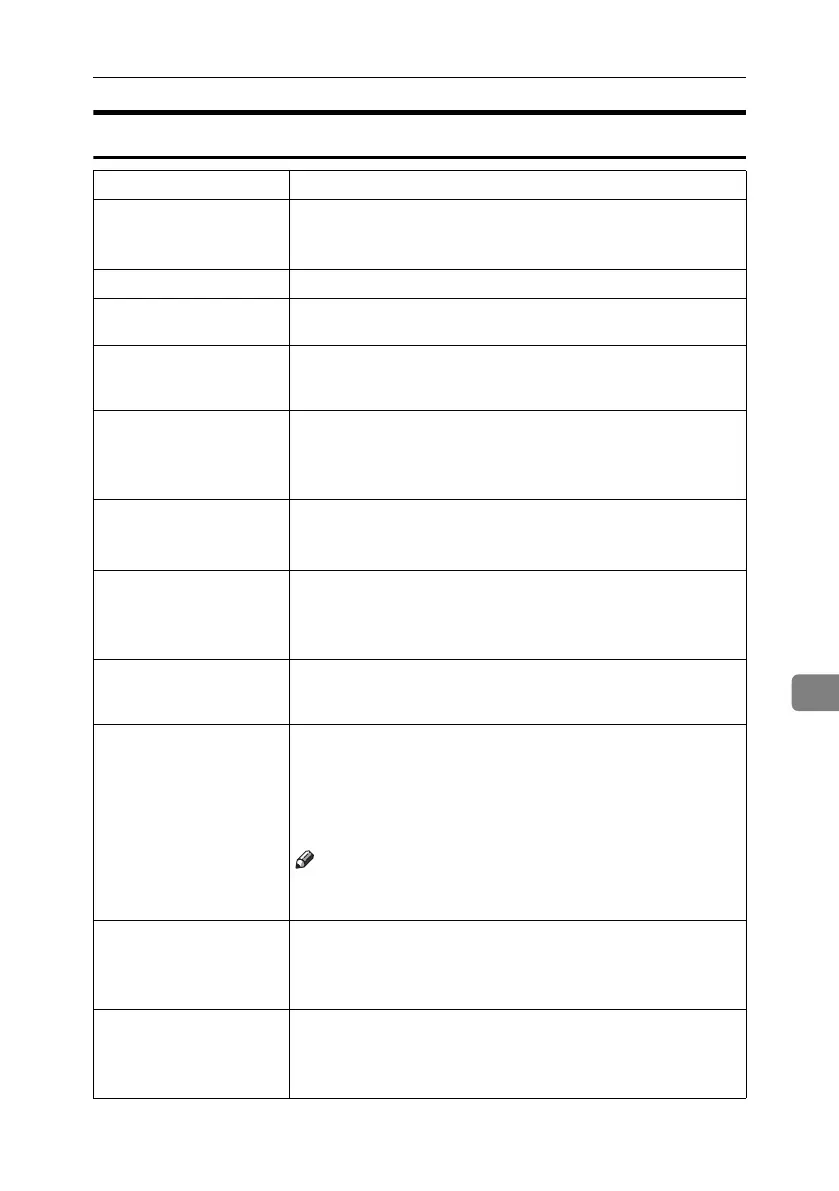
The Machine Does Not Print
Possible Cause Solutions
Is the power on? Check the cable is securely plugged into the power outlet and the
machine.
Turn on the main power switch.
Is the machine online? If not, press [f
ff
f Online] on the display panel.
Does the printer function
status indicator stay red?
If so, check the error message on the display panel and take re-
quired action.
Is there a warning status or
error message on the dis-
play panel?
If so, check the error message or warning status on the display
panel and take the required action.
Can you print a configura-
tion page?
If you cannot print a configuration page, there maybe a machine
malfunction. Contact your sales or service representative.
See p.114 “Printing the configuration page” for printing a config-
uration page.
Is the interface cable con-
nected securely to the ma-
chine and computer?
Connect the interface cable securely. If it has a fastener, fasten that
securely as well.
See p.10 “Connecting the Machine”.
Are you using the correct
interface cable?
The type of interface cable you should use depends on the compu-
ter. Be sure to use the correct one. If the cable is damaged or worn,
replace it.
See p.10 “Connecting the Machine”.
Was the interface cable
connected after the ma-
chine was turned on?
Connect the interface cable before turning on the machine.
Is the signal status satisfac-
tory when using wireless
LAN in infrastructure
mode ?
To check signal status, press {
{{
{User Tools/Counter}
}}
} key on the dis-
play panel, and then press [System Settings] on the display panel.
On the [Interface Settings] tab, select [IEEE 802.11b], and then press
[Wireless LAN Signal]. If signal quality is poor, move the machine to
a location where radio waves can pass or remove objects that
might cause interference.
Note
❒ You can check signal status only when using wireless LAN in
infrastructure mode.
When using wireless LAN,
is the SSID correctly set?
Check using the machine's display panel that the SSID is correctly
set.
See “Interface Settings/IEEE 802.11b (Option)”, General Settings
Guide.
When using wireless LAN,
is the access point correctly
set?
Check access point settings when in infrastructure mode. Depending
on the access point, client access may be limited by MAC address.
Also, check there are no problems in transmission between access
point and wired clients, and between access point and wireless clients.
MartiniC25-GB-Pref-F7_FM.book Page 141 Tuesday, November 9, 2004 3:46 PM


 To Next Page