Other Print Operations
86
4
E
EE
E
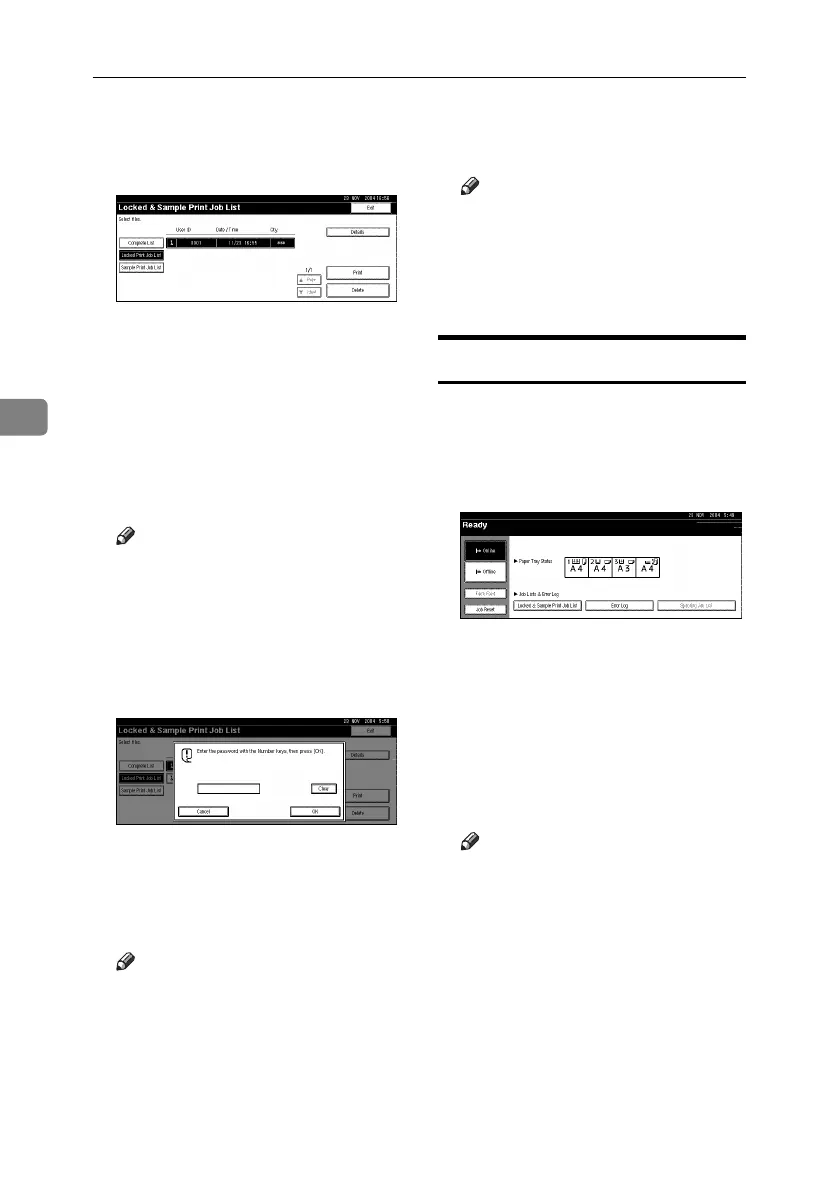
Press [Locked Print Job List].
A list of stored locked print files
appears.
The following items also appear:
• User ID: The user ID set up by
the printer driver.
• Date / Time: The date and time
when the job was sent from the
computer.
F
FF
F
Select the file you want to print
by pressing it.
Note
❒ Press [U
UU
UPrev.
] or [T
TT
T Next.
] to
scroll through the list.
❒ Only one file can be selected at a
time.
G
GG
G
Press [Print].
The password screen appears.
H
HH
H
Enter the password using the
number keys, and then press [OK].
The print confirmation screen ap-
pears.
Note
❒ A confirmation screen will ap-
pear if the password is not en-
tered correctly. Press [
OK
] to
enter the password again.
I
II
I
Press [Yes].
The locked file is printed.
Note
❒ Press [
No
] to cancel printing.
❒ To cancel printing, press [Exit].
After that, press [
Job Reset
]. Af-
ter it has started, the file will be
deleted.
Deleting Locked Print Files
A
AA
A
Press the {
{{
{Printer}
}}
} key to display
the Printer screen.
B
BB
B
Press [
Locked & Sample Print Job
List].
A list of the print files stored in the
machine appears.
C
CC
C
Press [Locked Print Job List].
A list of the locked print files
stored appears.
D
DD
D
Select the file you want to delete
by pressing it.
Note
❒ Press [U
UU
UPrev.] or [T
TT
T Next.] to
scroll through the list.
❒ Only one file can be selected at a
time.
E
EE
E
Press [
Delete
].
The password screen is displayed.
MartiniC25-GB-Pref-F7_FM.book Page 86 Tuesday, November 9, 2004 3:46 PM


 To Next Page