Getting Started
12
1
J
JJ
J
Turn on the computer.
Note
❒ When using Windows 95/98/
Me/2000/XP and Windows
Server 2003, a printer driver in-
stallation screen might appear
when the computer is turned
on. If this happens, click [Cancel]
on the screen. For more infor-
mation, see p.19 “Preparing the
Machine”.
The machine and computer are
now connected. The printer driver
must be installed next. For infor-
mation about how to install the
printer driver, see p.19 “Preparing
the Machine”.
Connecting the machine to the
host using a USB cable
You can connect the machine to the
host computer using a USB interface
cable when the optional USB 2.0 inter-
face board is installed in the machine.
This machine does not come with a
USB interface cable. Make sure you
purchase the appropriate cable for the
machine and your computer.
Follow the procedure below to con-
nect the machine to the host computer
using a USB interface cable.
A
AA
A
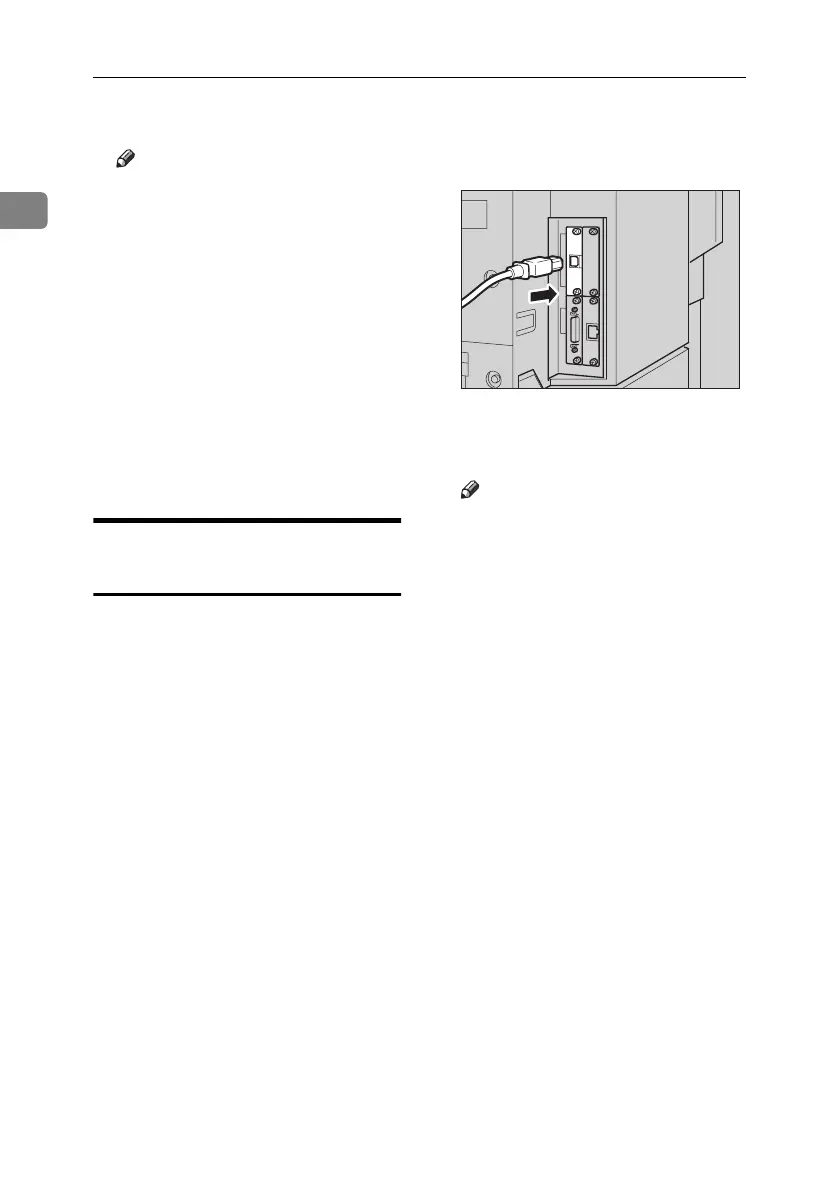
Connect the USB 2.0 interface ca-
ble to the USB port on the right
side of the machine's back cover.
B
BB
B
Connect the other end to the USB
port on the host computer.
Note
❒ The optional USB 2.0 interface
board is supported by Windows
98 SE/Me/2000/XP, Windows
Server 2003, Mac OS 9.x, and
Mac OS X Classic mode.
• For Windows 98 SE/Me:
Make sure to install “USB
Printing Support”. If USB 2.0
is used with Windows 98
SE/Me, only a speed equal to
that of USB 1.1 is possible.
• For Mac OS:
Mac OS supports only the
standard USB port. If USB 2.0
is used with a Mac OS, only a
speed equal to that of USB 1.1
is possible.
ACA019S1
MartiniC25-GB-Pref-F7_FM.book Page 12 Tuesday, November 9, 2004 3:46 PM


 To Next Page