Locked Print
87
4
F
FF
F
Enter the password using the
number keys, and then press [
OK
].
The delete confirmation screen ap-
pears.
Note
❒ A confirmation screen will ap-
pear if the password is not en-
tered correctly. Press [
OK
] to
enter the password again.
G
GG
G
Press [Yes].
After the file has been deleted, the
file list screen returns.
Note
❒ If you do not want to delete the
file, press [No].
❒ If you forget your password, se-
lect [Unlock] from [> Temporarily
Unlock Files] in [Password Manage-
ment for Stored Files] on the [Ad-
ministrator Tools] tab of the
System Settings screen. With
this setting, the password
screen is not displayed in the
procedure above. For more in-
formation about [
Display Pass-
word with Stored File
], see General
Settings Guide.
Checking the Error Log
If a file could not be stored in this ma-
chine, you can check the error log on
the display panel.
Limitation
❒ The error log displays only the 20
most recent entries. If the power is
turned off, the log will be deleted.
A
AA
A
Press the {
{{
{Printer}
}}
} key to display
the Printer screen.
B
BB
B
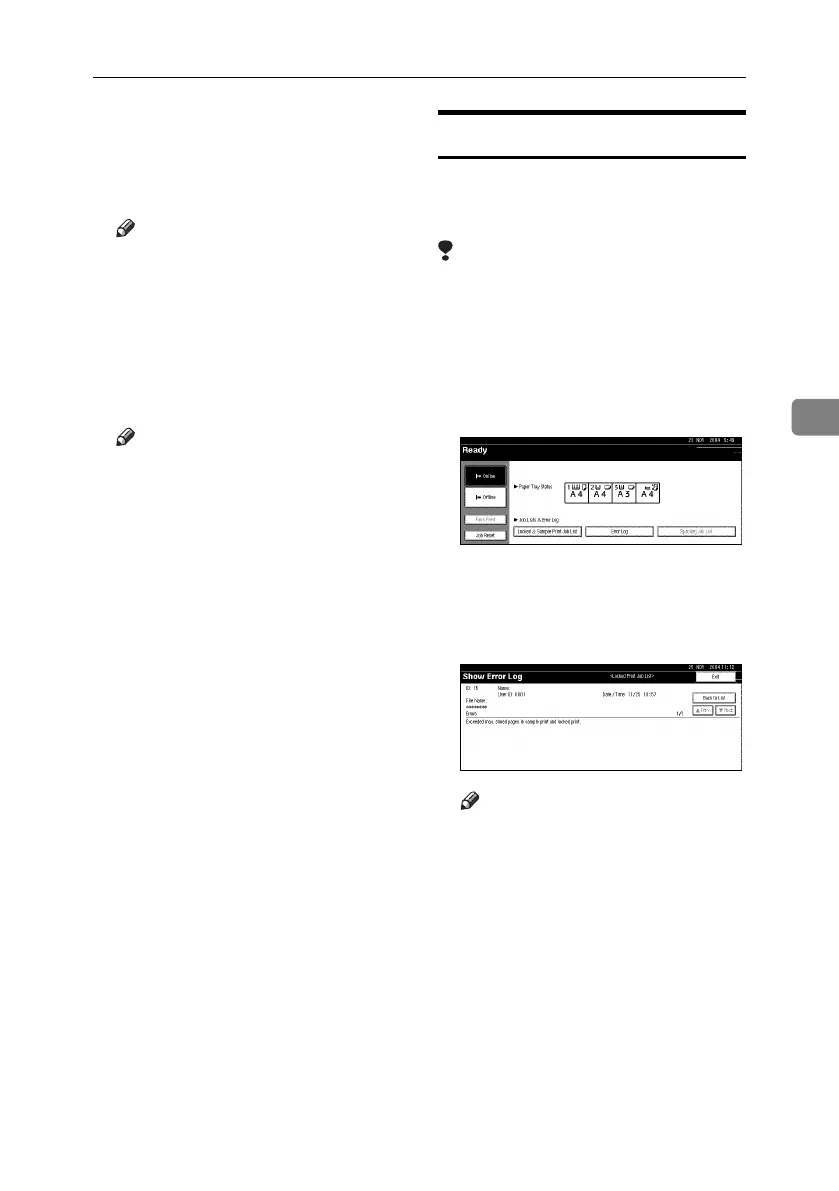
Press [Error Log].
C
CC
C
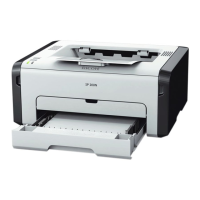
Select [Locked Print Job List].
D
DD
D
Press [Details].
An error log list appears.
Note
❒ Press [U
UU
UPrev.] or [T
TT
T Next.] to
scroll through the error files.
❒ Press [Exit] after checking the
log.
❒ To print files that appear in the
error log, resend them after
stored files have been printed or
deleted.
MartiniC25-GB-Pref-F7_FM.book Page 87 Tuesday, November 9, 2004 3:46 PM


 To Next Page