Sample Print
83
4
C
CC
C
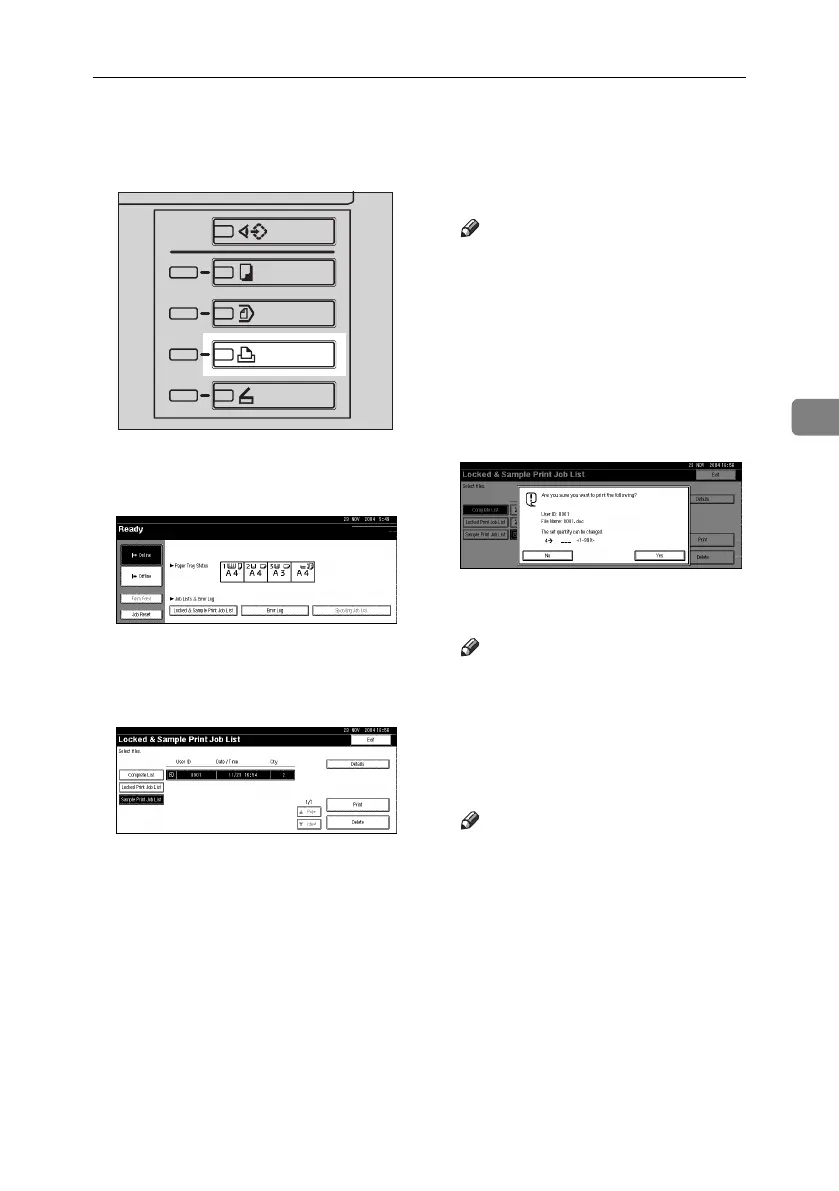
On the machine's control panel,
press the {
{{
{Printer}
}}
} key to display
the Printer screen.
D
DD
D
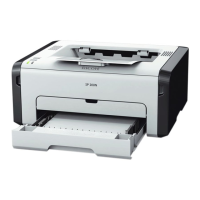
Press [Locked & Sample Print Job
List].
E
EE
E
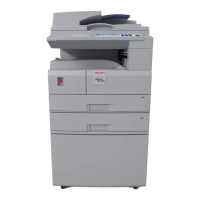
Press [Sample Print Job List].
A list of the sample print files
stored in the machine appears.
The following items also appear:
• User ID: The user ID set up by
the printer driver.
• Date / Time: The date and time
when the job was sent from the
computer.
• Qty. : The number of remaining
sets.
F
FF
F
Select the file you want to print
by pressing it.
A list of the print files stored in the
machine appears.
Note
❒ Press [U
UU
UPrevious
] or [T
TT
T Next.
] to
scroll through the list.
❒ Only one file can be selected at a
time.
G
GG
G
Press [Print] to change the number
of sets to be printed.
H
HH
H
Enter the new number of sets us-
ing the number keys.
If you do not want to change the
set quantity, proceed to step
I
.
Note
❒ You can enter up to 999 sets.
❒ Press {
{{
{Clear/Stop}
}}
} to correct any
entry mistakes.
I
II
I
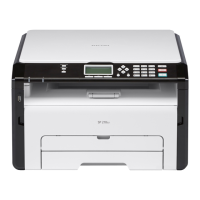
Press [Yes].
The remaining sets are printed.
Note
❒ Press [No] to cancel printing.
❒ When printing is completed, the
stored file will be deleted.
❒ To cancel printing, press [Exit].
After that, press [Job Reset]. Af-
ter it has started, the file will be
deleted.
❒ If there is a print job outstand-
ing, this will be printed before
the sample print job.
AEW006S
MartiniC25-GB-Pref-F7_FM.book Page 83 Tuesday, November 9, 2004 3:46 PM


 To Next Page