3. Press [Tray Paper Settings].
4. Press [Printer Bypass Paper Size].
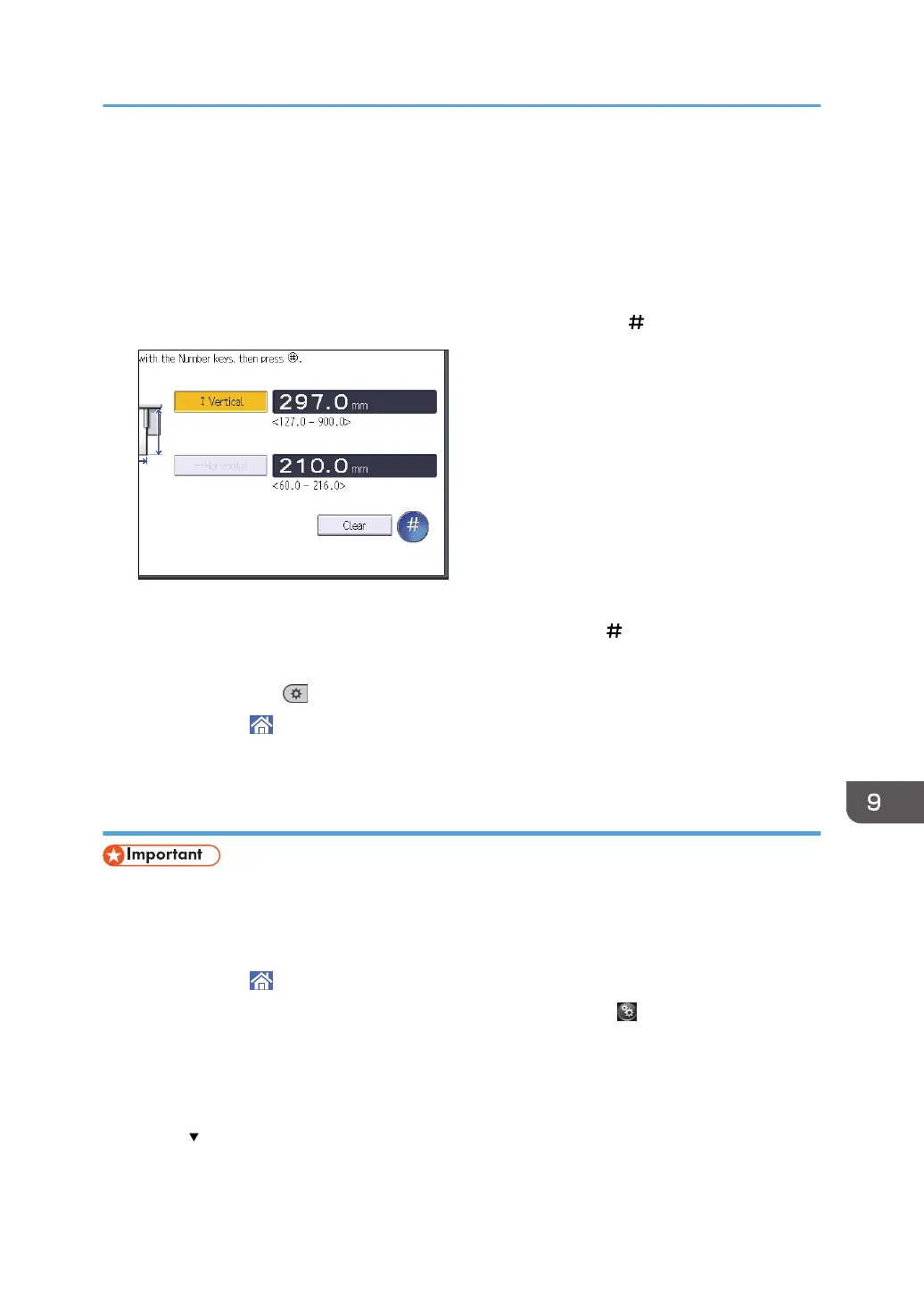
5. Press [Custom Size].
If a custom size is already specified, press [Change Size].
6. Press [Horizontal].
7. Enter the horizontal size using the number keys, and then press [ ].
8. Press [Vertical].
9. Enter the vertical size using the number keys, and then press [ ].
10. Press [OK] twice.
11. Press [User Tools] ( ) on the top right of the screen.
12. Press [Home] ( ) at the bottom of the screen in the center.
Specifying thick paper, thin paper, or OHP transparencies for paper type using the
control panel
• Usually only one side of OHP transparencies can be used for printing. Be sure to load them with the
print side down.
• When printing onto OHP transparencies, remove printed sheets one by one.
1. Press [Home] (
) at the bottom of the screen in the center.
2. Flick the screen to the left, and then press the [User Tools] icon ( ).
3. Press [Tray Paper Settings].
4. Press [Printer Bypass Paper Size], and then specify the paper size.
5. Press [OK].
6. Press [ Next].
7. Press [Paper Type: Bypass Tray].
Loading Paper
127


 To Next Page