EasyManua.ls Logo

Ricoh MP 402SPF - User Manual

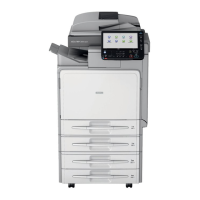
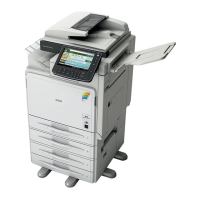
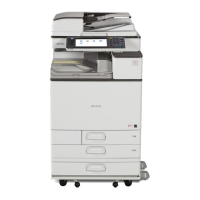
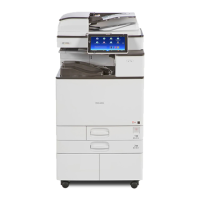
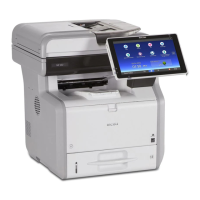
Ricoh MP 402SPF
220 pages
Print Icon
To Next Page IconTo Next Page
Loading...
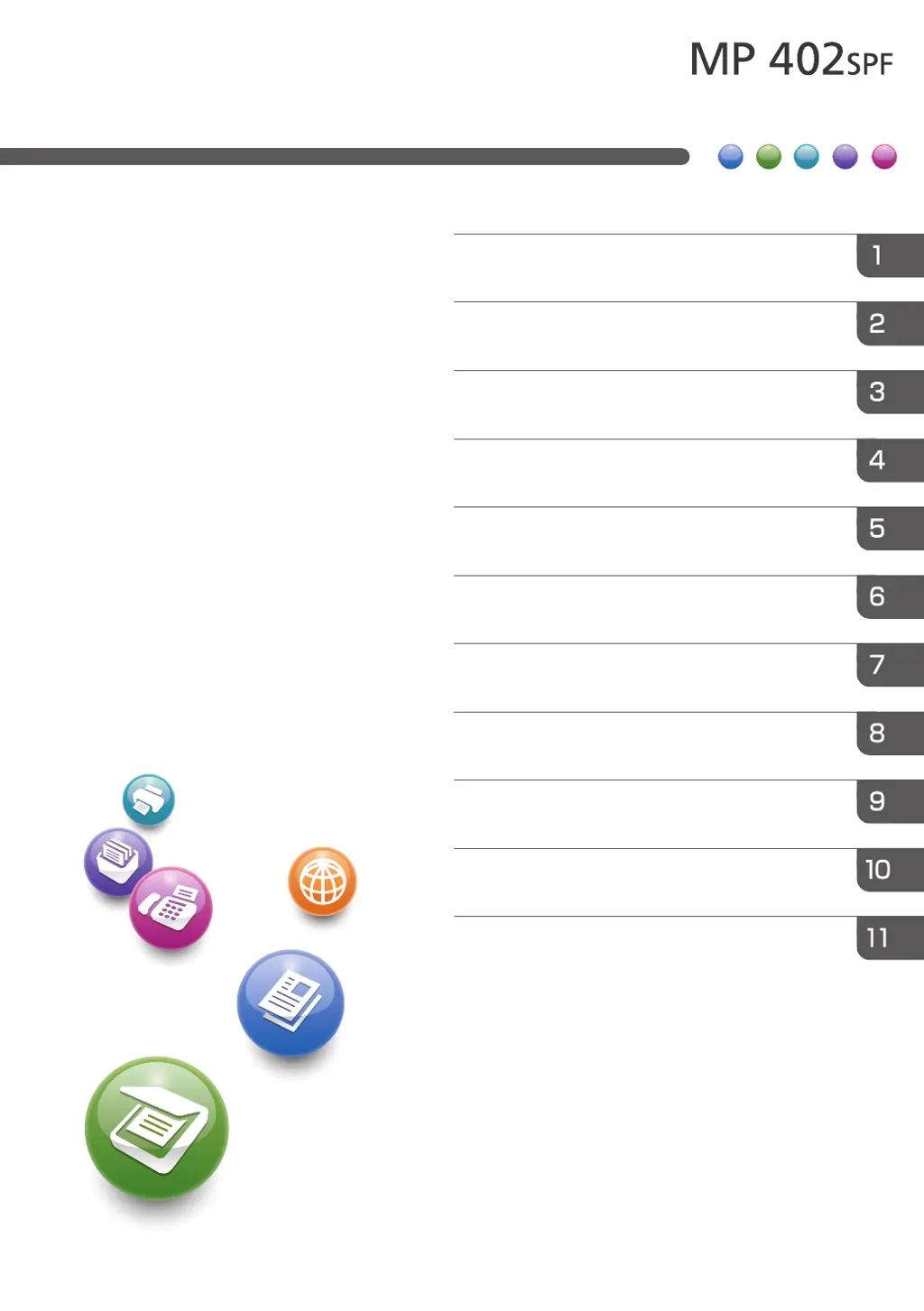
For safe and correct use, be sure to read the Safety Information in
Read This FIrst before using the machine.
Information for This Machine
Troubleshooting
Adding Paper and Toner
Web Image Monitor
Document Server
Scan
Print
Fax
Copy
Getting Started
What You Can Do with This Machine
User Guide

Table of Contents

Other manuals for Ricoh MP 402SPF

Questions and Answers

  • T
    Tracey MasonSep 23, 2025
    Why does the function not run or cannot be used on my Ricoh MP 402SPF All in One Printer?
    • R
      Rhonda KellySep 23, 2025
      If you cannot carry out your job on the Ricoh All in One Printer, it may be that the machine is being used by another function. Wait until the current job is completed before trying again.
  • J
    Jessica MartinAug 23, 2025
    What does "Memory is full. Cannot scan more. Transmission will be stopped." mean on my Ricoh All in One Printer?
    • M
      Morgan NealAug 23, 2025
      If your Ricoh All in One Printer displays: "Memory is full. Cannot scan more. Transmission will be stopped.", it means that the memory is full. If you press [Exit], the machine returns to standby mode and starts transmitting the stored pages. Check the pages that have not been sent using the Communication Result Report, and then resend those pages.
  • H
    Holly ParkAug 25, 2025
    Why are misfeeds occurring frequently on my Ricoh MP 402SPF All in One Printer?
    • G
      Gregory HarrisAug 26, 2025
      Misfeeds may occur frequently on your Ricoh All in One Printer because you are using curled paper, which often causes misfeeds, soiled paper edges, or slipped positions while stack printing is performed. * Flatten the paper with your hands to straighten out the curl. * Load the paper up side down so that the curled edges face downward. * Place the cut paper on a flat surface to prevent it from curling, and do not lean it against the wall.
  • S
    Samuel AndersonAug 26, 2025
    What to do if my Ricoh MP 402SPF is unable to connect to the network?
    • U
      umercadoAug 26, 2025
      If your Ricoh All in One Printer is unable to connect to the network, check that the machine is correctly connected to the network and that the machine is correctly set. If the issue persists, contact your administrator.
  • S
    Steven RojasAug 27, 2025
    What to do if I still see an error message on my Ricoh MP 402SPF All in One Printer after removing misfed paper?
    • A
      Ashley LopezAug 27, 2025
      If an error message is still displayed on your Ricoh All in One Printer, even after misfed paper is removed, paper is still jammed in the tray. Remove the jammed paper by following the procedures displayed on the control panel.
  • J
    Judy PadillaSep 18, 2025
    What to do if an error has occurred on my Ricoh MP 402SPF All in One Printer?
    • J
      Jim SpearsSep 18, 2025
      If an error has occurred on your Ricoh All in One Printer, a function which has the status "Error Occurred" in the [Check Status] screen is defective. Press [Check] in the function which the error has occurred. Then read the displayed message, and take the appropriate action. You can use other functions normally.
  • W
    Willie KingSep 15, 2025
    Why does an error occur when changing the Address Book from the display panel or Web Image Monitor on my Ricoh MP 402SPF?
    • M
      mark45Sep 15, 2025
      An error may occur when the Address Book is changed from the display panel or Web Image Monitor on your Ricoh All in One Printer because the Address Book cannot be changed while you delete the multiple stored documents. Wait a while, and then retry the operation.
  • J
    Jose BrooksSep 16, 2025
    Why can't I use Web Image Monitor to print documents stored in Document Server on my Ricoh MP 402SPF?
    • H
      hoffmanbrandonSep 16, 2025
      You may not be able to use Web Image Monitor to print documents stored in Document Server on your Ricoh All in One Printer because, when print volume limits are specified, users cannot print beyond their print volume limit. Print jobs selected by users who have reached their print volume limits will be canceled.
  • J
    James DawsonSep 6, 2025
    What does it mean when my Ricoh MP 402SPF All in One Printer displays: "Memory is full. nn originals have been scanned...?"
    • D
      Daniel VillarrealSep 6, 2025
      When your Ricoh All in One Printer displays "Memory is full. nn originals have been scanned...", it means that the number of scanned originals exceeds the number of pages that can be stored in memory. Press [Print] to copy scanned originals and cancel the scanning data, or press [Clear Memory] to cancel the scanning data and not copy.
  • J
    Jennifer BrownSep 3, 2025
    Why I cannot print in duplex mode on my Ricoh MP 402SPF All in One Printer?
    • J
      James TaylorSep 3, 2025
      You may not be able to print in duplex mode on your Ricoh All in One Printer because you have selected a paper type that cannot be used for duplex printing. In "Tray Paper Settings", select a paper type that can be used for duplex printing.

Summary

What You Can Do with This Machine

Using Scanned Files on the Computer

Learn how to send, store, and manage scanned files on your computer.

Registering Destinations

Instructions for registering fax, email, or folder destinations.

Operating the Machine More Effectively

Tips for optimizing machine usage and settings.

Customizing the Home Screen

How to personalize the machine's home screen with icons and widgets.

Preventing Information Leakage

Learn about security functions to protect documents from unauthorized access.

Preventing Unauthorized Copying

Methods to embed patterns or text to prevent unauthorized copying.

Getting Started

Guide to Names and Functions of Components

Overview of the machine's external and internal parts and their functions.

Guide to the Names and Functions of the Machines Control Panel

Detailed explanation of the control panel buttons and indicators.

Changing the Display Language

Procedure to change the language displayed on the machine's screen.

How to Use the Home Screen

Guide to navigating and using the machine's home screen interface.

How to Use Each Application

Instructions for using various machine applications like Copy, Fax, and Scanner.

Placing Originals

Instructions on how to place originals on the exposure glass or in the ADF.

Copy

Basic Procedure

Step-by-step guide to making copies using the machine.

Duplex Copying

How to copy on both sides of the paper.

Combined Copying

Instructions for copying multiple pages onto a single sheet.

Copying onto Envelopes

Guide to copying documents onto envelopes.

Fax

Basic Procedure for Transmissions (Memory Transmission)

Steps for sending documents using memory transmission.

Registering a Fax Destination

How to add and manage fax destinations in the address book.

Canceling a Transmission

Procedure to cancel a fax transmission at various stages.

Print

Quick Install

Easy installation of printer drivers from the CD-ROM.

Standard Printing

Instructions for performing standard printing operations.

Printing on Both Sides of Sheets

How to print documents on both sides of each page.

Combining Multiple Pages into Single Page

Tips for printing multiple pages onto one sheet to save paper.

Scan

Basic Procedure When Using Scan to Folder

Steps for scanning documents and saving them to a folder.

Creating a Shared Folder on a Computer Running Windows

Guide to creating a shared folder and confirming computer information.

Specifying the File Type

How to select the file type for scanned documents.

Document Server

Storing Data

Procedure for storing documents on the machine's hard disk.

Printing Stored Documents

How to print documents that have been stored in the Document Server.

Web Image Monitor

Displaying Top Page

Instructions on how to access and display the Web Image Monitor.

Adding Paper and Toner

Loading Paper

Precautions and steps for loading paper into trays.

Loading Paper into the Bypass Tray

Instructions for loading paper into the bypass tray.

Loading Envelopes

Guide to loading envelopes correctly into the machine.

Adding Toner

Precautions and procedures for adding toner.

Troubleshooting

When a Status Icon Is Displayed

Interpreting status icons and their meanings.

When the Indicator Lamp for Check Status Is Lit or Flashing

Troubleshooting steps for the check status indicator lamp.

When You Have Problems Operating the Machine

Solutions for common operational issues with the machine.

Messages Displayed When You Use the Copy;Document Server Function

Error messages and solutions for the Copy/Document Server function.

Messages Displayed When You Use the Facsimile Function

Error messages and solutions for the facsimile function.

Messages Displayed When You Use the Printer Function

Error messages and solutions for printer functions.

Information for This Machine

Information on Environmental Regulations

Details on environmental regulations and compliance.

ENERGY STAR Program

Information about the machine's compliance with ENERGY STAR standards.

Energy Saving Functions

Features designed to reduce the machine's power consumption.

Ricoh MP 402SPF Specifications

General IconGeneral
Print TechnologyLaser
FunctionsPrint, Copy, Scan, Fax
Maximum Print Resolution1200 x 1200 dpi
Maximum Paper Capacity1, 600 sheets
Duplex PrintingYes
Scan Resolution600 x 600 dpi
Fax CapabilityYes
Maximum Paper SizeA4
Warm-up Time21 seconds
Memory (RAM)2 GB
Fax Transmission Speed33.6 Kbps
Copy Resolution600 x 600 dpi
Operating System CompatibilityWindows, Mac OS, Linux
ConnectivityUSB, Ethernet, Wi-Fi
Control PanelTouchscreen
Mobile PrintingYes
Hard Disk Drive320 GB (Optional)
Network ConnectivityEthernet
Print SpeedUp to 42 ppm (Letter)
Copy SpeedUp to 42 cpm (Letter)

Related product manuals