Printing from the Bypass Tray Using the Printer Function
• If you select [Machine Setting(s)] or [Machine Setting(s): Any Type] in [Bypass Tray] under [Tray
Setting Priority] in [System] of the Printer Features menu, the settings made using the control panel
have priority over the printer driver settings. For details, see "System", Print.
• The default of [Bypass Tray] is [Machine Setting(s): Any Type].
• Settings remain valid until they are changed.
• For details about setting printer drivers, see "Printing Documents", Print.
• (mainly Europe and Asia) [A4 ] is the default setting for [Printer Bypass Paper Size].
• (mainly North America) [8
1
/
2
× 11 ] is the default setting for [Printer Bypass Paper
Size].
Specifying regular sizes using the control panel
1. Press [Home] ( ) at the bottom of the screen in the center.
2. Flick the screen to the left, and then press the [User Tools] icon ( ).
3. Press [Tray Paper Settings].
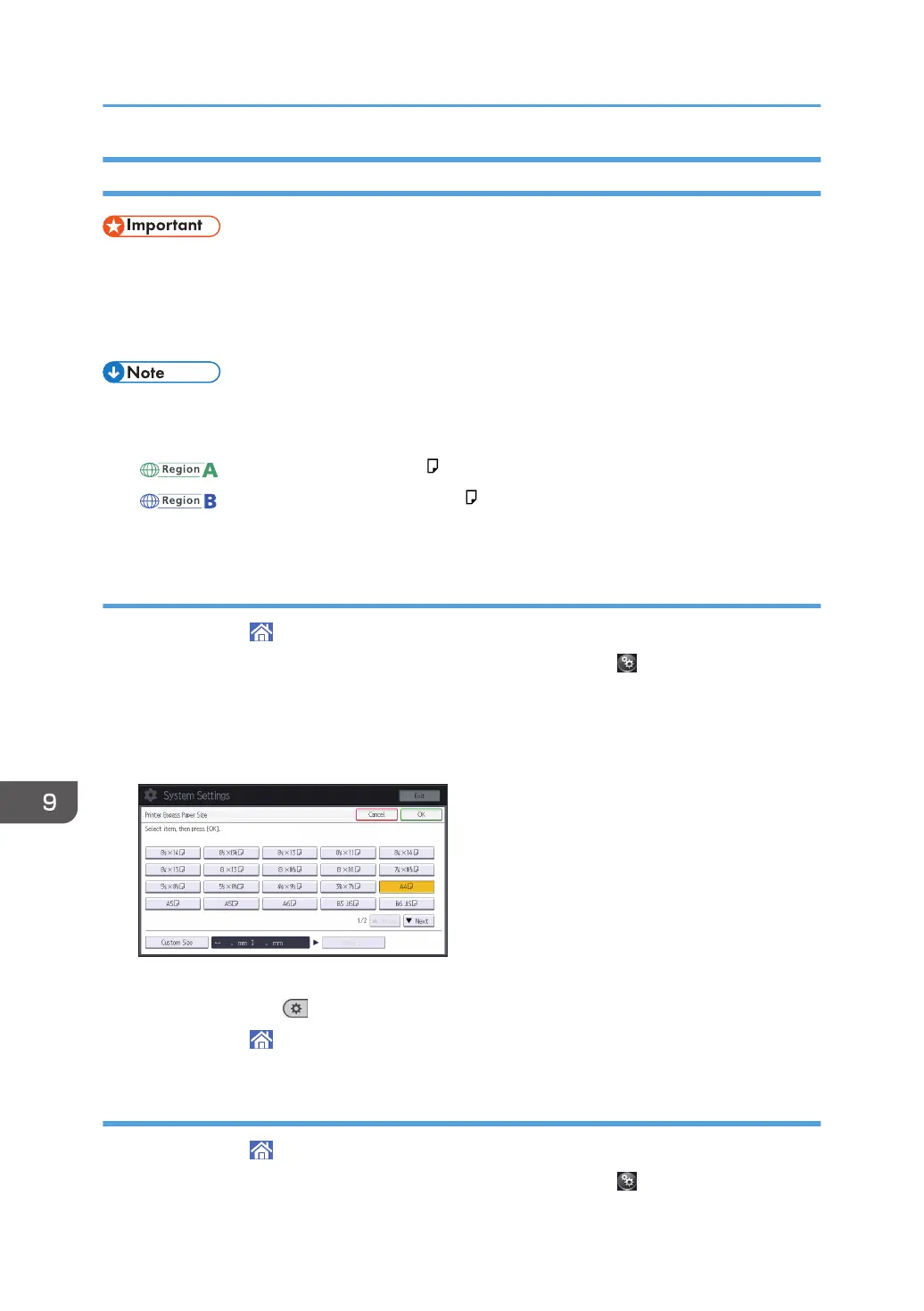
4. Press [Printer Bypass Paper Size].
5. Select the paper size.
6. Press [OK].
7. Press [User Tools] ( ) on the top right of the screen.
8. Press [Home] ( ) at the bottom of the screen in the center.
Specifying a custom size paper using the control panel
1. Press [Home] ( ) at the bottom of the screen in the center.
2. Flick the screen to the left, and then press the [User Tools] icon ( ).
9. Adding Paper and Toner
126


 To Next Page