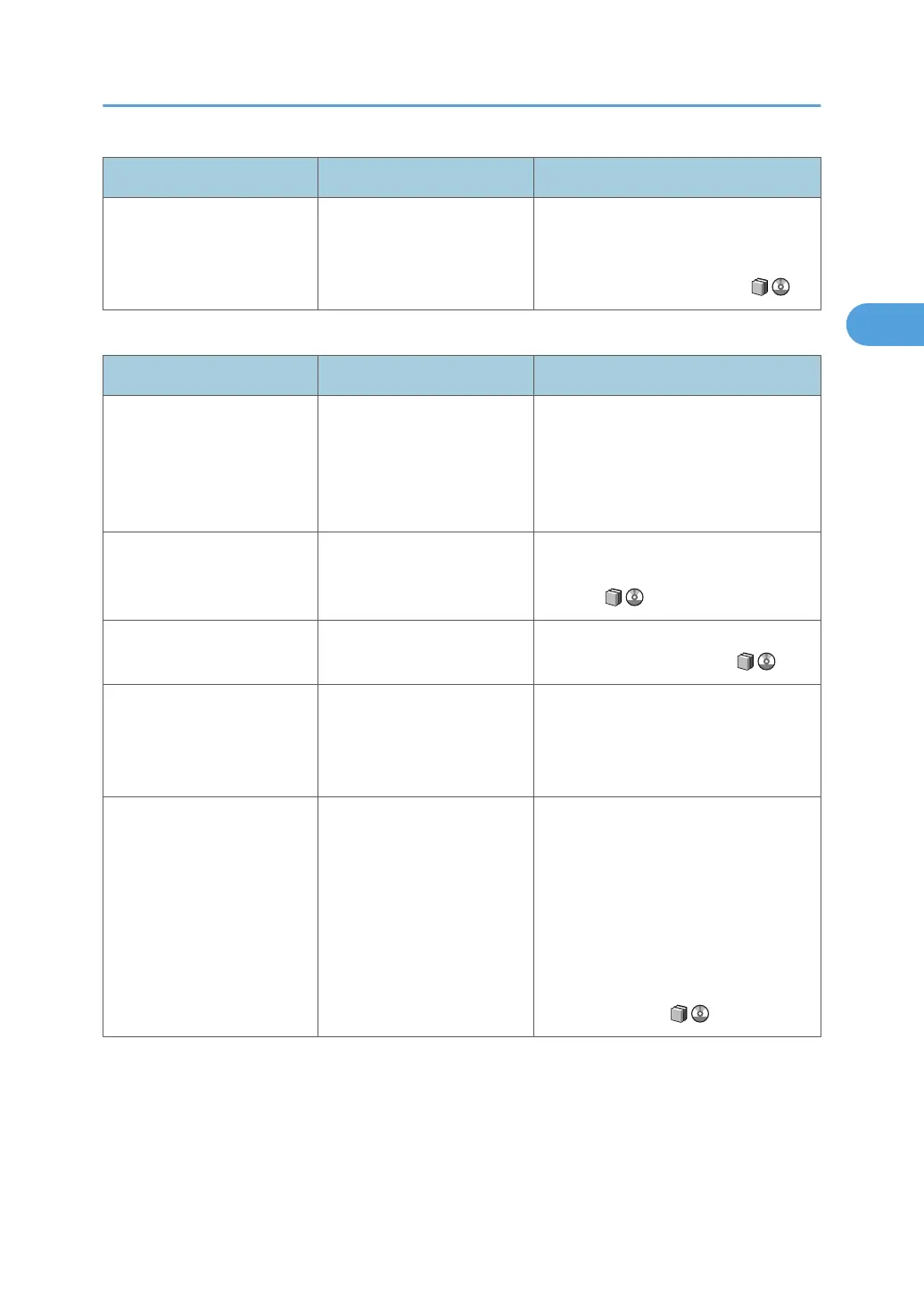
Problem Cause Solution
Images appear only partially. The paper is damp. Use paper that has been stored in the
recommended temperature and
humidity condition. See "Paper
Storage", About This Machine .
When paper is not fed properly
Problem Cause Solution
Paper is not fed from the
selected tray.
When you are using a
Windows operating system,
printer driver settings override
those settings using the
display panel.
In the [Setup] menu in the printing
preferences properties dialog box,
change the [Paper source tray:] setting.
Images are printed at a slant. The paper tray's side fences
might not be locked.
Check the side fences are locked. See
"Changing the Paper Size", About This
Machine .
Images are printed at a slant. The paper is feeding in at a
slant.
Load paper correctly. See "Loading
Paper", About This Machine .
Original images are printed
on the reverse side of the
paper.
You may have loaded the
paper incorrectly.
Load paper correctly. Place paper in the
paper tray with the print side down. Load
paper into the Wide LCT or bypass tray
with the print side up.
Misfeeds occur frequently. Paper of undetectable size
has been loaded.
• Remove the misfed paper. For
details, see p.47 "Removing
Jammed Paper".
• If you load a paper size that is not
selected automatically, you need
to specify the paper size with the
control panel. For details, see
"Changing the Paper Size", About
This Machine .
Other Printing Problems
37





 To Next Page