30
Basic operation for Cool Edit Pro LE
Recording
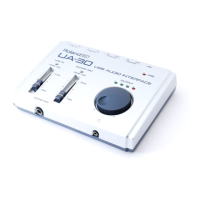
By connecting an external audio device to the UA-30, you can record things
such as your performance on guitar, or vocals. Here’s the basic procedure for
recording.
■ Create a new file
First you must create a new file, and specify the quality of the audio data that
will be created.
1
In the File menu, click New. Alternatively, click in the tool bar.
2
In the New Waveform dialog box, set Sample Rate, Channels and
Resolution to specify the quality of recording.
To record with quality equivalent to an audio CD, select 44.1 kHz, Stereo, and
16 bit.
3
Click [OK].
■ Adjust the input level
Use the level meter to check and adjust the input level.
1
Make sure that the level meter is displayed at the bottom of the Cool Edit
Pro LE window. If it is not displayed, select the View menu and click Show
Level Meters.
fig.4-6
2
Right-click the Level meter, and from the menu that appears, select Show
on Play and Record. Double-click the Level meter. Alternatively, select the
Options menu and click Monitor VU Level.
The input level will be monitored.


 To Next Page
 Loading...