22 • Configuration Ultripower User Guide (v4.0)
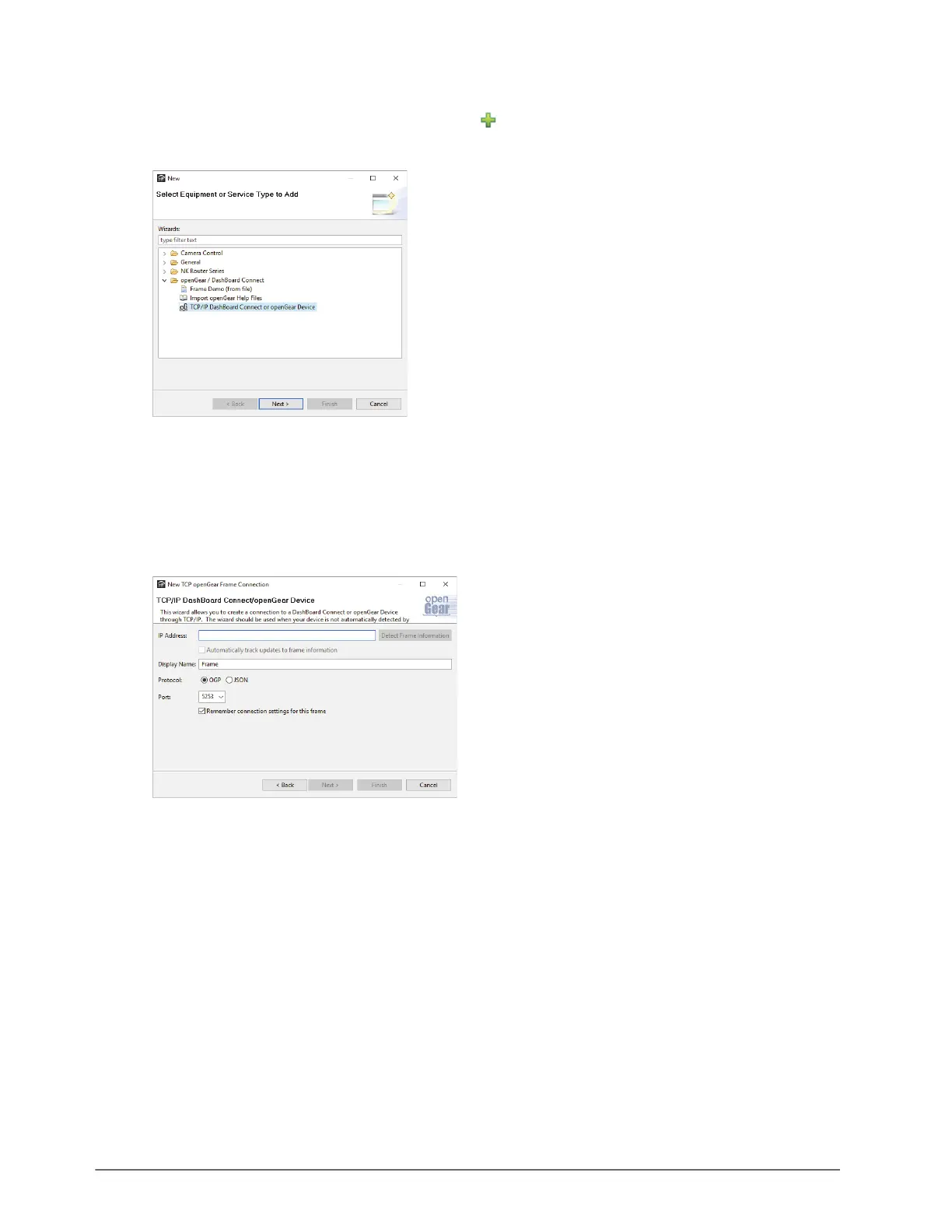
To manually add the Ultripower to the Tree View in DashBoard
1. In the Basic Tree View toolbar of DashBoard, click .
The Select Equipment or Service Type to Add dialog opens.
2. Expand the openGear/DashBoard Connect node.
3. Select TCP/IP DashBoard Connect or openGear Device.
4. Click
Next >.
The TCP/IP DashBoard Connect/openGear Device dialog opens.
5. Select the OGP radio button as the Protocol.
6. Enter the IP Address for the router in the IP Address field that you assigned in the section “To assign the
initial static IP address for the Ultripower” on page 21.
7. Perform one of the following steps:
• In the text fields provided, enter the display name for the Ultripower, and port of the panel you wish to add.
•Click
Detect Frame Information to automatically retrieve the connection details.
8. Click
Finish.
The Ultripower displays in the Tree View.
Accessing the Ultripower Interfaces in DashBoard
The interface is accessed by expanding the Ultripower node in the DashBoard Tree View and selecting the
sub-node. The interface is divided vertically to show status and frame information on the left, and configuration
options on the right.


 To Next Page