24 • Configuration Ultripower User Guide (v4.0)
For More Information on...
• the physical PSU OUT port locations, refer to the section “Rear Panel Overview” on page 13.
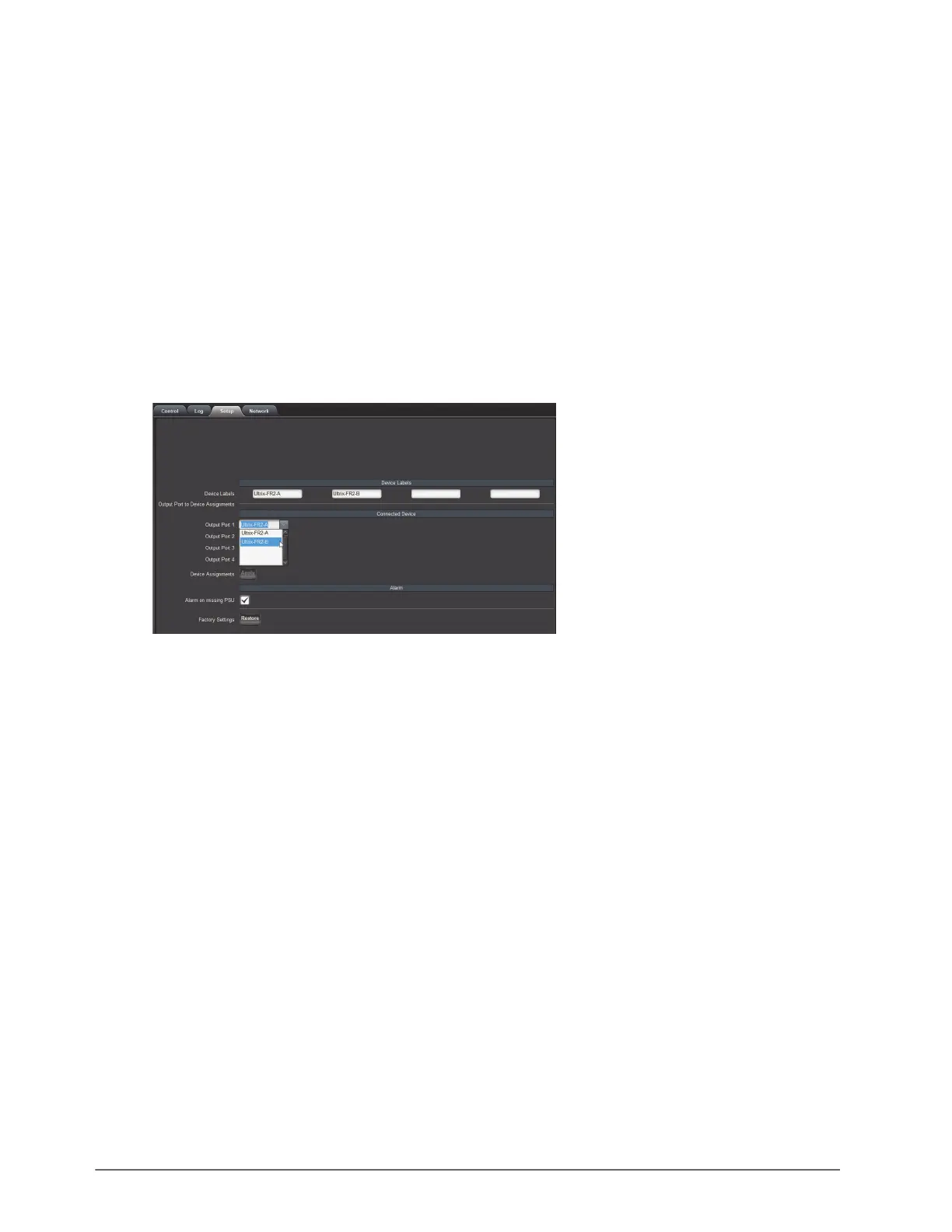
To assign a PSU OUT port to a device
1. Display the Ultripower interface in DashBoard as outlined in the procedure “To access the Database
interfaces in DashBoard” on page 23.
2. Select the Setup tab.
3. User the Device Labels fields to assign a unique identifier for up to four devices.
Ultripower does not support Unicode characters.
This label is used in the Connected Device menus to identify each external device connected to the Ultripower.
4. Use the Connected Device menu to assign a device label to a physical Output Port on the Ultripower chassis.
Some external devices require multiple ports (e.g. ULTRIX-FR5 requires four ports). Refer to the user guide for
your external device to confirm the number of required connections to the Ultripower.
5. Click
Apply in the Connected Device area.
Enabling Power to an External Device
Once the PSU OUT ports are assigned to external devices, you can enable power to those devices using the options
in the Control tab.
To enable power to an external device
1. Locate the Ultripower in the Tree View of DashBoard.
2. Expand the Ultripower node.
3. Double-click the Ultripower sub-node.
4. Select the Control tab.
The current power state is reported for each defined device.
5. Select the Power box for the device you wish to enable power for.
6. Click
Change below the box you selected in step 5.
The Confirm dialog opens.


 To Next Page