EasyManua.ls Logo

Samsung BD-E5700 - Appendix: Media Playback Language and Resolution Settings; Selecting Audio and Subtitle Languages; Resolution Settings by Content Type

Samsung BD-E5700
89 pages
Print Icon
To Next Page IconTo Next Page
To Previous Page IconTo Previous Page
Loading...
Appendix
130
English
Selecting
the
Audio
Language
The
<IIIII
...,.
indicator
will
not
appear
on
the
screen
if
the
BONUSVIEW
section
does
not
contain
any
BONUSVIEW
audio
settings.
The
languages
available
through
the
Audio
Language
function
depend
on
the
languages
that
are
encoded
on
the
disc.
This
function
or
certain
languages
may
not
be
available.
Some
Blu-ray
Discs
may
allow
you
to
select
either
the
PCM
or
Dolby
digital
audio
soundtrack
in
English.
Selecting
the
Subtitle
Language
Depending
on
the
Blu-ray
Disc
I
DVD,
you
may
be
able
to
change
the
subtitle
language
in
the
Disc
Menu.
Press
the
DISC
MENU
button.
This
function
depends
on
the
selection
of
subtitles
that
are
encoded
on
the
disc
and
may
not
be
available
on
all
Blu-ray
Discs/DVDs.
Information
about
the
main
feature
BONUSVIEW
mode
will
also
appear
if
the
Blu-ray
Disc
has
a
BONUSVIEW
section.
This
function
changes
both
the
primary
and
secondary
subtitles
at
the
same
time.
The
total
number
of
primary
and
secondary
subtitles
are
displayed
respectively.
If
you
press
the
SUBTITLE
button
on
the
remote
control,
the
subtitle
bar
appears.
Press
the
RETURN
button
to
remove
the
subtitle
bar.
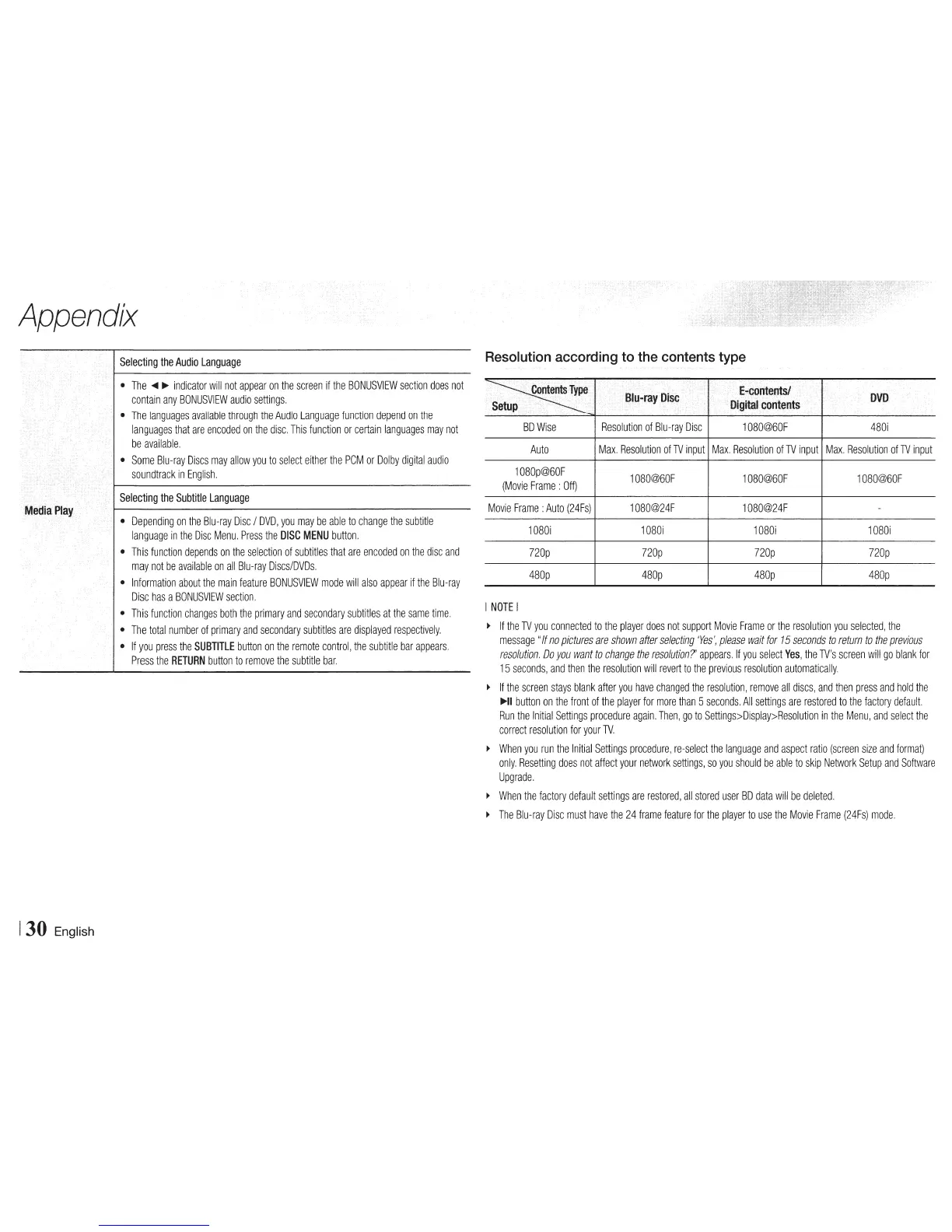
Resolution
according
to
the
contents
type
BD
Wise
Resolution
of
Blu-ray
Disc
1080@60F
480i
Auto
Max.
Resolution
of
TV
input
Max.
Resolution
of
TV
input
Max.
Resolution
of
TV
input
1080p@60F
1080@60F
1080@60F
1
080@60F
(Movie
Frame
:
Off)
Movie
Frame
:Auto
(24Fs)
1
080@24F
1080@24F
1080i
1080i
1080i
1
080i
720p
720p
720p
720p
480p
480p 480p
480p
I
NOTE
I
~
If
the
TV
you
connected
to
the
player
does
not
support
Movie
Frame
or
the
resolution
you
selected,
the
message
"If
no
pictures
are
shown
after
selecting
'Yes',
please
wait
for
15
seconds
to
return
to
the
previous
resolution.
Do
you
want
to
change
the
resolution?'
appears.
If
you
select
Yes,
the
TV's
screen
will
go
blank
for
15
seconds,
and
then
the
resolution
will
revert
to
the
previous
resolution
automatically.
~
If
the
screen
stays
blank
after
you
have
changed
the
resolution,
remove
all
discs,
and
then
press
and
hold
the
...,II
button
on
the
front
of
the
player
for
more
than
5
seconds.
All
settings
are
restored
to
the
factory
default.
Run
the
Initial
Settings
procedure
again.
Then,
go
to
Settings>Display>Resolution
in
the
Menu,
and
select
the
correct
resolution
for
your
TV.
~
When
you
run
the
Initial
Settings
procedure,
re-select
the
language
and
aspect
ratio
(screen
size
and
format)
only.
Resetting
does
not
affect
your
network
settings,
so
you
should
be
able
to
skip
Network
Setup
and
Software
Upgrade.
~
When
the
factory
default
settings
are
restored,
all
stored
user
BD
data
will
be
deleted.
~
The
Blu-ray
Disc
must
have
the
24
frame
feature
for
the
player
to
use
the
Movie
Frame
(24Fs)
mode.

Other manuals for Samsung BD-E5700

Related product manuals