4 - English
Configuring Your Network Connection:
First Steps
1
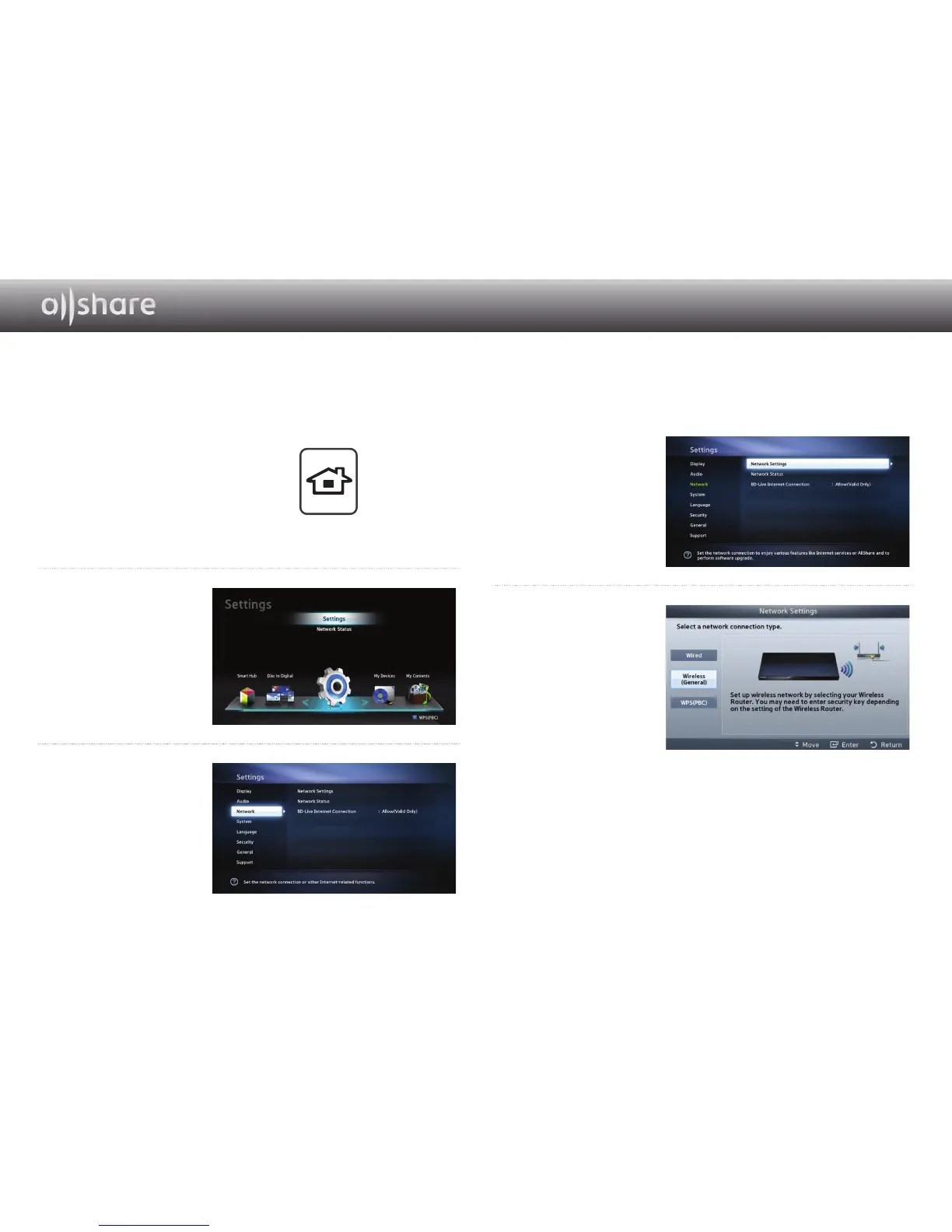
Press the [HOME] button on the
remote control.
※ If you have a wireless network, make sure the
access point you want to connect your player
to is turned on. The access point can be a
wireless router, modem, etc. If you have a wired
network, connect one end of a LAN cable to the
LAN port on the back of your player and the other end to a router or modem.
2
On the Home screen,
move to <Settings>,
and then press the
e
button.
3
Move to <Network>,
and then press the
e
button.
HOME
4
Move to <Network
Settings>, and then
press
the
e
button.
5
When the Network
Settings window is
displayed, go to "For
Wired Networks"
on page 5 or "For
Wireless Networks"
on page 6 to
complete the network
configuration.
※ Your player supports various network configuration methods (Wired/Wireless, WPS (PBC))
that let you configue your network easily and quickly.



 To Next Page