13 - English
Selecting a Device on Your Player's
AllShare Screen
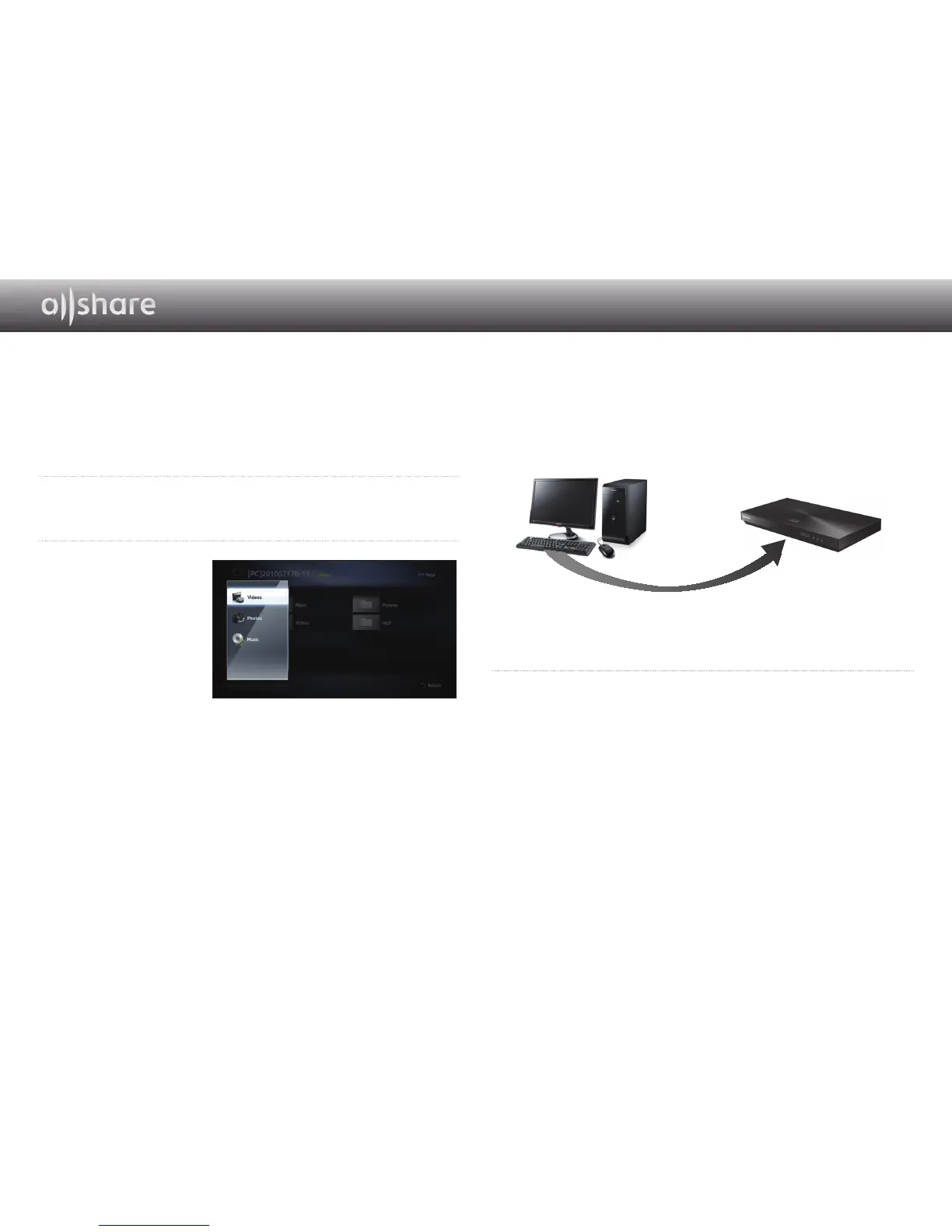
1
Connect the desired devices to your wired/wireless network.
2
Select My Devices on the Blu-ray Disc Player's HOME screen.
3
Select the device
and then select the
contents you want to
play (Videos, Photos or
Music).
✎
Notes
- Even if AllShare is not installed, DLNA devices can be connected and can appear on
your player's My Devices screen. (They must be connected to the network first.)
- Devices not compatible with Samsung devices can not be connected.
❙
Play Video Files From My Computer On Your Player
Do you want to watch a movie through the player with your family on your
TV, instead of watching it alone on your PC?
Try using AllShare to move your content to the player.
Add content or a shared folder containing the content you want to play.
1
Turn on the player.
2
Run the AllShare PC software.
PC
AllShare Connection
Blu-ray Disc Player
Play back PC's file



 To Next Page