10 - English
❙
AllShare Screen Layout
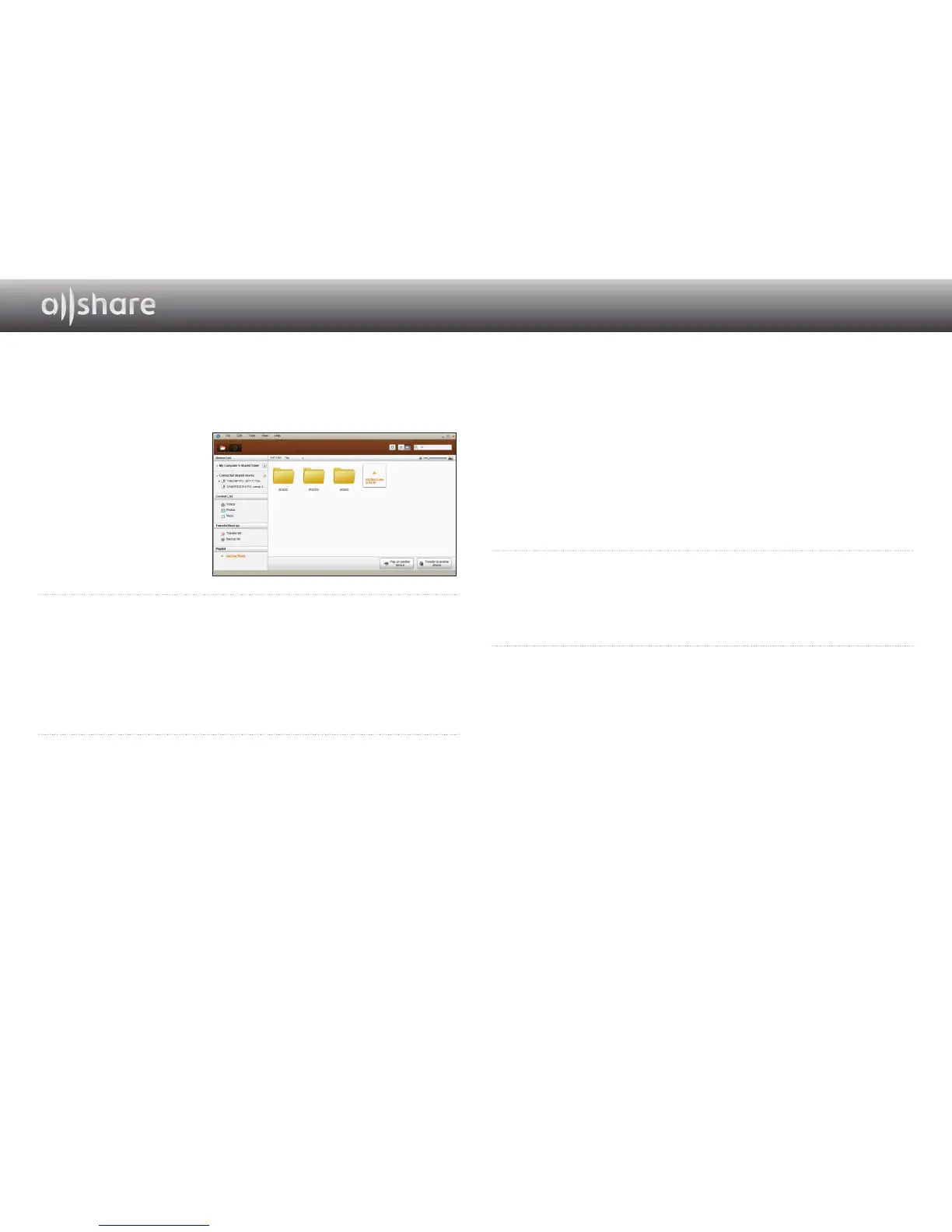
There are three screens in the AllShare software.
File Management Screen
To go to the File management
screen, either select View >
File management screen
mode in the top menu or
click the File management
screen mode button.
A.
Browsing area
Ɣ
Connected shared device : Shows shared content on devices that are connected
to your computer (identified as My Computer on the screen).
Ɣ
Content list : Shows content by video/photo/music category.
Ɣ
Transfer/Back up list : Shows the progress/completion status for transfer and
backup.
Ɣ
Playlist : Create and play a customized playlist of songs, photos, or videos.
B.
Content list area
Ɣ
Shows the content of the list you selected in the browsing area.
C.
Play on another device/Transfer to another device/Save to My
Computer buttons
Ɣ
Play on another device : Brings up the selection screen for the device you want to
play the selected content on.
Ɣ
Transfer to another device : Brings up the selection screen for the device you
want to transfer the selected content to.
Ɣ
Save to My Computer : Brings up the selection screen for the folder you want to
save the selected content to.
D.
Additional features
Ɣ
Refresh : Refreshes the entire list.
Ɣ
List view/Thumbnail view : Click to change the list view method.
Ɣ
Search : Searches the content within the Content list area.
E.
Player control screen mode
Ɣ
Switches to Player control screen mode.



 To Next Page