14 - English
Sorting Icons
1
Press the [SMART HUB]
button on the remote
control to run the Smart
Hub.
SMART
HUB
2
Press the green
b
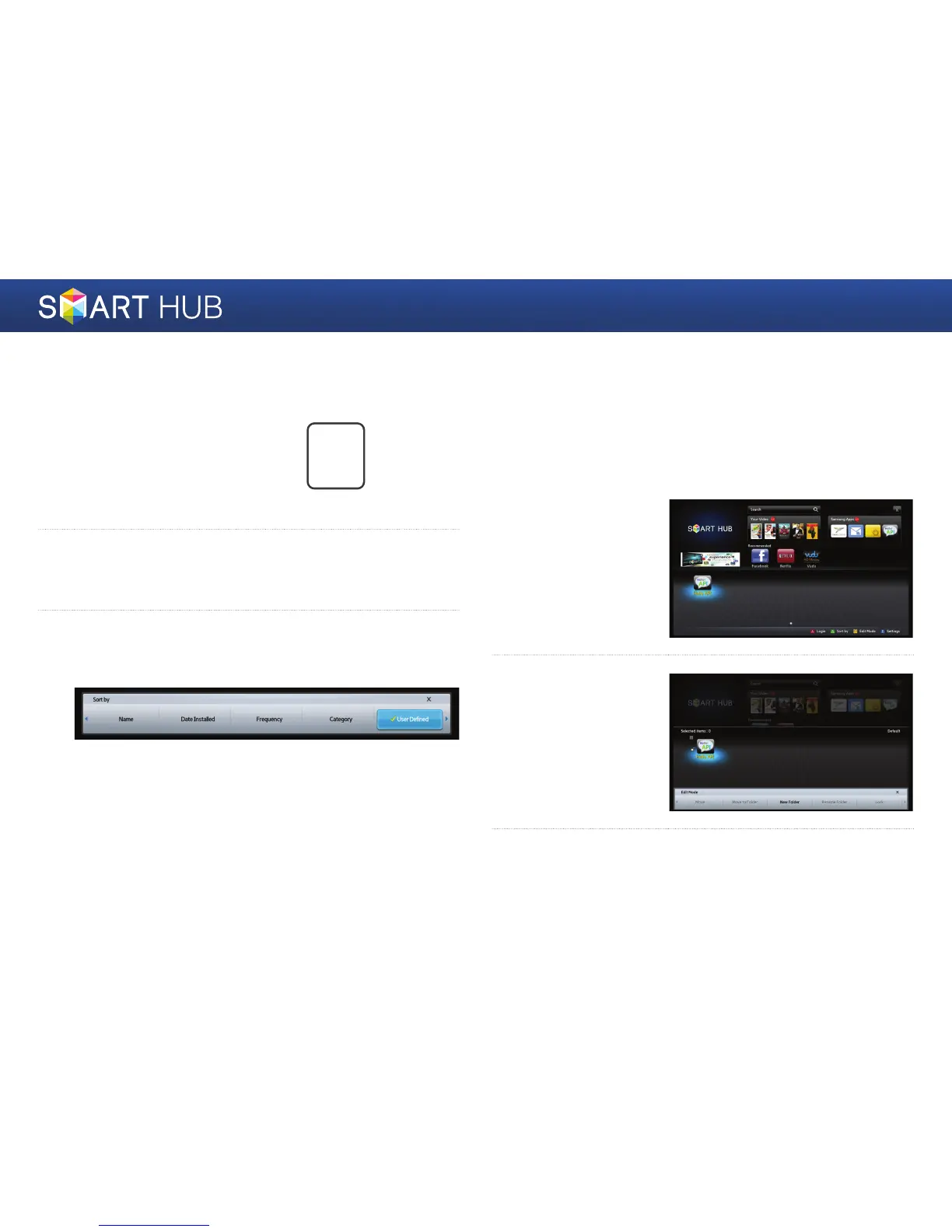
button on the remote control to display the Sort
Keys window. (For a description of the button, see the bottom of the
screen.)
3
You can sort icons in various ways. Move to the sorting method you
want to use, and then press the
e
button. You can select Name, Date
Installed, Frequency, Category, User Defined, or Default.
Working with Icons
Press the [SMART HUB] button on the remote control to run Smart Hub, and
then move to the icon you want to do.
❙
Moving an Icon
1
Press the yellow
{
button on the remote
control to enter the Edit
Mode.
2
Select the icons you
want to move.
3
Select the Move, and then press the
e
button.



 To Next Page