Settings 334
One-handed operation: Change the screen layout to accommodate operating your device
with one hand.
Screen timeout: Turn the screen off after a set amount of time.
Smart stay: Keep the screen on while you are looking at it.
Screen mode: Adjust the screen display according to what is being displayed.
Daydream: Choose options for when the phone is docked and/or sleeping.
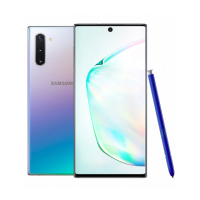
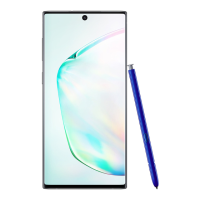
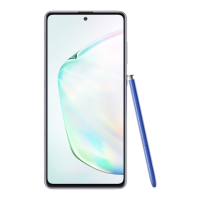
S Pen Settings
Configure options and settings for the S Pen.
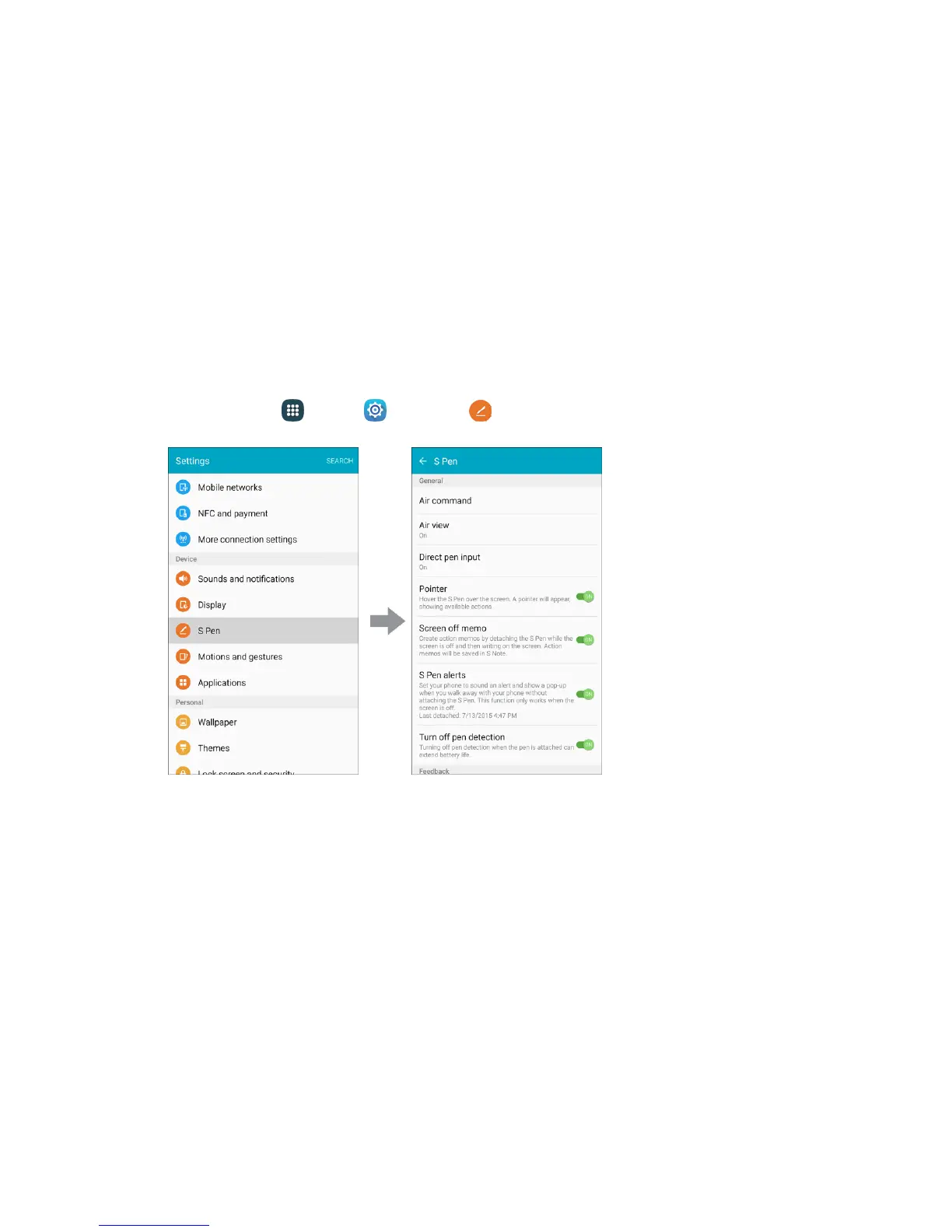
1. From home, tap Apps > Settings > S Pen.
2. Configure any of the following settings:
Air command: Turn the Air command feature on.
Air view: Turn the Air view feature on.
Direct pen input: Turn the Direct pen input feature on. This feature allows you to switch from
the keyboard to the S Pen when filling in form fields.
Pointer: Turn the pointer on. The pointer appears on the screen when the tip of the S Pen is
hovering close enough. Holding the pointer over some features can reveal what an item is or
what it does.
Screen off memo: Create action memos by detaching the S Pen while the screen is off and
writing on the screen.







 To Next Page